
The Roles & Permissions section is found under Admin > Roles & Permissions and gives Super Admins full visibility and control over every role in the system and the individual permissions assigned to each. It has two tabs: Roles and Permissions.
Roles Tab
The Roles tab lists all system and custom roles configured in the instance. Each row displays:
| Column | Description |
|---|---|
| Role | Name of the role. |
| # of Permissions | Number of individual permissions assigned to that role. |
| # of Users | Number of users currently assigned to that role. |
| Created | Who created the role and when. System-created roles show by System with their creation date. |
Default system roles:
-
Admin Assistant
-
Broker
-
Broker, Manager
-
Manager
-
Office Admin
-
Super Admin

A Show Deleted checkbox at the top of the list allows Super Admins to view roles that have been deleted.
Clicking Add Role creates a new custom role. Custom roles can be configured with any combination of permissions and assigned to users the same way as system roles.
Permissions Tab
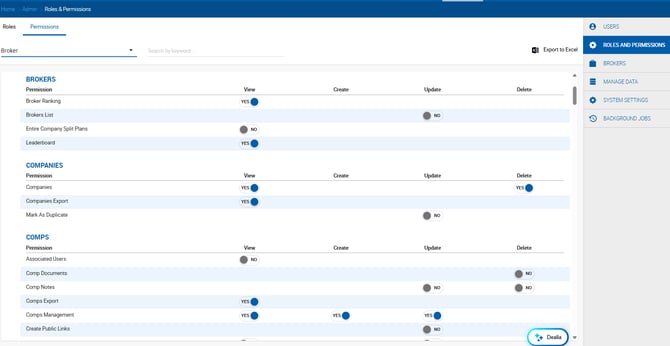
The Permissions tab provides a granular view of all permissions configured for a selected role. Use the role dropdown at the top to switch between roles, and the keyword search to filter the permission list. The full permission set can be exported using the Export to Excel button.
Permissions are organized by module (e.g., Brokers, Companies, Comps, Deals, Listings, People, Reports, Tasks) and displayed in a grid with the following columns:
| Column | Description |
|---|---|
| Permission | Name of the specific permission. |
| View | Whether the role can view this data. |
| Create | Whether the role can create records of this type. |
| Update | Whether the role can edit existing records. |
| Delete | Whether the role can delete records. |
Each toggle shows YES (blue) or NO (gray). Changing a toggle at the role level applies the change to all users assigned to that role.
User Roles Overview
Dealius includes the following built-in user roles, each with a distinct level of access:
Broker — Access to properties, their own listings and deals, and deal profile details (excluding other brokers' splits and nets). No access to accounting, receivables, payables, or accounting reports. Can share commission in deals. Can be assigned to one office.
Admin Assistant — Assigned to one or more specific brokers and inherits the same visibility those brokers have. Can create and manage deals, properties, and listings on behalf of assigned brokers. Receives the same notifications as their assigned brokers. Can be added to the deal approval workflow.
Manager — Can be assigned to multiple offices. Has access to all deals within assigned offices, accounting (receivables, payables, invoices, expenses), and a limited set of settings (offices, submarkets). Can be added to the deal approval workflow.
Office Admin — Full access within assigned offices: properties, listings, deals, accounting, all reports, and all settings. Can manage users, assign split plans, view all broker splits, approve deals, and receive notifications for all activity in their office.
Broker, Manager — A combined role for users who both participate in deals as a broker and need manager-level accounting access. Both roles must be assigned simultaneously for this to work.
Super Admin — Full platform-wide access including all offices, all settings, and exclusive features such as regenerating accounting on closed deals, restoring deleted deals, and managing Roles & Permissions.
Creating A New Role
Click Add Role in the Roles tab to open the Add Role popup. It contains two fields:
| Field | Description |
|---|---|
| Name | Required. The name of the new custom role. |
| Copy Permissions from Role | Optional dropdown. Select an existing role to use as a starting point — all its permissions are copied to the new role. You can then adjust individual permissions on the Permissions tab after saving. |

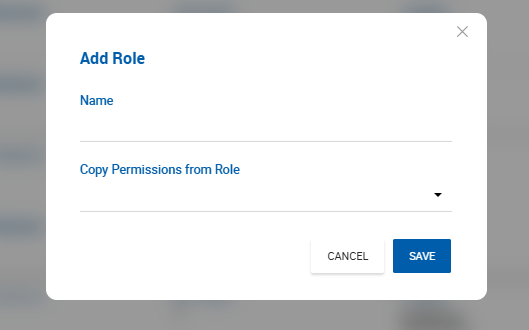
Click Save to create the role. Once created, the new role appears in the Roles list and can be assigned to users under Admin > Users & Roles.
Tip: Using Copy Permissions from Role saves time when the new role is similar to an existing one — for example, creating a restricted version of the Broker role for a specific team.
Find a new roles in the dropdown under the Permissions tab:

Review all permissions and disable those that this role doesn't need. Save.
Now, when creating a new user or updating an existing one, select this new role:
