
Broker split plans in Dealius can be updated at any time — including mid-year. A broker can have multiple split plans assigned simultaneously, each covering a distinct date range. The system uses the date range of the active plan to calculate broker net, regardless of the fiscal year boundaries.
This is managed under Admin > Brokers > [Broker Profile] > Commission Information. 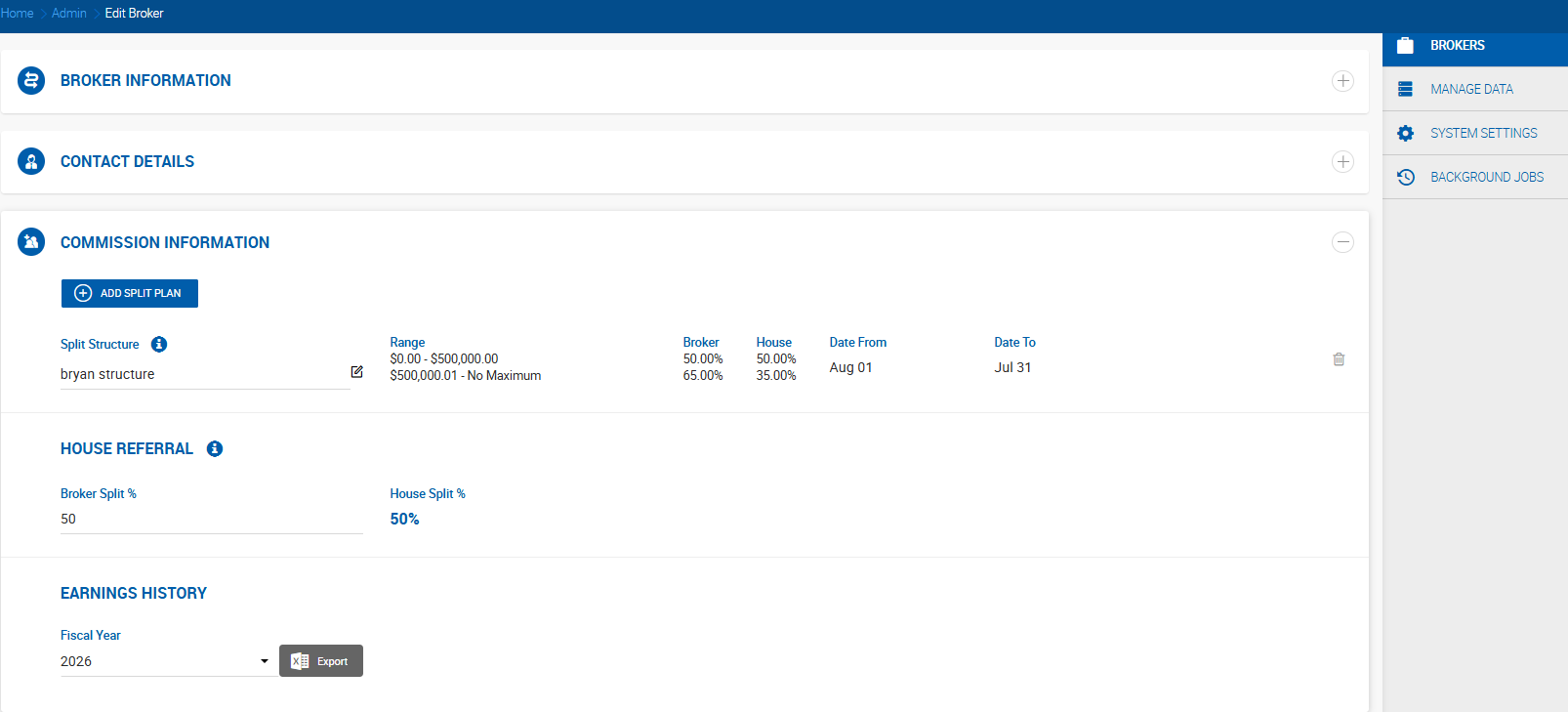
How to Add a New Split Plan Mid-Year
- Go to Admin > Brokers and find the broker.
- Click Edit on the broker profile.
- Navigate to the Commission Information section.
- Click Add Split Plan to add a new plan alongside the existing one.
- Set a Start Date and End Date for the new plan to define when it applies.
- Configure the split tiers for the new plan.
- Click Save.
A broker can have any number of split plans, as long as their date ranges do not overlap. The system validates date ranges on save and prevents gaps or conflicts between plans. 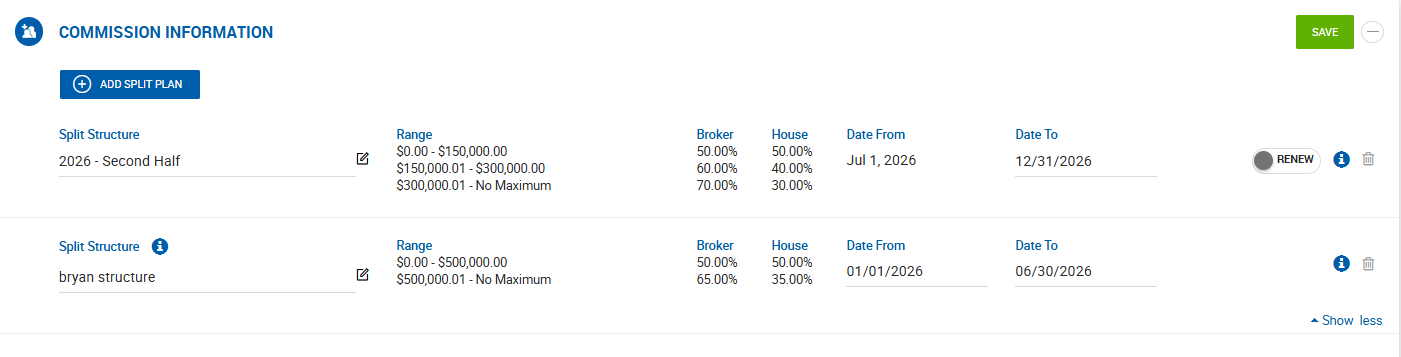
Important: If a date range gap exists between two plans — for example, plan 1 ends May 15 and plan 2 starts May 17 — the broker will have no split plan on May 16 and no commission will be calculated for that day.
How Date-Range Plans Work
When a split plan has a specific Start Date and End Date with a year included, it overrides the fiscal year for split calculations. The system calculates broker net based on the plan's own date range rather than resetting at the start of each fiscal year.
An info icon next to such a plan shows the tooltip: "Custom From and To dates in a split plan override the fiscal year accounting period."
When saving a date-range plan, a confirmation prompt appears:
"The split plan added has custom From and To dates that override the fiscal year accounting period. This plan will not reset in future fiscal years."
Click Confirm to proceed.
Auto-Renew Behavior
Split plans with fixed start and end dates can be set to auto-renew. When auto-renew is enabled, the system automatically creates a new plan period when the current one expires, using the following renewal logic:
| Plan Duration | Renewal Increment |
|---|---|
| Covers a full calendar year | Renews by one calendar year |
| Covers a quarter (3 months) | Renews by one quarter |
| Covers one or more months | Renews by the same number of months |
| Less than one month | Renews by the same number of days |
This ensures renewal periods stay aligned to calendar months and years rather than a fixed number of days, which prevents drift in plans that span months with different lengths.
If a plan expires and no new plan is assigned and auto-renew is off, the broker is automatically assigned a 0% split. Office Admins and Managers receive a Split Plan Expiration Reminder notification ahead of this happening.
Tracking Split Plan History
Each split plan shows who created and last updated it, along with a timestamp. To review the full history of plans active over any period, run the Broker Split Plan Report under Reports, which supports multi-year date ranges.
The broker's current split tier at any point in time is visible on the Broker Tracker page under Agent Report > Current Split.
Key Rules
- A broker can have any number of split plans, but date ranges must not overlap.
- No split plan on a given date means no commission calculation for that date.
- Date-range plans with a year specified override fiscal year — splits do not reset on FY start.
- Plans without a year (fiscal year plans) reset at the start of each fiscal year.
- Auto-renew only applies to plans with fixed end dates.
Replacing a Split Plan Instead of Adding a New One
If you want to fully replace a broker's current split plan rather than run two plans side by side, you can delete the existing plan and assign a new one in its place.
To replace a plan:
- Go to Admin > Brokers, find the broker, and click Edit.
- In the Commission Information section, locate the existing split plan and click the Delete button next to it.
- Click Add Split Plan and configure the new plan with the tiers and date range you want.
- Click Save.
What happens to existing deals:
Split calculations in Dealius are dynamic — they recalculate based on the plan active at the time of calculation rather than being locked at deal creation. This means:
| Deal State | Effect of replacing the split plan |
|---|---|
| Active (open) deals | Recalculated using the new plan. Broker net and house net figures will update to reflect the new split tiers going forward. |
| Pending Close deals | Also recalculated. The new plan applies when the deal is reviewed and approved. |
| Closed deals with unpaid payables | The new plan is applied when payables are paid, since the split tier is checked at payment time. |
| Closed deals with paid payables | No change. Paid payables are not recalculated retroactively. |
Important: If you delete the existing plan and save before adding the new one, the broker will temporarily have no active split plan. During this gap, the system calculates the broker's split as 0%. To avoid this, add the new plan before deleting the old one, or do both in the same save action.
When to use replace vs. add:
| Scenario | Recommended approach |
|---|---|
| The new terms apply to the entire fiscal year going forward and you want to clear the old tiers entirely | Delete and replace |
| You want different terms to apply only from a specific date, with the old terms still applying to earlier-year deals | Keep the old plan with an end date and add a new plan starting from the transition date |