
Overview
The Checklist tab on a task form allows users to select a pre-defined checklist and generate its items for that specific task. Checklists are created by Office Admins under Admin > Manage Data > Task Checklists.
Adding a Checklist to a Task
Select a checklist from the dropdown on the Checklist tab and click Generate. The checklist items are populated for the task. Only one checklist can be active per task — generating a new checklist clears the previous one entirely. 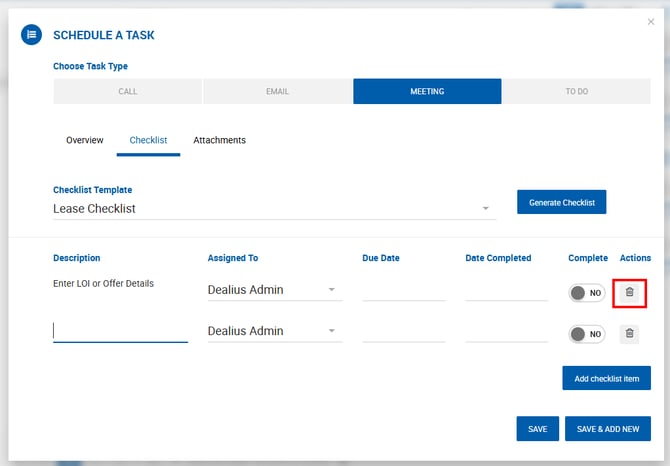
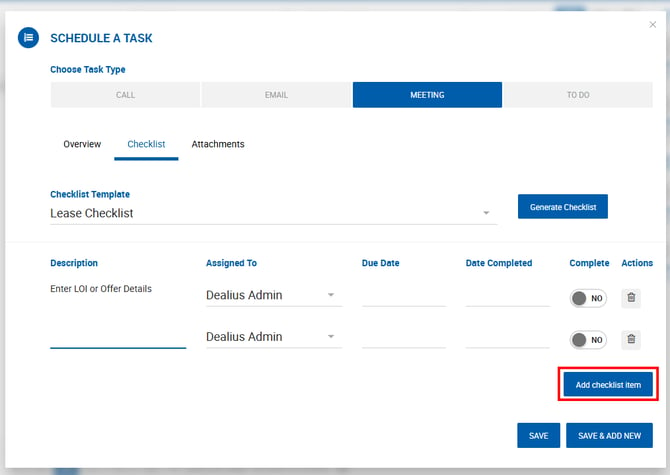
Once generated, individual items can be removed or additional items can be added to fine-tune the checklist for the specific task.
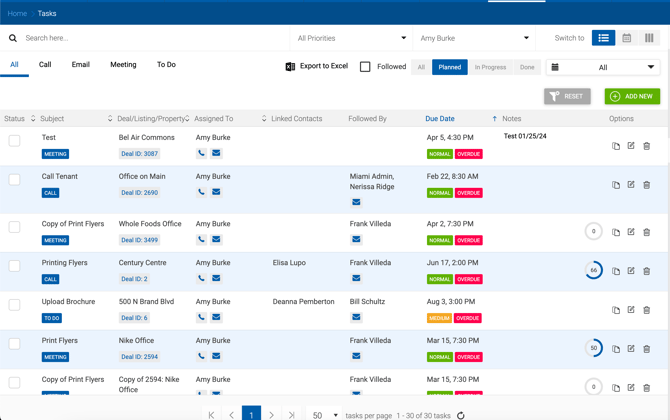
Checklist Item Fields
Each checklist item includes the following fields:
| Field | Description |
|---|---|
| Assigned To | Defaults to the main task assignee. Can be changed per item. |
| Due Date | Defaults to the main task due date. Can be changed per item. |
| Date Completed | Date picker for recording when the item was completed. If left blank and the Completed toggle is set to Yes, today's date is used automatically. |
| Completed | Yes/No toggle. When set to Yes with no Date Completed entered, the date defaults to today. |
Notifications
Users assigned to checklist subtasks receive notifications following the standard task notification rules — including assignment notifications and Tasks Due Today reminders.
Checklist Progress Indicator
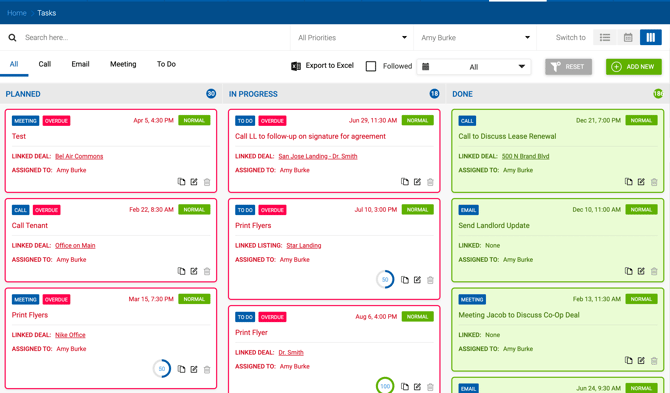
Tasks with an active checklist display a progress icon in both the List view and Kanban view, showing the number of completed items out of the total.