Overview
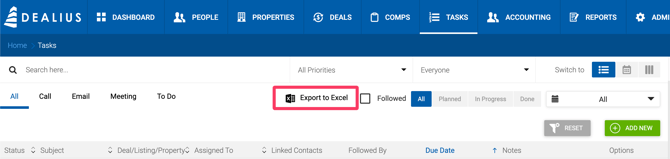
The Tasks feature helps you manage your day-to-day schedule. Tasks can be viewed as a list, in a calendar, or on a Kanban board. Use the Switch To button to change views.
Filters
| Filter | Description |
|---|---|
| Search Box | Searches across all task content. |
| Priority | Normal, Medium, High, or Overdue. |
| Users List | Filter tasks by assignee. |
| Task Followed | Displays tasks where the current user is added as a follower, regardless of assignee. |
| Stage | Planned, In Progress, Done, or All. |
| Deadline | Today, Tomorrow, This Week, Next Week, All, or Custom Range. Filters by Due Date. |
Creating a Task
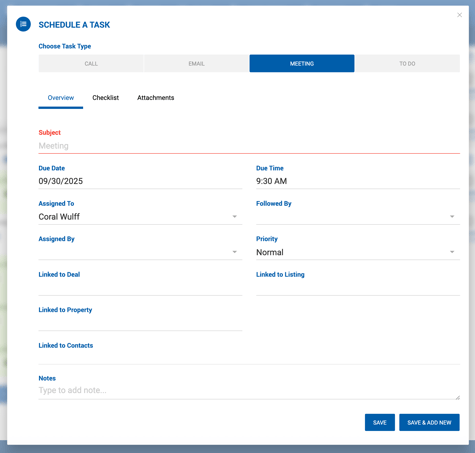
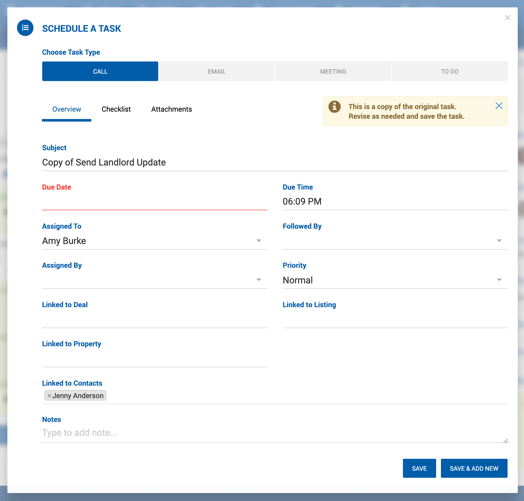
- Click the Tasks tab at the top of your Dealius screen.
- Click the green Add New button in the top-right corner.
- Fill in the task details:

| Field | Description |
|---|---|
| Task Type | Call, Email, Meeting, or To-Do. Required. |
| Subject | Task name for easy identification. Required. |
| Due Date | The date the task is due. |
| Due Time | The time the task is due. |
| Assigned To | Defaults to the current user. Can be reassigned to anyone in the company. |
| Followed By | One or more team members who follow the task. Followers are not responsible for completion. |
| Assigned By | Shows the name of the person who created the assignment. |
| Priority | Normal, Medium, or High. |
| Linked to Deal | Single-select deal lookup. A task can be linked to a deal or a listing, but not both. |
| Linked to Listing | Single-select listing lookup. A task can be linked to a listing or a deal, but not both. |
| Linked to Contacts | Multi-select contact lookup. |
| Notes | Free text for notes or updates related to the task. |
Click Save to save and close, or Save & Add New to continue adding tasks without reopening the form.
Checklists
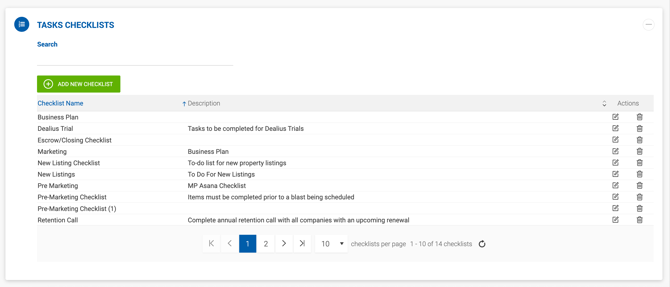
Checklists are created by Office Admins under Admin > Manage Data > Task Checklists and are available for selection when creating or editing a task. Each checklist item can be assigned to a different person and given its own due date.
Attachments
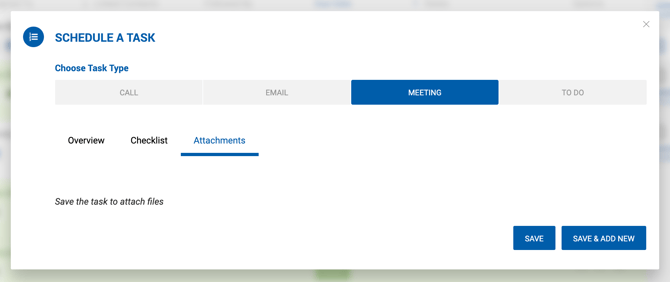
The Attachments tab is available on tasks that have already been created.
Grid Columns
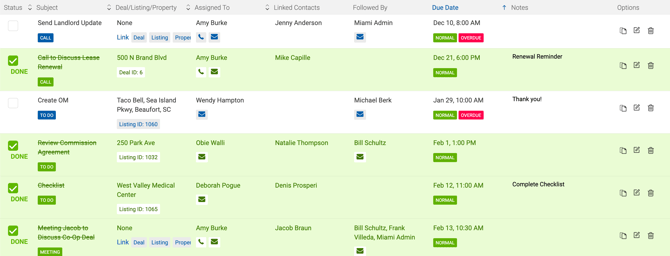
The task grid displays the following columns: Status, Subject, Deal/Listing, Assigned To, Linked Contacts, Followed By, Due Date, Notes, and Options (action icons).
Click any task row to open a read-only sidebar with the full task details.

Duplicating & Deleting Tasks
- Duplicate — Click the copy icon in the Options column. All task details are copied except the Due Date. The subject is prefixed with "Copy Of". Useful for recurring tasks.
- Delete — Click the trash icon in the Options column.

Task Views
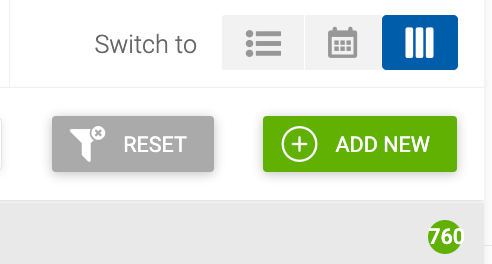
Three views are available from the top-right corner of the Tasks tab: 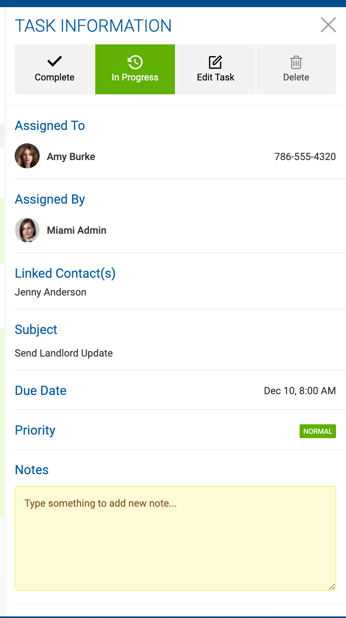
- List View — Default view showing all tasks in a grid.
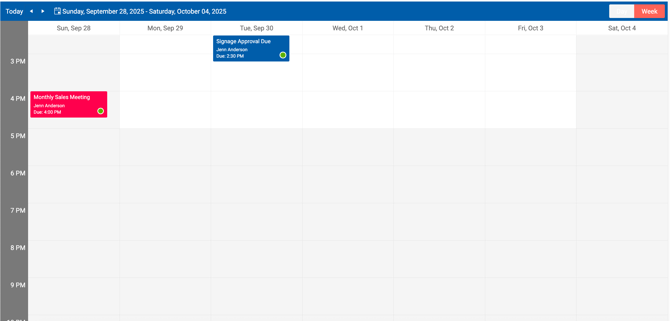
- Calendar View — Tasks displayed by due date on a calendar.
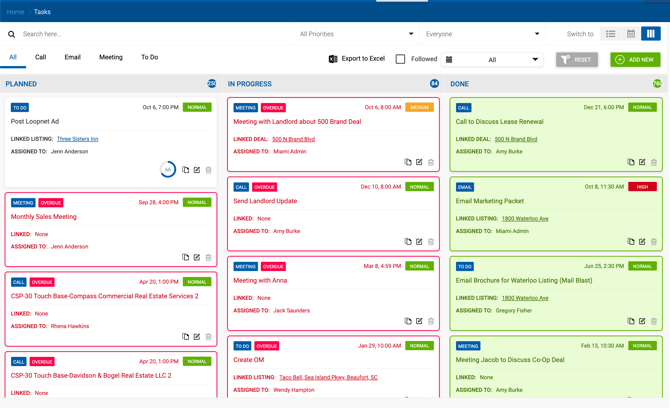
- Drag and Drop View — Kanban-style board for moving tasks between stages.
List View Example:
Calendar View Example:
Drag and Drop View Example:
Export to Excel
Tasks can be exported to Excel from the general Tasks menu, as well as from listing, property, and deal task tabs. The exported file includes the export date, applied time filter, and the following task details: status, priority, due date and time, subject, linked record, notes, linked contacts, assignee, assigned by, followers, and checklist availability.