
Overview
Dashboard widgets display key insights across active and closed transactions. Values reflect all deals the user has access to and is associated with. Most widgets include tooltips for quick reference directly on the dashboard.
If a user is assigned to more than one office, metrics can be filtered by office.
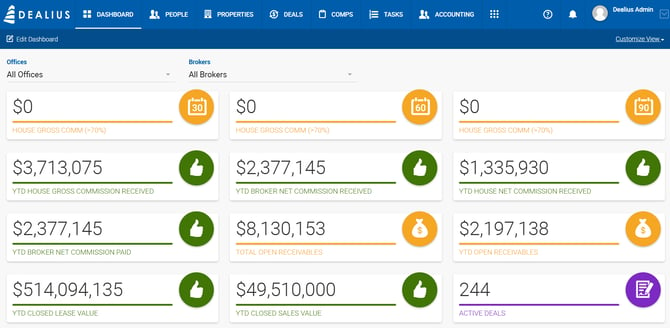
Projected Gross Commission
These widgets estimate upcoming house gross commission based on deals with a probability of 70% or greater. The probability threshold is configurable under Admin > System Settings > Dashboard Settings.
- House Gross Comm – 30 Days — Sum of House Gross values for deals with an Estimated Close Date within the next 30 days.
- House Gross Comm – 60 Days — Sum of House Gross values for deals with an Estimated Close Date within the next 60 days.
- House Gross Comm – 90 Days — Sum of House Gross values for deals with an Estimated Close Date within the next 90 days.
- Current Gross House Commission — Sum of gross commission for all active deals with a probability ≥70% and an Estimated Close Date on or before today (no limit to how far back). This widget is not enabled by default. To add it, use the Customize View dropdown and drag it into position using edit mode.
Year-to-Date (YTD) Metrics
All YTD values run from the start of the fiscal year (FY) to today.
- YTD Closed Deal Value (Brokers only) — Sum of transaction values for closed Sale and Lease deals. If commission splits are calculated by Close Date, deals closed within the FY are included. If calculated by Payment Date, deals with invoices paid within the FY are included.
- YTD Closed Lease Value — Sum of transaction values from closed lease deals, calculated the same way as above. The calculation basis can be changed under Admin > System Settings > Dashboard Settings > Calculate YTD Closed Deal Value Based On.
- YTD Closed Sale Value — Sum of transaction values from closed sale deals, with the same calculation logic as above.
- YTD House Gross Commission Received — Sum of internal broker gross amounts for paid receivables within the FY, for active and inactive internal brokers, based on user permissions.
- YTD Broker Net Commission Received — Sum of internal broker net amounts (Amount Paid for paid payables; Amount Due for open payables) for receivables paid within the FY, for active and inactive internal brokers, based on user permissions.
- YTD House Net Commission Received — Sum of internal house net amounts for paid receivables within the FY, for active and inactive internal brokers, based on user permissions.
- YTD Broker Net Commission Paid (Managers and Office Admins only) — Amount received for broker payables within the FY across all assigned offices. If expenses were paid under any deals, the value reflects Broker Net minus Expenses. Non-deal expenses are also deducted.
- YTD Open Receivables — Sum of open payments for closed deals within the FY.
- My Commission Paid YTD (Brokers only) — Amount received for the broker's payables within the FY. Reflects Broker Net minus all expenses (deal and non-deal related).
Receivables & Open Balances
- Total Open Receivables — Sum of all outstanding payments for receivables in Open status on closed deals.
- Total Open Broker Net Commission (Brokers only) — Projected outstanding broker net amount based on closed deals.
Activity & Pipeline
- Active Deals — Number of active deals in the system for the broker.
- Active Listings — Number of listings in On Market, In Contract, or Off Market status. If Allow Users Access to All Listings in their Office is enabled under Admin > System Settings > Listing Settings, the count reflects the entire office. External listings are excluded.
- Lease Space Represented — Sum of square footage for all active deals of Landlord Representation or Lease Dual Rep type.
- Sale Space Represented — Sum of square footage for all active deals of Seller Representation or Sale Dual Rep type.
- Expiring Listings — Number of listings with an Expiration Date within the next 30 days.
- Lease Renewals — Number of properties with a Lease Expiration date within the next 30 days.
- Production Goal (Brokers and Managing Brokers only) — Displays the production goal value set for the current year under Admin > Brokers > Edit Broker > Production Goals.
Approvals & Deadlines
- Deals Pending Approval — Number of deals waiting for approval by the logged-in user. Clicking the widget filters the Deals page by Approval: Pending Close. Available to all user types; Super Admins see all pending deals.
- All Deals Pending Approval — Number of deals pending approval where the current Office Admin or Manager is listed as an approver, regardless of approval order.
- Contract Deadlines Pending — Number of deadline dates across Open and Pending Close deals. Brokers see deadlines for deals they participate in; Managers and Office Admins see deadlines across their offices. Clicking the widget opens a PDF report in a new tab.
- Overdue Invoices — Number of invoices in Overdue status for the deals.
Brokers: Clicking redirects to Tracker > Payments, filtered by Overdue Invoices. This is relevant only to those deals where the broker participates.
Admin Assistants: This is the number of overdue invoices for the deals of the associated brokers. If no brokers are associated, this is the number for the office in general. Not clickable.
Managers can see the total overdue invoices for the office. If this is a Managing Broker, they will see an additional widget for My Overdue Invoices to see invoices from their dals separately.
Office Admins can see all overdue invoices. Clicking leads to accounting.
Office & Broker Filters
Office Admins, Managers, and Managing Brokers have access to office and broker filters at the top of the dashboard. Selecting one or more offices updates the broker dropdown to show only brokers associated with those offices.
Widgets NOT affected by office/broker filters: Latest Tasks, Unassigned Leads, Notifications, Office Leaderboard, Leaderboard
Widgets filtered by office and/or broker: House Gross Comm (30/60/90/Current), Current Gross House Commission, YTD House Gross Commission Received, YTD Broker Net Commission Received, YTD House Net Commission Received, YTD Broker Net Commission Paid, Total Open Receivables, YTD Open Receivables, YTD Closed Lease Value, YTD Closed Sale Value, Lease Space Represented, Sale Space Represented, Active Deals, Active Listings, Expiring Listings, Lease Renewals, Deals Pending My Approval, All Deals Pending Approval, Contract Deadlines Pending

Dashboard for Admin Assistants
Admin Assistants can be granted access to the dashboard. Their metrics are limited to deals associated with the brokers they are linked to. If an Admin Assistant is not assigned to specific brokers, their dashboard reflects their office only.
To enable dashboard access for an Admin Assistant, go to Admin > Users & Roles, find the user, click Edit, and enable the Dashboard toggle. Once enabled, the dashboard displays a set of widgets that can be filtered by broker and customized using show/hide settings and drag-and-drop.