
Overview
Once QuickBooks integration is enabled, five account mapping fields appear in the QB Settings section. These link Dealius transactions to the correct QuickBooks accounts for both Accounts Receivable (A/R) and Accounts Payable (A/P). Each field is a single-select dropdown — only one account can be selected per field.
Account Fields
| Field | Used In |
|---|---|
| Bank Account | Bill Payments (Expenses > Expenses in QB) |
| Income Account | Sales Invoices (Sales > Products and Services in QB) |
| Internal Expense Account | Bills for internal brokers |
| Outside Expense Account | Bills for outside brokers with External type |
| Referral Expense Account | Bills for outside brokers with Referral type |
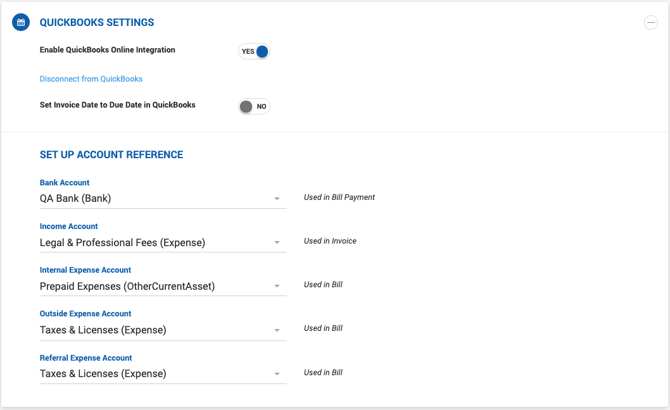
Bank Account
The Bank Account is used in Bill Payments in QuickBooks, found under Expenses > Expenses. If the account is changed directly in QuickBooks after setup, payments will continue to flow correctly between Dealius and QuickBooks.
Income Account
When the integration is enabled, Dealius searches QuickBooks for an existing service or product linked to the selected Income Account under Sales > Products and Services.
- If a matching service/product is found, it is used to create invoices in QuickBooks.
- If no match is found, Dealius creates a new service/product and links it to the selected Income Account.
Once the initial sync occurs, the Income Account in QuickBooks can be changed without affecting the sync — Dealius will continue syncing to the originally created service/product.
Internal, Outside & Referral Expense Accounts
These three accounts are used on Bills in QuickBooks, which represent payables in Dealius. The account applied varies based on broker type:
- Internal Expense Account — Applied to Bills for internal brokers.
- Outside Expense Account — Applied to Bills for outside brokers marked as External.
- Referral Expense Account — Applied to Bills for outside brokers marked as Referral.
The account appears in the Category column on each Bill in QuickBooks.