Overview
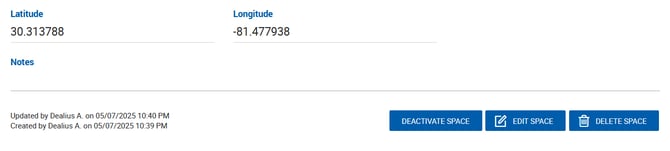
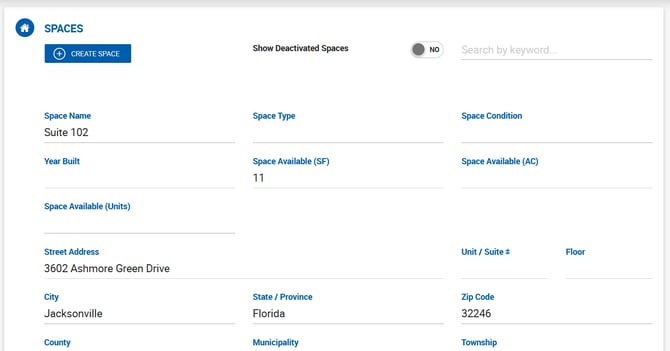
A property can have one or multiple spaces. Spaces can be added from the Property Profile > Spaces tab or directly from a Listing, Deal, or Comp profile. Spaces are sorted by Unit/Suite # and can be searched by name using the search field in the top-right corner of the Spaces tab. Each space displays who created and last updated it.
Adding a Space
Click Create Space to open the Add/Edit Space popup, which contains two tabs: Info and Details.
Info Tab
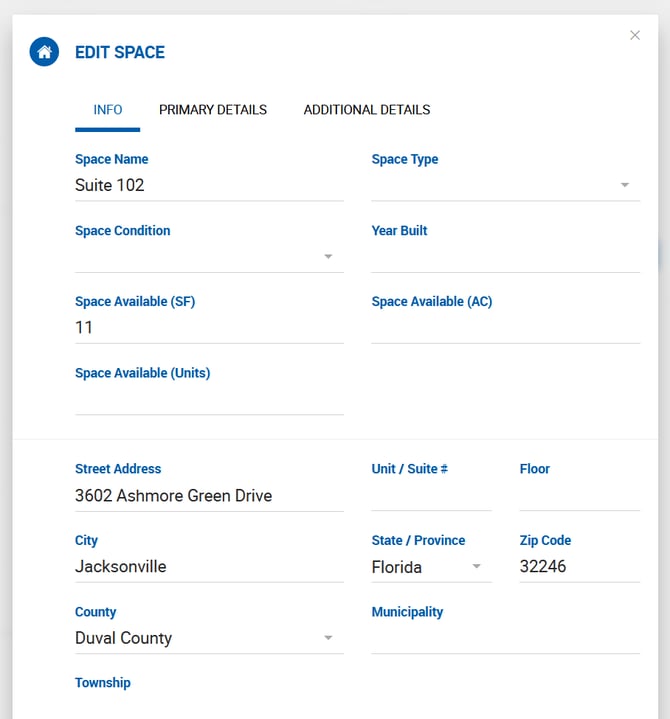
The Info tab contains the main space data including Space Name, Type, Condition, Address, Unit/Suite #, and Floor.
The address is pre-populated from the main property but can be customized by selecting from the dropdown suggestions as you type, or by entering a custom address manually. Unit/Suite # and Floor are additional fields specific to the space and are not part of the main property address.
Space Images
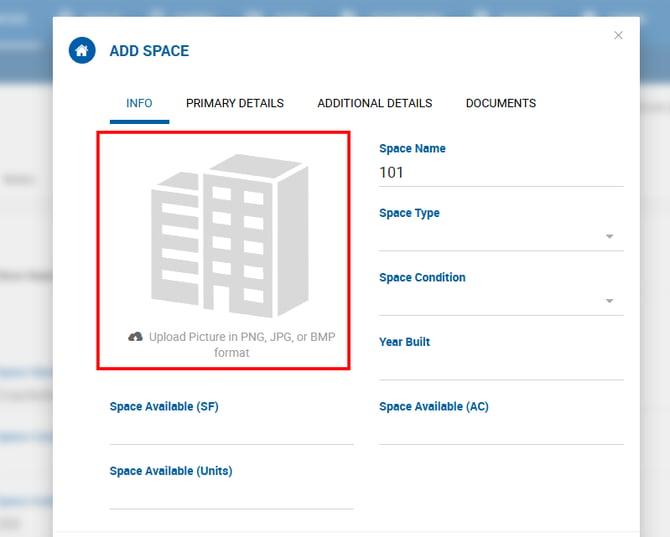
Images can be uploaded to a space independently from the main property. When uploaded, space images are used in comp reports. If a space has no image of its own, comp reports default to the main property image.
Uploaded space images appear under Property Profile > Gallery in the associated space folder, tagged as the main image. A different image can be selected as the main one from the Gallery, and the change will be reflected on the Space Info screen.
Details Tab
Contains additional space-specific details and property type-driven fields.