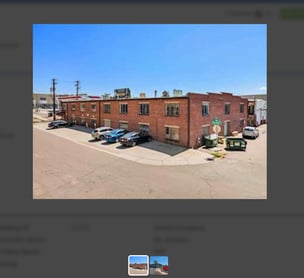
The Gallery tab on a Property profile is used to store property photos, floor plans, videos, and other files. If the property has spaces, a folder structure is automatically created with separate sections for the main property and each space. Navigate between folders using the tabs in the left sidebar.
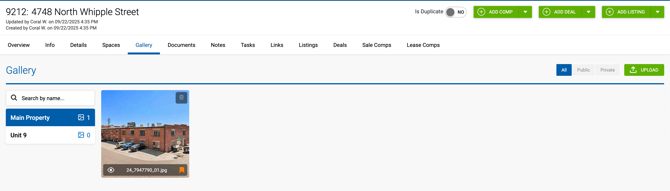
Uploading Files
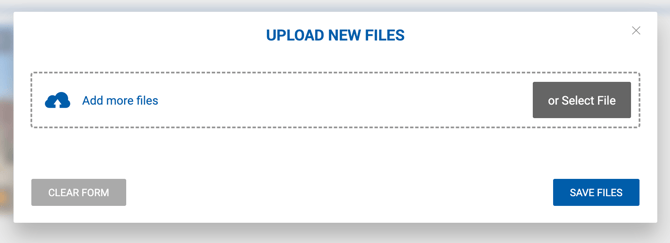
Click the Upload button in the Gallery to select one or more files. The folder dropdown pre-selects the folder you were viewing when you clicked Upload, but you can change the destination folder for each file individually before saving. Once saved, files appear under their corresponding folder.
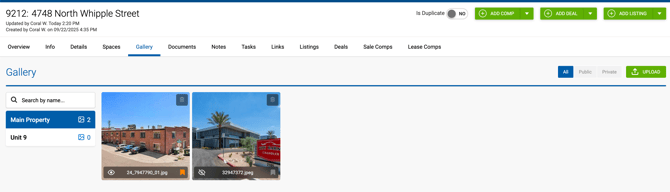
Once saved, the files appear under the corresponding folder:
Managing Files
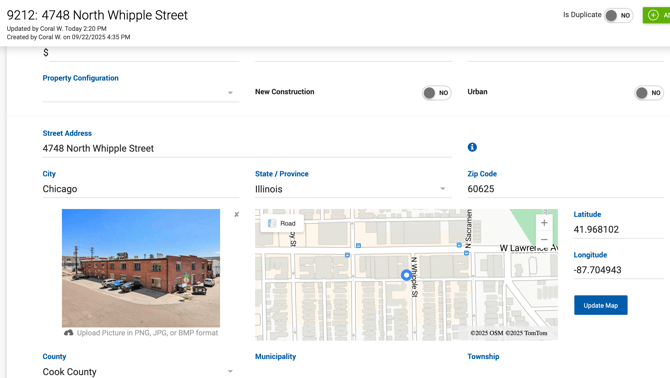
- Main Photo — Click the flag icon in the bottom-right corner of any image in the Main Property folder to mark it as the main property photo. This image is then used across the Property Info tab, listings, deals, and comps.
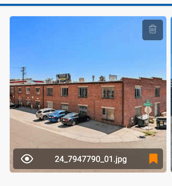
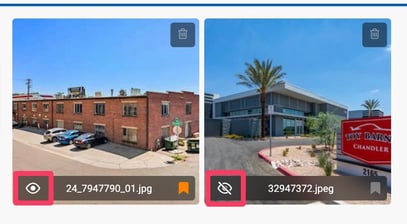
- Public Visibility — Click the eye icon on any file to toggle whether it is publicly accessible via the API.
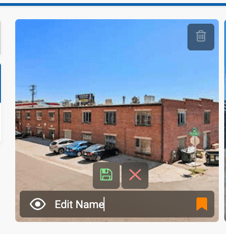
- Rename — Click directly on a file name to edit it.
Overview Tab
The Overview tab on the property profile displays the number of images uploaded to the Main Property folder.
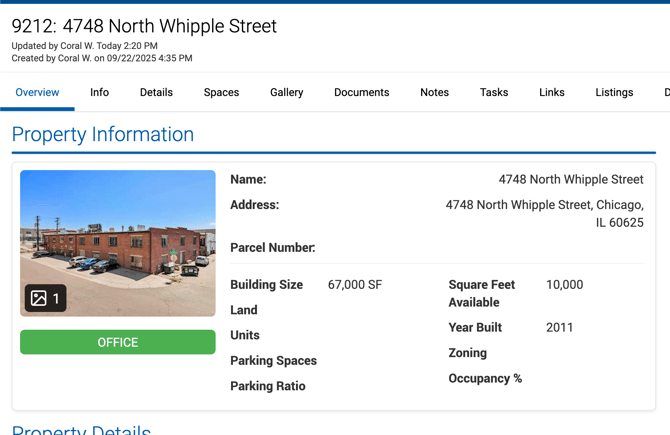
Images can be clicked to open a full zoomed-in view.