
The Properties tab offers two views: list and map. Both views update based on the search criteria entered in the left search panel. Properties can be exported to Excel at any time. 
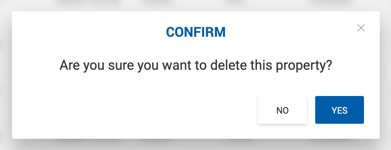
Office Admins and Admin users can delete properties that are not yet linked to any deal or listing. Click the Delete icon in the Actions column and confirm when prompted.
Search
Basic Search
| Filter | Description |
|---|---|
| Keyword | Search by property name, address, space address, client name, or property ID. Supports common address abbreviations (Road/Rd, Ave/Avenue, St/Street, Blvd, etc.). |
| Status | All Statuses, Available, or Off Market. |
| Address | Text field. |
| City | Text field. |
| State | Multi-select dropdown. Radius search is disabled when multiple states are selected. |
| Zip Code | Multi-select field. Radius search is disabled when multiple zip codes are entered. |
| Search Radius (Miles) | Range filter (0–50 miles). No default limit. Requires address, city, and state — or street and ZIP — to be specified. |
| Property Type | Multi-select dropdown. All selected by default. |
| Building Class | Multi-select dropdown. All selected by default. |
| Submarket | Multi-select dropdown. All selected by default. |
| Building Square Feet | From/To range based on the main property information. |
| Square Feet | From/To range. Searches by Property SF. From value must be equal to or less than To value. |
Advanced Search
| Filter | Description |
|---|---|
| Year Built | From/To year range (e.g., 1990–2023). |
| Tenancy | Multi-select dropdown. |
| County | Multi-select dropdown. All selected by default. |
| Acres | From/To range. Searches by Acres (Land Size AC) on the main Property Info. |
| Parcel # | Text field. |
| Property Management | Dropdown of options from the Property Profile Info tab. |
| Entered By | Multi-select dropdown of all users, active and inactive. |
| Show Duplicate Property Records | Yes/No toggle. Disabled by default. |
Column Visibility
Two additional columns — Created and # of Spaces — are available under Customize View. The Created column shows when the property was created and by whom. For imported properties, the creator displays as System U. (older instances) or Import (newer instances), with the creation date reflecting the import date.
Geo Coordinates
Properties missing latitude and longitude display a warning icon next to their address in the Properties grid, Listings grid, Deals Pipeline, and Comps. Without these coordinates, the property cannot be located on the map, which may affect comp searches in map view. 
To resolve this, edit the property profile and either enter the coordinates manually or re-select the address from the dropdown suggestion list to let the map service populate them automatically. 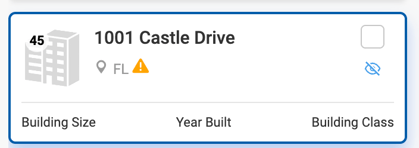
Note: Address updates can only be made on the property profile. Changes there apply to linked listings automatically, but not to deals. To update a deal, open it and click Refresh Property in the Property Information, Property Details, or Space Information section, then save.
Map View
Switching to map view displays the standard map used across comps and listings. Property cards on the left show the property name, address, building size, year built, and building class. Clicking a card or map pin opens a property popover with a link to open the full property profile in a new tab. 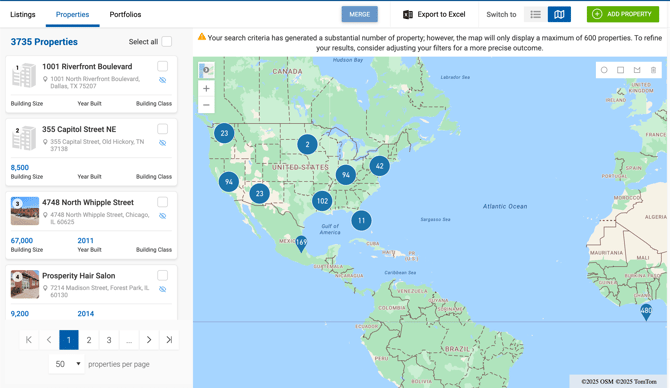
Properties without geo coordinates (latitude and longitude) are not displayed on the map.
It is also possible to select properties from the map view to merge or mark as duplicates.
Export to Excel
In addition to the columns visible in the grid, the Excel export includes: Last Updated Date, Last Updated By, Created Date, Created By, and an Is Duplicate column (Yes or No) for each property.
Marking Properties as Duplicates
To reduce duplicate records, properties can be marked as duplicates. A duplicate property remains in the database but is hidden from the grid unless Show Duplicate Property Records is enabled. Duplicate properties cannot be selected when creating new deals or listings. Any existing records linked to a duplicate property retain their link. 
To mark a property as a duplicate:
- Use the eyeball icon in the grid, or

- Toggle the duplicate setting inside the Property Profile.
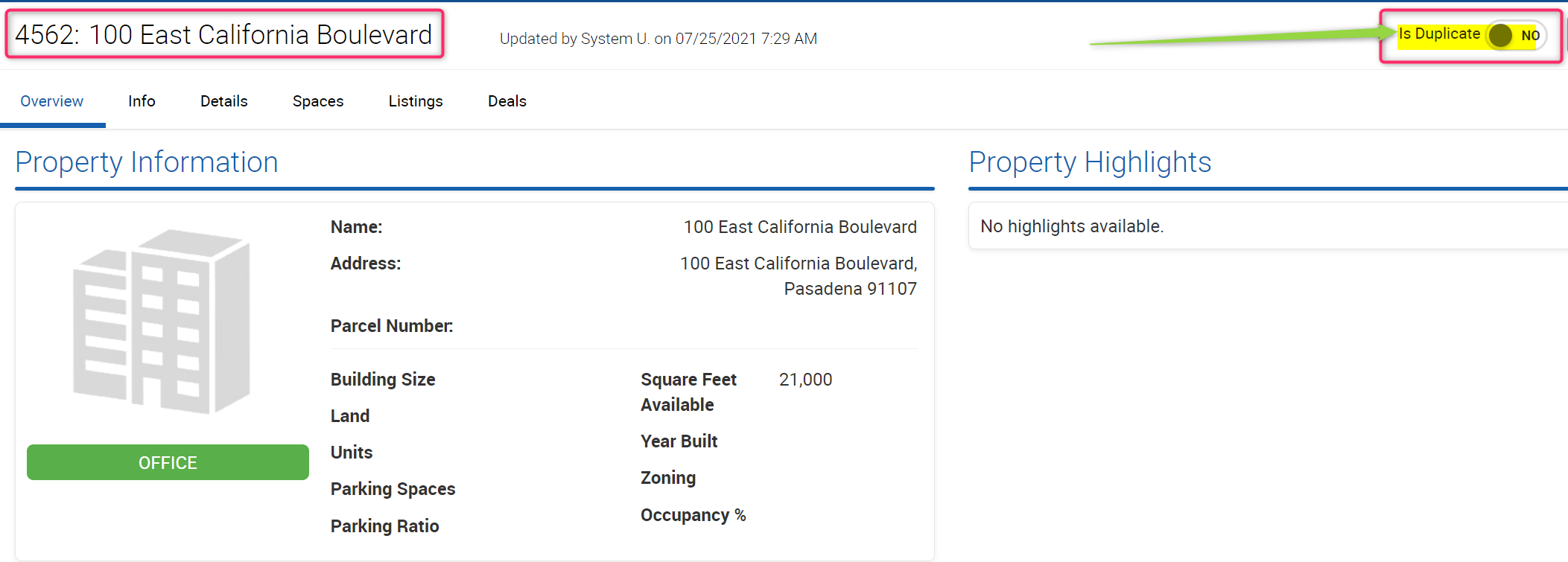
A confirmation prompt appears: "A duplicate property will not be available to add to a Deal or Listing. Confirm to proceed."
To bulk mark duplicates, use the checkbox in the first column to select multiple properties, then click the Mark as Duplicate button that appears. 
To restore a duplicate property, click the eyeball icon again or set the toggle to No on the Property Profile.
Note: Only users with property editing access can use this feature. The permission is configured under Admin > System Settings > Properties Settings.
Editing a Property
Changes made to a property profile do not automatically update deals that are already using that property. To push property changes to a deal, open the deal and click Refresh in the Property Information, Property Details, or Space Information section, then save.