Overview
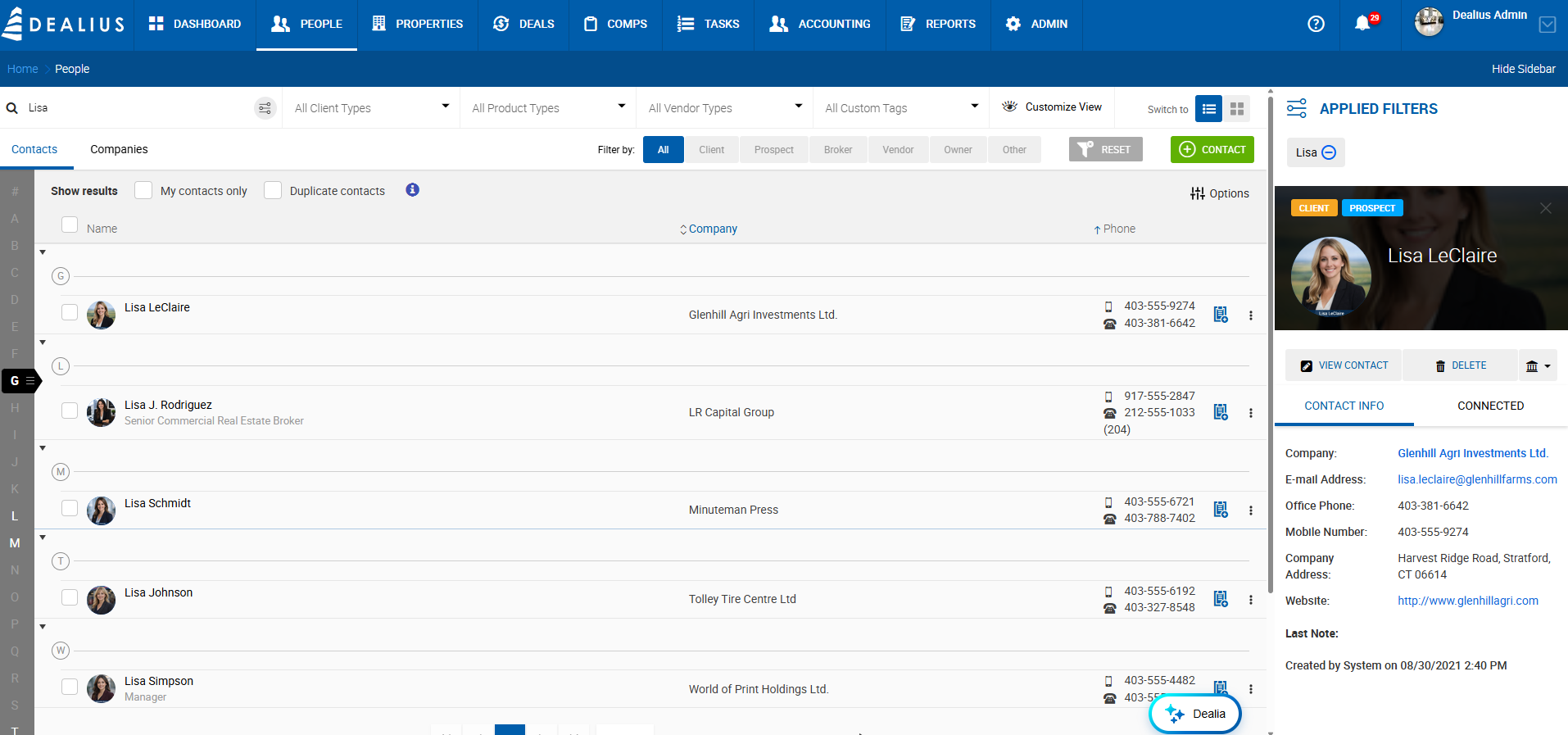
The People tab houses all contacts and companies tied to deals, listings, and any manually added records. Contacts are organized into two sub-tabs: Contacts and Companies.
Contact Types
Each contact can be assigned one or more of the following types:
| Type | Description |
|---|---|
| Client | Contacts tied to a deal or listing, or previously associated with one. |
| Prospect | Contacts tied to a deal or listing, or previously associated with one. |
| Broker | Outside brokers you have done business with. Available for selection as outside brokers on deal profiles. |
| Vendor | Contacts providing a service. Appear in the People section only — not on deal profiles. |
| Other | Catchall for contacts that don't fit other types. Appear in the People section only. |
| Owner | Assigned automatically when a contact is added to the Owner Contact Details section of a property profile. |
Views
The People tab supports two views, switchable from the top-right corner:
- List View — Default. Shows contacts in an alphabetically grouped, sortable list.
- Card View — Displays contacts as cards.
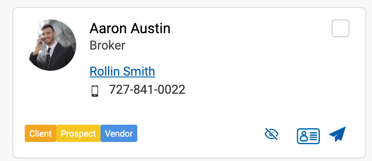
From either view, contacts can be emailed or downloaded as a vCard (compatible with Gmail, Outlook, and other email clients). 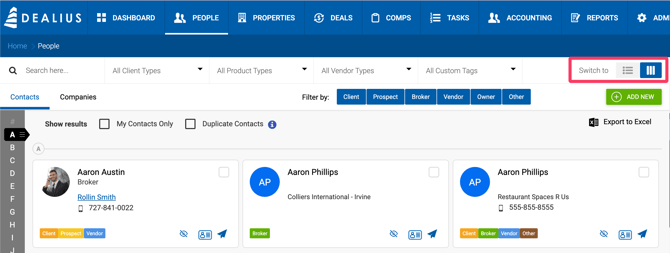
Filtering Contacts
The following filters are available at the top of the Contacts page:
- Search — Free text search by name.
- Client Types, Product Types, Vendor Types, Custom Tags — Dropdown filters.
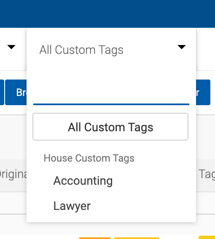
- Filter by type — Quick filters for All, Client, Prospect, Broker, Vendor, Owner, Other.
- My Contacts Only — Shows only contacts created by or shared with the current user.
- Duplicate Contacts — Shows contacts marked as duplicates.
Applied filters are displayed in the Applied Filters panel on the right sidebar.
Contact Sidebar
Clicking a contact name opens their profile in the right sidebar with two tabs:
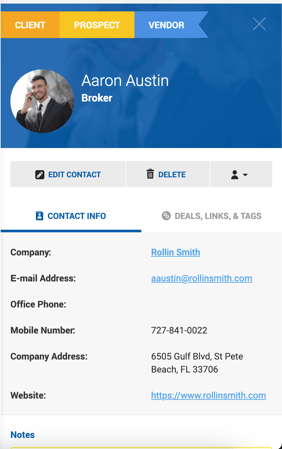
Contact Info — Displays company, email, phone numbers, company address, website, last note, and creation details.
Connected (Deals, Links & Tags) — Shows all deals ever linked to the contact with key transaction details. Deals can be filtered by status (Active, Closed, Pending, Dead, All) and by close date. Deals are sorted by status, then by Close Date or Estimated Close Date newest to oldest within each group.
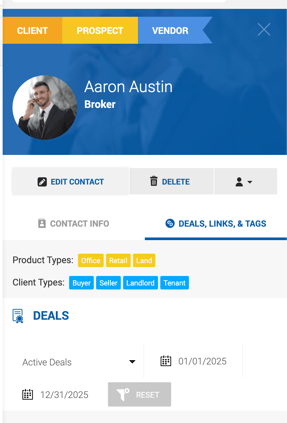
Deal details displayed vary by type:
- Sale — Sale Price, Close Date, SF, Price/SF.
- Lease — Effective Rate, Close Date, SF, Term.
- Other Rep — Gross Commission, Close Date, SF.
From the sidebar, you can also View Contact, Delete, add notes, view Former Companies, and access active deals.
Adding a Contact
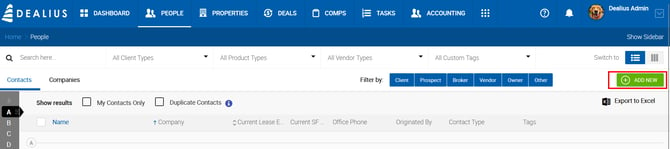
- Click the Contacts sub-tab, then click the green + Contact button.
- Select the contact type.
- Fill in required and optional fields. Required fields are highlighted in yellow.
- Click Save to save and close, or Save & New to save and add another contact immediately.
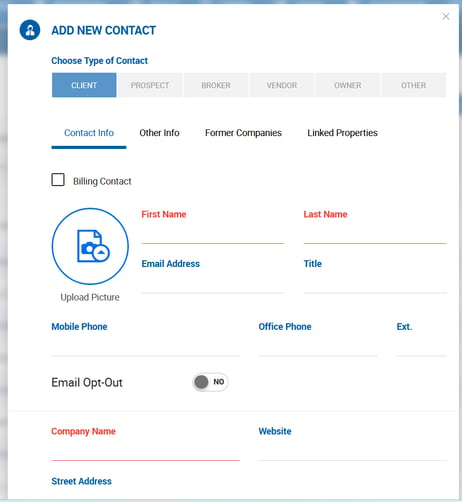
Contact Info Tab
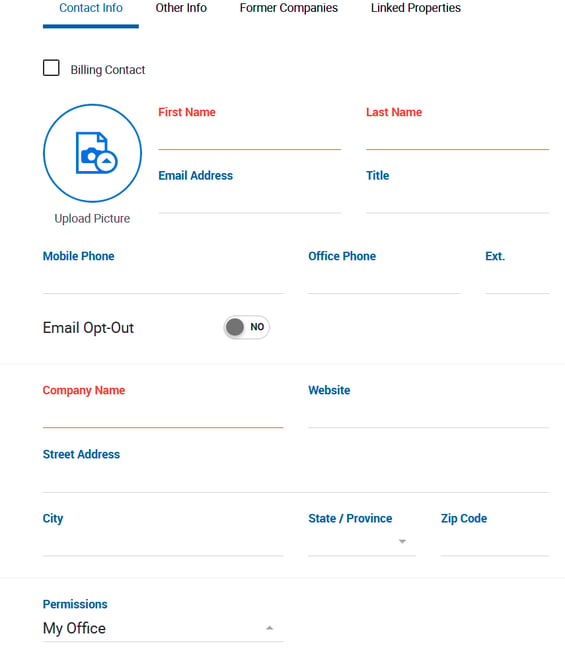
| Field | Description |
|---|---|
| Company Name | Lookup from existing companies. The assigned company inherits the contact's type. |
| Current Lease Expiration Date / Current SF Occupied | Available for Prospect contact types only, under the Current Occupancy Info section. |
| Billing Contact | Toggle to mark this contact for billing purposes. Available for Client and Prospect types only. When a billing company is selected on a deal profile, this contact is used for billing. |
| Permissions | Controls who can see the contact. Defaults to the value set in Admin > System Settings > People Default Settings. Options: Entire Company, My Office (default), Only Me, Select People. |
Other Info Tab
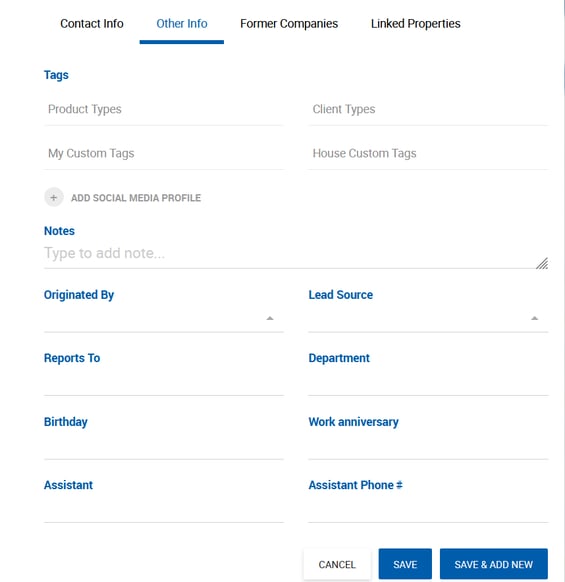
| Field | Description |
|---|---|
| Tags | Predefined tags including Office, Retail, Multi-Family, Industrial, Land, Hotel, NNN, Other, Investor, Buyer, Seller, Landlord, Tenant, Developer, Product Types, and Client Types. |
| My Custom Tags | Personal tags visible only to the creating user. Any user can create these directly in the contact popup. |
| House Custom Tags | Tags created by Office Admins under Admin > Manage Data. Brokers can add them to contacts but cannot remove them. 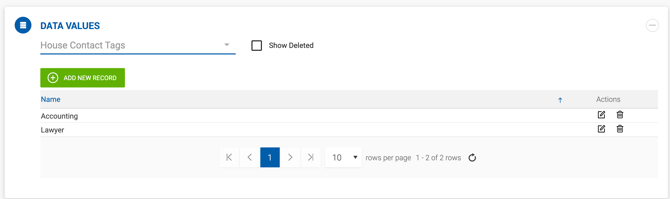 |
| Originated By | Lookup of users within the logged-in user's office(s). Auto-populated with the broker's name when a broker creates a new contact. Not auto-populated for other user roles. |
| Lead Source | Dropdown with predefined values. Manageable under Admin > Manage Data > Data Values. |
Former Companies Tab
Allows manually adding previous companies for the contact. Start typing a company name to search existing records — the dropdown filters by matching company type. Click Add Company to add to the table. New companies cannot be created from this tab. 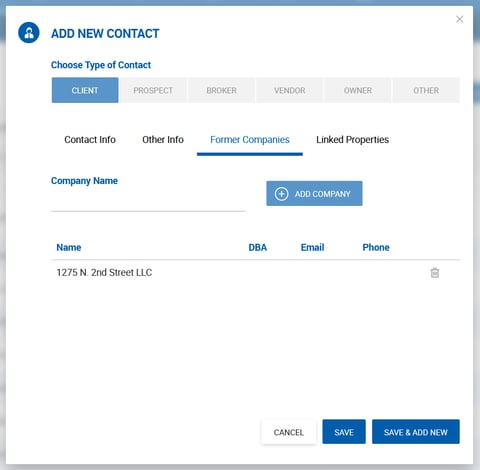
Linked Properties Tab
- Current Properties — Properties where the contact is listed as an owner contact. Each entry links to the property profile in a new tab.
- Formerly Owned — Properties from sale deals where the contact is listed under Seller Contact Details. Each entry links to the property profile.
This tab is informational only — properties cannot be linked or unlinked directly from here.
People Tags
Dealius includes predefined tags based on contact and vendor types. Tags allow filtering and exporting targeted contact lists for broadcasts and outreach. Custom Tags can be personal (My Custom Tags) or company-wide (House Custom Tags), and both appear in the same dropdown when available.
Sharing Permissions
By default, contacts are visible only to the creator. Sharing options include:
- Entire Company — All users across all offices.
- My Office — All users in the creator's office.
- Only Me — Only the creator (and their Office Admin).
- Select People — Specific internal brokers from the creator's office.
Contacts added to deals or listings are automatically shared with all brokers tied to that deal or listing. 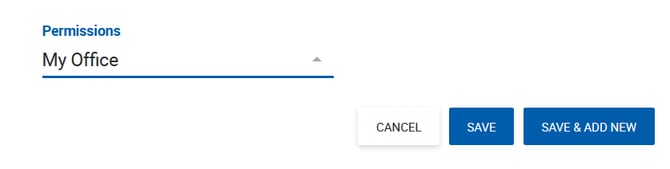
Adding a Company
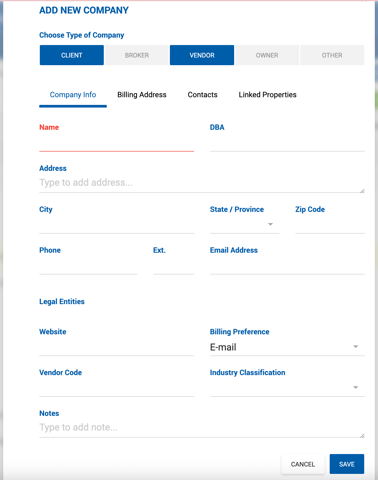
- Click the Companies sub-tab, then click the green Add New button.
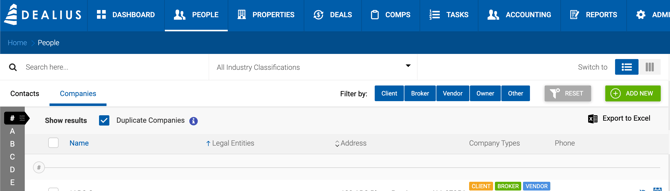
- Select the company type.
- Fill in required and optional fields (required fields are highlighted in yellow).
- Click Save.