
Viewing Companies
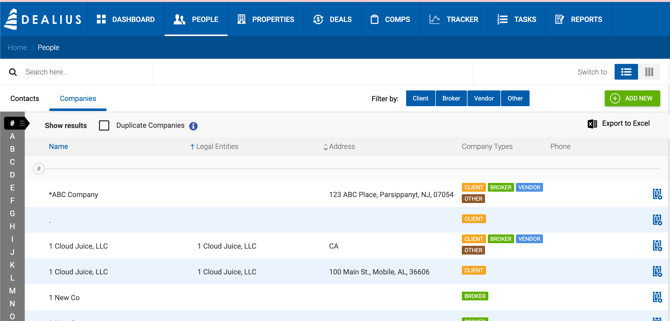
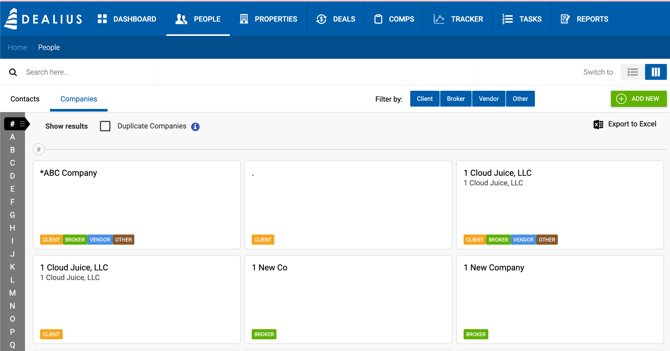
The Companies page supports two display modes — list view and card view. Click Switch To to toggle between them. Both views sort companies alphabetically, and the left sidebar allows you to jump to a specific letter.
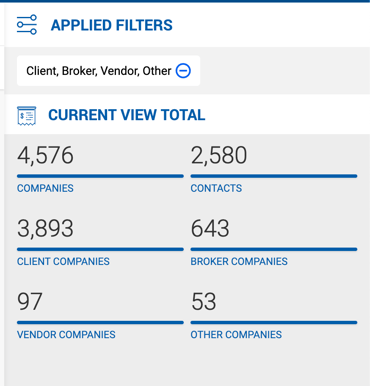
Filter options at the top of the page include Keyword and Company Type. A right sidebar summarizes the total number of companies and any active filters.
Company Details Sidebar
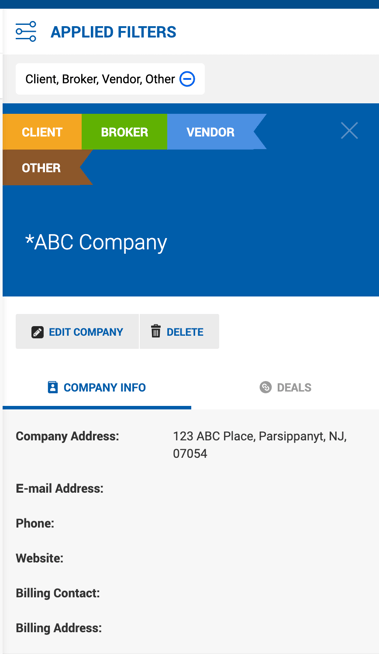
Clicking a company row or card opens its details in the right sidebar. From here you can:
- View key company information
- Click Edit or Delete
- Manage the contact list tied to the company
Deals, Links & Tags Tab
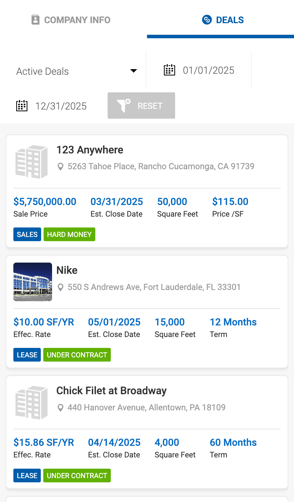
This tab lists all deals ever linked to the company, including deal name, status, property image, address, and transaction details. Deal details vary by type:
- Sale deals — Sale Price, Close Date, SF, Price/SF
- Lease deals — Effective Rate, Close Date, SF, Term
- Other Rep deals — Gross Commission, Close Date, SF
Deals can be filtered by status (Active, Closed, Pending, Dead, or All) and by Close Date or Estimated Close Date. Multiple statuses can be selected at once. When All is selected, deals are grouped by status (Pending, Active, Closed, Dead) and sorted within each group by Close/Estimated Close Date, newest first.
Adding and Editing a Company
Click the green Add New button to create a company. Fill in the required fields and click Save.
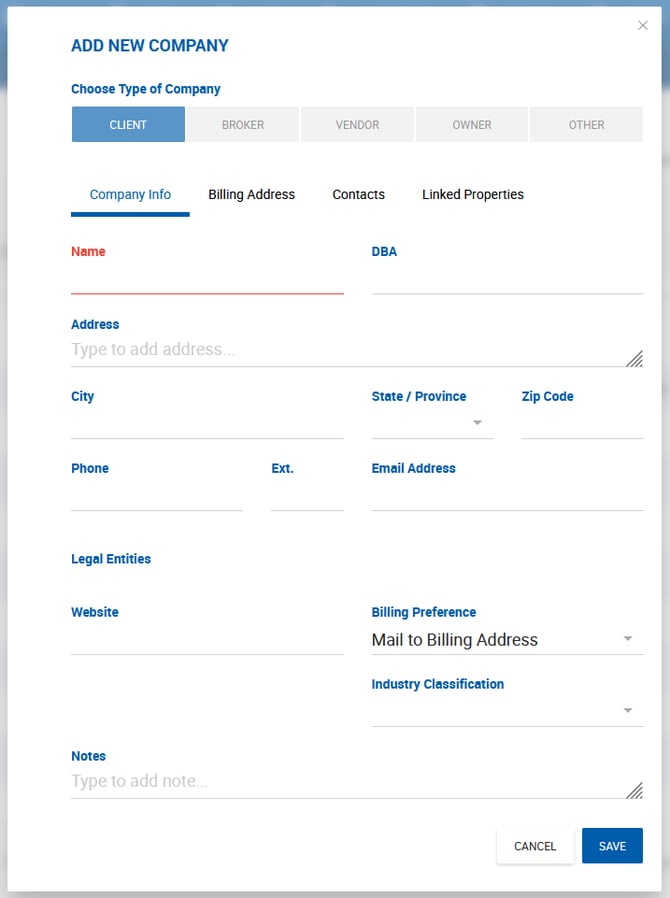
Company Type — One or more types can be assigned per company:
- Client
- Broker
- Vendor
- Other
Company Photo
You can add a photo to a company record, making companies easier to identify visually across the platform.
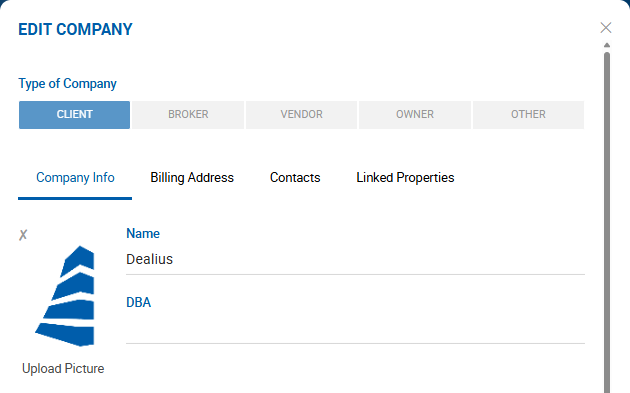
Company Info Tab — Contains all company details including DBA, billing data, phone, and address.
One notable field is Industry Classification, a multi-select dropdown with predefined values grouped into the following categories:
- Industrial, Manufacturing and Supply Chain Group
- Warehouse & Industrial Real Estate
- Commercial Land
- Commercial Office
- Retail and Industrial Services
These values can be added, edited, or removed under Admin > Manage Data > Data Values.
Contacts Tab — Displays all contacts linked to the company in a table. To add a contact, begin typing a name in the field above the table — a dropdown will appear showing matching contacts whose type corresponds to the company type. Select a contact and click Add Contact to add them to the table. 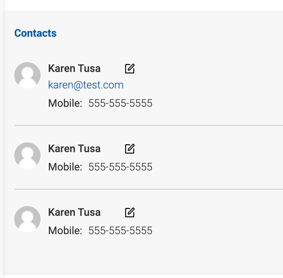
Linked Properties Tab — Contains two lists:
- Current Properties — Properties where this company is listed as an owner. Each property links to its profile in a new tab.
- Formerly Owned — Properties pulled from sale deals where this company is listed as the Seller Company. Each property links to its profile.
Company Permissions
Companies themselves do not have user-level permissions — once created, a company is visible and selectable by all users in the system.
However, contacts tied to a company are subject to their own individual permissions. For example, if a company has two contacts set to Only Me visibility, users who did not create those contacts will not see them, even when the company is pulled into a deal or listing.
If a user who does have access to a company's contacts pulls that company into a deal or listing, those contacts are auto-populated. The user can remove any unnecessary contacts before saving. Once saved, the contacts become visible to all users associated with that deal or listing — but they remain unsearchable for those users in dropdowns and the People menu.