
Overview
The Make Payment page has two modes: Standard and Read-Only. The mode displayed depends on whether the related receivable has been paid.
Read-Only Mode
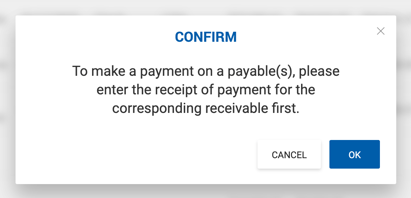
If the related receivable has not been paid, payables cannot be processed. When a user clicks Make Payment on the Payables grid, a confirmation modal appears with three options:
- X or Cancel — Closes the modal and returns to the Payables grid.
- OK — Closes the modal and opens the Make Payment page in read-only mode.
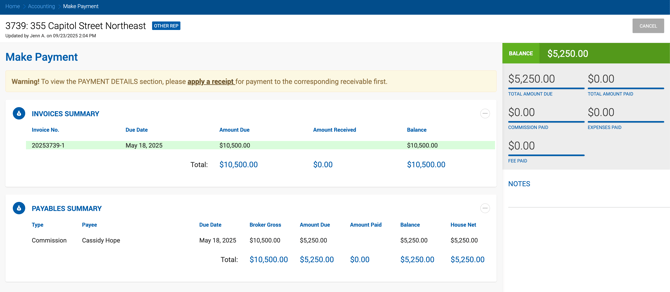
In read-only mode, only the Invoice Summary and Payables Summary sections are visible. A yellow warning message is displayed with a link to "apply a receipt" — clicking it navigates to the Make a Receipt page to pay the receivable before processing the payable.
Standard Mode
All payables for a particular invoice are displayed at once for editing. The associated invoice is highlighted in green in the Invoices Summary section.
Gross Commission Allocation
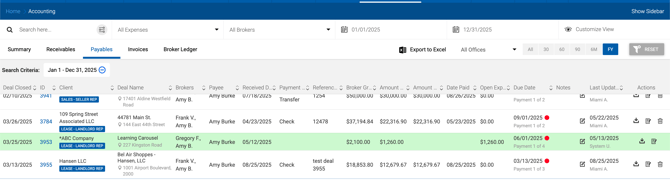
This section displays all broker payables associated with the selected receivable. Users can edit Broker Gross values for all deal participants.
The system validates Broker Gross in two ways simultaneously:
- Total Broker Gross per deal — Must match the Broker Gross on the Deal Profile.
- Gross Commission per receivable — Sum of all Broker Grosses per receivable must match the receivable's Gross Commission amount.
When a Broker Gross value is changed, the system checks in real time whether the broker has reached the next split tier and recalculates the Amount Due accordingly.
If the deal includes Sales Tax, a separate line with the Sales Tax name and value appears. Received values can be removed using the bin icon. 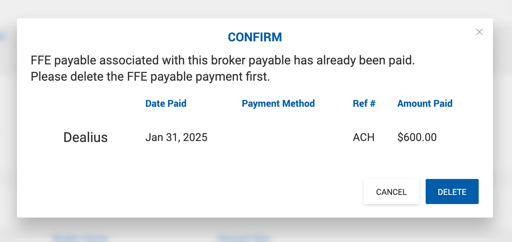
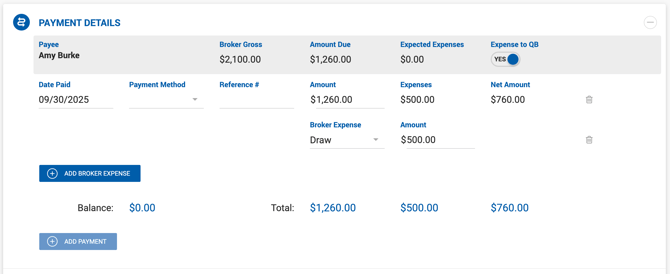
Payment Details
The active (selected) payee is listed first. Individual payment lines can be removed using the bin icon.
- Total — Sum of all applied payments.
- Balance — Remaining open amount to be resolved before saving.
Payment Methods: ACH, Check, Wire Transfer.
Note: It is not possible to delete an internal broker's payable payment if the FFE payable has already been paid. The FFE payment must be deleted first. A warning modal appears if this is attempted.
Payable Summary
Displays static accounting data for the entire deal. This section updates only after the payable is saved. Broker Gross values are not shown for FFE and Expense payables as they are not applicable. 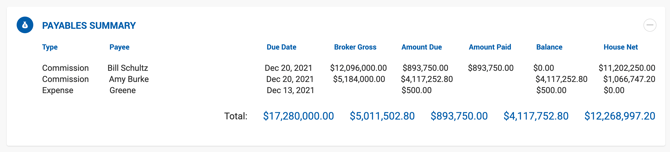
Printing Payments
Individual payments can be printed per payee, or all payments for a specific invoice can be printed at once using Print All.
When Print All is clicked, the system checks for unsaved changes and prompts: "Do you want to save your changes before printing?"
- Yes — Saves and prints.
- No — Prints the last saved version as-is.
Payment Notifications
When a payment is applied to a payable, the broker receives an email notification. If the Include Payment Voucher in Payment Notification setting is enabled under Admin > Payment Voucher Settings, the payment voucher PDF is attached to the email.