
Dealius contacts can now be synced to your personal Outlook account, keeping your contact list up to date without double entry. This feature is available to all users who are logged in to Dealius with a Microsoft-based account.
Connecting Your Microsoft Account
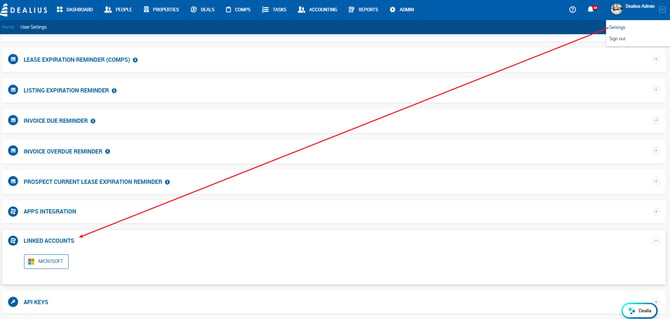
Go to Settings > Linked Accounts and click Link Microsoft Account. Once connected, a Disconnect button will appear in the same location if you ever need to unlink your account.

Admin Configuration
Admins can configure sync behavior under System Settings > Outlook Integration. The following options are available:
- Permission Level of Contacts to Be Synced — controls which contacts are eligible for sync based on their permission level. Defaults to All.
- Match a Contact By — determines how Dealius identifies an existing Outlook contact before syncing. Options: Email or Phone, Only Phone Number, Only Email Address, or Both Email & Phone.
- For Existing Contacts in Outlook — determines what happens when a matching contact is found in Outlook: Update only empty fields from Dealius, Override all fields from Dealius, or Do not update the contact.
- When Multiple Contacts Match — determines which contact to update if more than one match is found: Sync all matched contacts, or Use the first matched contact (default).
Keeping contacts up to date — Any time a contact is updated in Dealius, it is automatically re-synced to all selected users' Outlook accounts.
Once a contact is synced, a Synced label appears on their record in the contact grid, contact popup, and contact list view — visible only to you
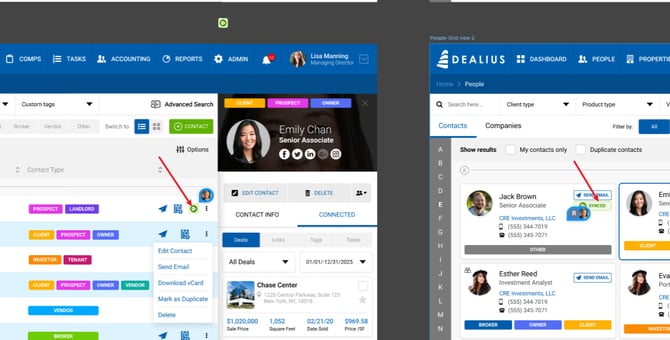
If a contact fails to sync, a Sync Error label is shown so you can identify and resolve issues
The information that is synced for a contact to Outlook:
-
First Name
-
Last Name
-
Company Name
-
Mobile phone
-
Office Phone
-
Email
-
Category (pulled from the contact type in Dealius)
-
Title
-
Notes (sync from Dealis > Add/Edit Contact > Other Info > Notes field to Outlook > Contact form > Notes)
Notes:
-
If a contact is deleted in Dealius, the sync for it stops, but Dealius will not try to delete this contact in the user’s Outlook.
-
If a user is deactivated in Dealius, it should stop receiving synced contacts or their updates from Dealius to their Outlook.