Overview
The Dealius Outlook Add-In allows users to review active deals and perform key actions without leaving Outlook. It surfaces deal details, documents, notes, and contact information directly within received messages.
Installation
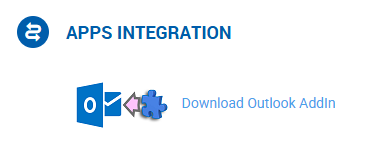
- Download the Outlook Add-In file from your Personal Settings section in Dealius.
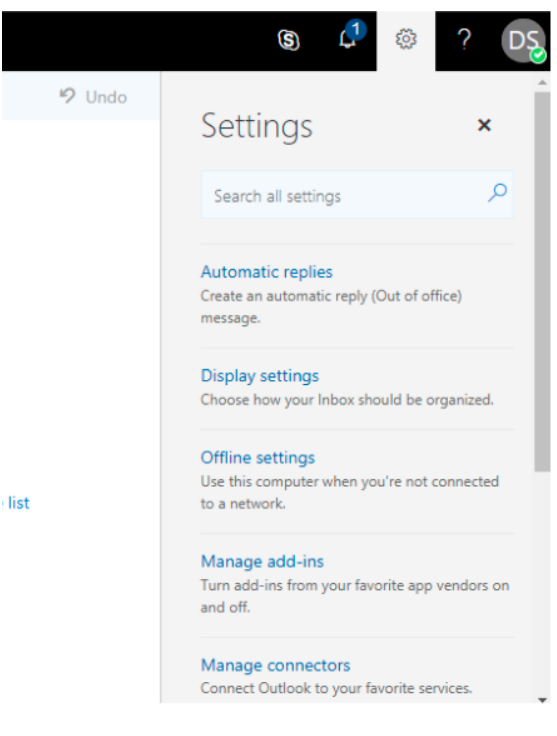
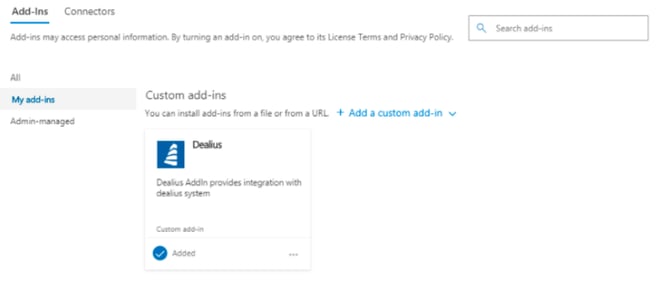
- In Outlook, go to Settings > Manage Add-Ins > My Add-Ins > Custom Add-Ins and install the downloaded file.
Once installed, the Dealius plug-in will be accessible from within received messages in Outlook.
Logging In
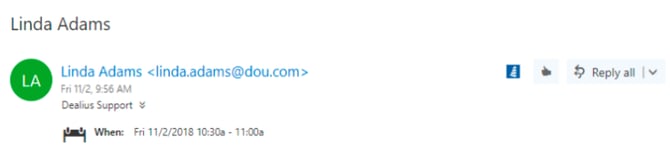
Click the Dealius icon in a message to open the login page. Any Dealius user can log in. After login, the system loads deals where the email addresses in the From, CC, or To fields match brokers participating in those deals. If the logged-in user does not have access to those deals, no deals will be displayed.
Browsing & Viewing Deals
The sidebar loads up to 50 deals, organized into Active and Closed sections. Click any deal to open its detail view.
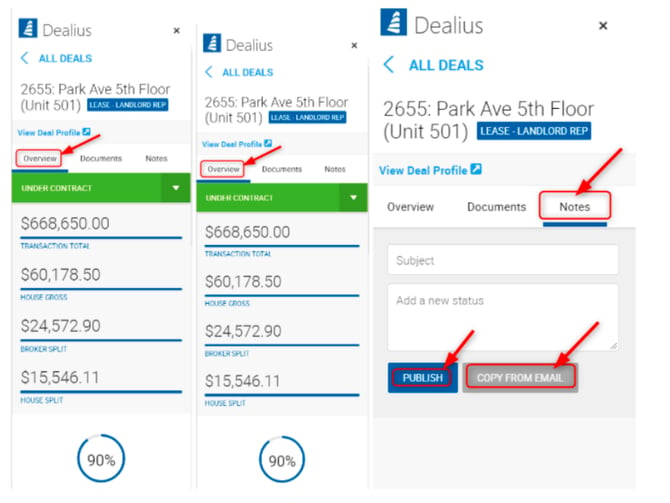
The detail view mirrors the Dealius web sidebar and includes the following tabs:
Overview
- View: Status, Transaction Total, House Gross, Broker Split, House Split, Probability, Closing Date, and Brokers list
- Edit: Deal status, Closing Date, and Probability
- Open the full Deal Profile in a new browser tab via the View Deal Profile link
Documents
- View the list of documents attached to the deal
- Download or remove attached documents
- Set document types on uploaded documents
- Attach a document directly from the email using the Mail Attachment section
Notes
- View existing deal notes
- Add new notes
- Comment on existing notes
- Use Copy Note from Email to pull in the email subject line and full email body (similar to a forward) as a new note
Managing Contacts
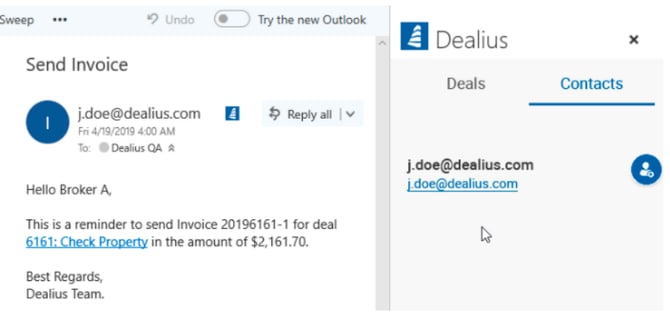
The Contacts tab displays all contacts listed in the currently open email in Outlook.
- Contacts already in Dealius appear with a blue Dealius icon. Contacts not yet in Dealius appear with a gray icon.
- Click the Add icon next to any contact to create them in Dealius.
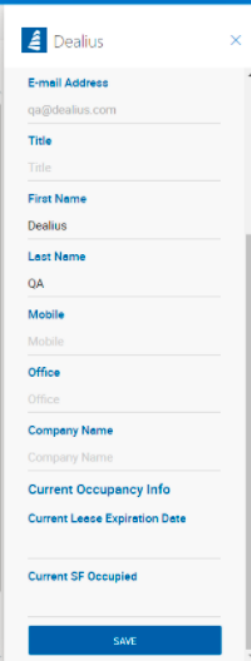
- The Add Contact form includes: First Name, Last Name, Company Name, Email (read-only), Phone, and Title.
- Adding a contact creates them in both Dealius and your Outlook Contacts list.
- If a contact's information differs between Outlook and Dealius, a red icon appears next to that contact.
- Each contact displays tags indicating their contact type.