
Overview
Multiple property records can be merged into one to eliminate duplicates and consolidate associated records. Select between 2 and 20 properties from the Properties grid using the checkboxes, then click Merge.
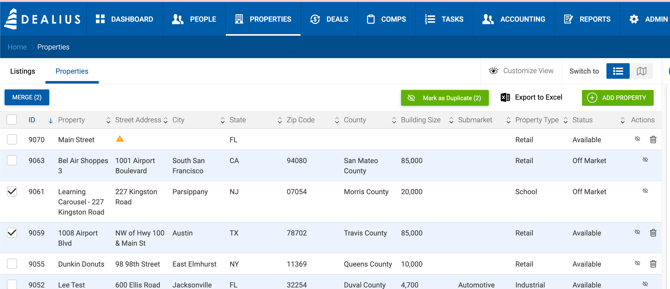
Merge Page
The merge page displays each selected property in a collapsible block showing its associated records. Each block can be expanded or collapsed for review. An icon next to each property name opens the property profile in a new tab.
Associated records shown per property:
Spaces: Space Name, Unit/Suite #, SF.
Listings: Listing ID, Type, Listing Name, Space Name, SF Available, Date On Market, Expiration Date, Status, Last Updated.
Deals: Deal ID, Rep Type, Deal Name, Client Name, Status, Close Date / Est. Close Date, Last Updated.
Comps (created from property or listing, not from a deal): Comp ID, Comp Name, Type, SF, Close Date, Last Updated.
Tasks: Task Type, Task Name, Assigned To, Due Date, Status.
To remove a property from the merge selection, click the X icon next to its name. Hovering over the icon shows the tooltip: "Exclude this property from this merge process."
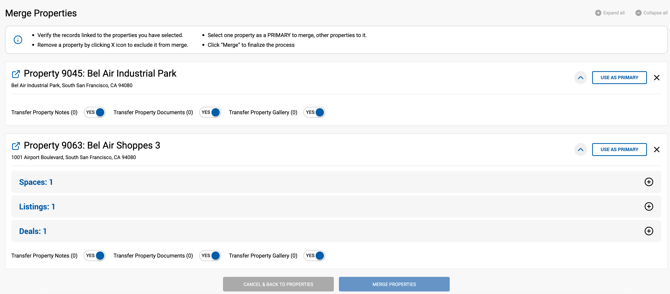
Selecting the Primary Property
One property must be designated as the Primary — this is the record that will be retained after the merge. All associated records from the other properties will be re-linked to the Primary. Selecting a primary property is required before the Merge button becomes active.
Confirmation & Options
Once the Primary is selected and Merge is clicked, a confirmation popup appears listing the primary property and all properties to be merged. The following options are available:
- Transfer Notes — Transfers notes from duplicate properties to the Primary. Selected by default.
- Transfer Documents — Transfers documents to the Primary. Selected by default.
- Transfer Property Gallery — Transfers gallery images to the Primary. Selected by default. Spaces relinked during the merge carry their gallery files over automatically.
- Confirm checkbox — Must be checked before the Merge button can be clicked. "This action cannot be reversed. Please confirm to initiate the merge process."
Actions:
- Merge — Runs the merge and redirects to the Properties list with a "Properties Merged" success message.
- Merge & View Property — Runs the merge and redirects to the Primary property profile.
- Cancel & Back to Properties — Cancels the merge and returns to the Properties list.
Merge Logic
- All links to listings, tasks, comps, deals (including closed deals) are updated to point to the Primary property.
- Data within deals, listings, comps, and tasks is not changed by the merge — it continues to reflect the original property data. Clicking Refresh on any of those records will update the property data from the Primary.
- The Primary property's profile data is preserved and not overridden.
- Property status is recalculated after the merge based on all newly linked records. For example, if an available property is merged with an off-market property linked to a closed deal, the resulting property becomes Off Market.
- The merge is recorded in the Properties Export to Excel as: Merged By [username] on [date/time]. If a property has been merged multiple times, only the most recent merge details are retained.