
Overview
The Listing profile is organized into five tabs, accessible by clicking the tab name at the top of the profile.
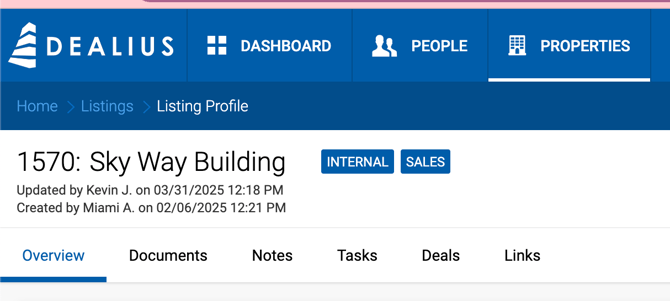
Tabs
Overview All editable listing fields can be viewed and updated from this tab.
Documents Listing-related files can be uploaded and downloaded here. Required document types display a green checkmark when uploaded and a gray checkmark when not yet uploaded. At least one document per required type must be uploaded before a deal can be submitted for closure. Optional document types are not required.
- Maximum upload file size: 25 MB
- Click Download All to download all attached documents as a single .zip archive.
- Each document has a Public toggle, disabled by default. When enabled, the document is accessible via the Dealius API for use on external websites. Non-public documents cannot be retrieved via API.
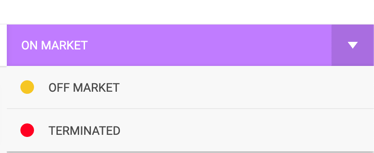
- Only Office Admins and Managers can change this toggle by default. Admin Assistants can be granted this permission under Admin > System Settings > Listing Settings > Allow Assistants to Make Documents Public.
Notes Supports adding notes with a subject line and message body. Notes are sorted newest to oldest and display the author's name, date, and time. Notes can be replied to, edited, or deleted.
Tasks All tasks related to this listing.
Deals All deals linked to this listing.
Sidebar
The sidebar displays listing status, calculated summary values, and broker and client information.
Space Available If the listing has no spaces, Space Available reflects the square footage of the main property. If spaces are present, it is calculated as the sum of Space Available (SF) for all spaces not yet linked to a closed deal.
Asking Rate Range Displays the range of asking rates across all spaces in the listing. The lowest rate from all spaces is the starting point; the highest is the upper limit.
Listing Statuses Users can manually select from three statuses at any time: Off Market, Terminated, and the listing's current automatic status (one of: On Market, In Contract, Expired, or Closed). The dropdown always shows the current status plus the two manual options.
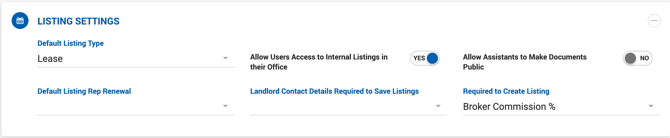
Status change behavior:
- Terminated — If no other active listings are linked to the property, the property is automatically marked as Off Market.
- Reactivated to On Market — The associated property is automatically re-marked as Available.
- All listings Off Market or Terminated — The property is marked as Off Market.
Financial Details
- Lease listings — Asking Rent per SF
- Sale listings — Asking Price and Asking Rent per SF
Expiration Progress Bar Shows how much time has elapsed since the listing execution date and how much remains until expiration.
- Left side — Listing Execution date (uses Rep Agreement Executed date; falls back to Created Date if not set)
- Right side — Listing Expiration date (uses Expiration Date field)
- Labels display elapsed time (left) and time remaining (right)
Progress bar color logic:
- Green — 31 or more days until expiration
- Orange — 11–30 days until expiration
- Red — 10 or fewer days until expiration
- Blue — No dates set ("No Date Set" displayed in place of expiration date)
- 0% / blank — Listing has Terminated status
Property Summary Displays the following (property image container is hidden if no image is uploaded):
- Property image
- Property name
- Property address (Street, City, State abbreviation, ZIP)
- Property type
- Space Available (SF)
- Total Building Size
- Submarket
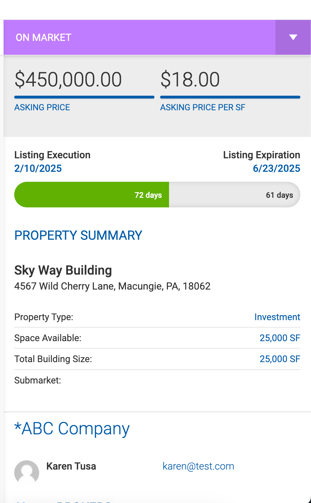
Client Information Displays contact details for contacts from the client's organization. Visibility rules:
- Brokers see only their own clients.
- Managers and Office Admins see all clients within their offices.
- Users cannot see clients from other offices.
Contacts can be removed from the listing profile without removing them from the People section or their company record — only the listing association is removed.
When a contact is added to a listing, a Client Type tag is automatically assigned based on the representation type (e.g., a contact added to a Landlord Rep listing receives a Landlord tag). Since a contact can be linked to multiple deals, they may carry multiple Client Type tags.
Contacts created directly on a listing profile also appear in the People section.
Brokers Displays all brokers associated with the listing, including internal brokers, outside brokers, and referrals, along with their contact information.