
The Listing Activities Report pulls everything happening on a listing — tasks, tours, opportunities, and deals — into a single PDF for a chosen date range. It's generated directly from the Listing Profile and is designed to be sent to landlords and clients as an activity update.
The report is built from six sections that assemble automatically. Sections with no content are skipped entirely, so a listing with no opportunities simply won't include that page.
The Activities Tab
The report is generated from the Activities tab on the Listing Profile. This tab also serves as the working view of all activity on the listing.
Adding a task from the listing: Click Add Task on the Listing Profile. The Linked to Listing field is pre-filled automatically.
Which tasks appear here: Tasks linked to the listing via the Linked to Listing field, plus tasks linked to an opportunity that is itself tied to this listing via the Linked to Opportunity field. Listing brokers see all tasks that have this listing in Linked to Listing.
Activities table columns:
| Column | Description |
|---|---|
| Task | The task subject. |
| Type | Call, Email, Meeting, Tour, or To Do. |
| Company Name | Primary company of the contact in Linked to Contacts. When a task is linked to an opportunity, the contact is pre-filled from that opportunity. |
| Listing Space | Space from the Listing Space field on the opportunity. |
| Due Date | The task's due date. |
| Completion Date | Populated if the task has been completed. |
| Actions | Edit or delete the task. |
Note: If a task is linked to several contacts, it appears once per contact. A task linked to three contacts shows as three rows.
Generating the Report
Click Run Report on the Listing Profile. The report configuration panel opens on a new page.
Date range — Select a From and To date. Defaults to the last two weeks.
Activity selection — Choose which activities to include. All activities are deselected by default, so you must select the ones you want before generating. Any task not selected here is excluded from the report.
Available spaces — All spaces are selected by default. Unchecking a space removes all tasks connected to that space from the report.
Report Sections
Each section begins on a new page. Sections with no content are skipped.
| Page | Content | Source |
|---|---|---|
| 1 | Property image, address, and reporting period | Image selected from Gallery or uploaded; address from the Property Profile; period from the date range selected |
| 2 | Executive Summary, Available Spaces, Owner Contact Information, Broker Contact Information, Property Highlights | Owner info from Property Profile, broker info from Listing Profile, highlights from Property Profile — all editable before generating |
| 3 | Listing activities — all selected tasks, broken out by type (Calls, Emails, Meetings, Tours, To Dos) | Tasks with Linked to Listing filled in |
| 4 | Opportunities and their associated tasks, with current stage | Opportunities linked to the listing |
| 5 | Related deals and their statuses. Total SF shown for lease deals only | Active deals only |
| 6 | Marketing overview — optional | Filled in manually before generating |
If no property image is available, a placeholder is used. The Tours block is skipped if no tasks of type Tour exist in the selected range.
Editable Fields Before Generating
The side panel lets you fill in or adjust content before the PDF is produced:
- Executive Summary — free text.
- Available Spaces — select which spaces to include.
- Website Performance — website URL and number of views (numeric only).
- Listing Performance — add and remove multiple services.
- Eblast — add and remove multiple eblast entries.
- Landlord Contact Details — all contacts shown by default; remove any you don't want included.
- Other — additional free-text fields for the marketing section.
Downloading the Report
The Download button is available at the top of the panel at all times. The generated report downloads as a PDF and can be printed directly.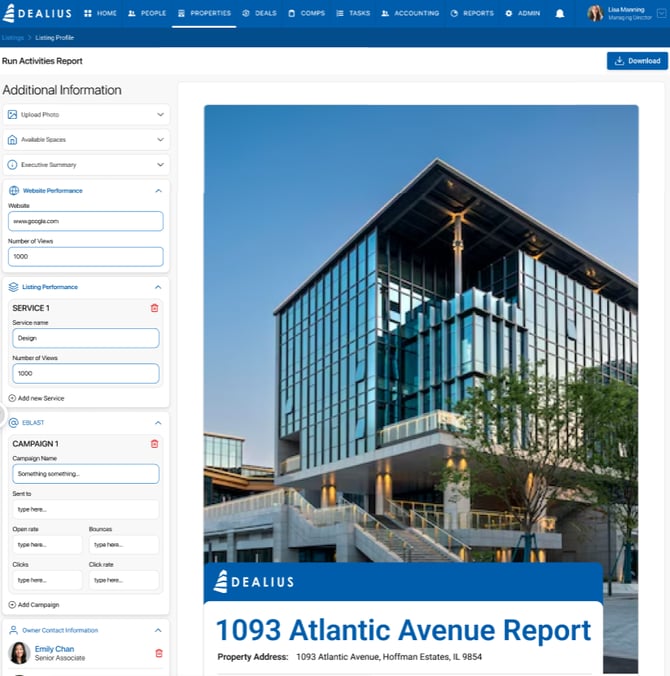
Branding the Report
Report branding is configured under Admin > System Settings > Reports Layout Settings. Use the Choose Report dropdown to select Listing Activities Report, then set:
- Logo — the logo displayed on the report
- Color — the accent color used throughout
These settings are separate from Comp Report layout settings, which are configured under the same dropdown.