Overview
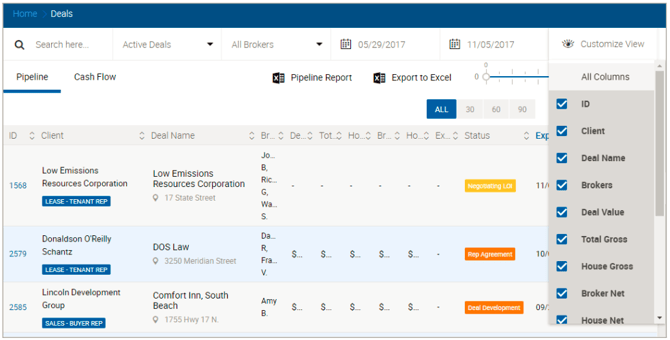
The Deals Pipeline page displays all deals in the system — Active, Closed, and Dead — in a sortable, filterable grid. Clicking any row opens the Deal Profile where all deal details can be viewed and edited. All Active deals are displayed by default.
Filters

| Filter | Description |
|---|---|
| Search Box | Searches across all contents of a deal. |
| Deal Status | Multi-select dropdown: Active, Closed, Pending Close, Dead. |
| All Brokers | Filter by brokers participating in the deal. |
| From / To Date Picker | Filters by Estimated Close Date. Defaults to the earliest and latest estimated close dates across all displayed deals. |
| Probability Slider | Filter by deal probability. Adjust upper and lower limits as needed. |
| All / 30 / 60 / 90 / FY Toggles | Filters by Estimated Close Date within the next 30, 60, or 90 days, or within the current fiscal year. Selecting All resets the date range. FY is selected by default. The fiscal year period is configured under Admin > System Settings > Accounting Period Defined Using. For closed deals, the 30/60/90 toggles look back in time by the corresponding number of days based on close date. |
Advanced Search
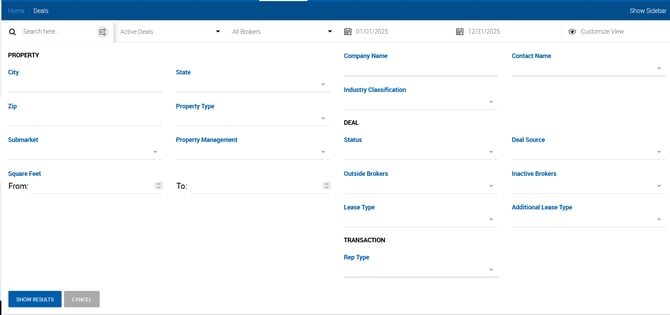
Additional filters are available under the Advanced Search popup. Once filters are applied and Show Results is clicked, the applied criteria appear in the sidebar in place of the YTD Production section. Click Cancel to close the popup without applying any changes.
| Filter | Description |
|---|---|
| City | Matches deals where the property address contains the entered city. |
| State | Matches deals where the property address contains the selected state. |
| Zip | Matches deals where the property address contains the entered zip code. |
| Property Type | Multi-select. Includes a No Property Type option to find deals with a blank property type. |
| Submarket | Matches deals where the property submarket matches the selected value. |
| Property Management | Dropdown of values from the Property Info section. |
| Square Feet | Searches by deal actual SF first, then property SF, then deal requested SF. |
| Company Name | Searches by Tenant, Landlord, Buyer, Seller, Vendor, and Other contact company names. |
| Contact Name | Searches by contact name in the company Contact Details section, including Vendor and Other contacts. |
| Industry Classification | Dropdown of industry classification values from the Company form. |
| Status | Multi-select. Dead and Pending Close are excluded as they are available in the standard filters. |
| Outside Brokers | Filter by outside brokers participating in the deal. |
| Inactive Brokers | Filter by inactive or removed brokers who have references to deals. Not visible to Broker role users. Managers and Office Admins see brokers from their offices only. |
| Lease Type | Multi-select. Filters by Lease Type on the deal profile. |
| Additional Lease Type | Multi-select. Filters by Additional Lease Type on the deal profile. |
| Deal Source | Multi-select. Filters by Deal Source on the deal profile. |
| Rep Type | Multi-select: Buyer Rep, Landlord Rep, Seller Rep, Tenant Rep, Other Rep, Lease Dual Rep, Sale Dual Rep. |
Customize View
Click the Customize View dropdown to show or hide columns. Key notes:
- The Closed column is only available when the Closed Deals filter is selected.
- The Expected and Probability columns are only available when Active, Dead, or Pending Deals filters are selected.
- The Awaiting column shows the name of the next approver in the deal closing process.
- Colored dots next to the Expected Date indicate close date proximity: green for deals closing within 30 days, yellow for 31–60 days, and dark orange for more than 60 days.