
Resetting Your Password
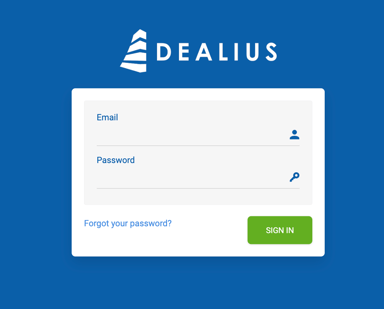
- Go to your Dealius login page.
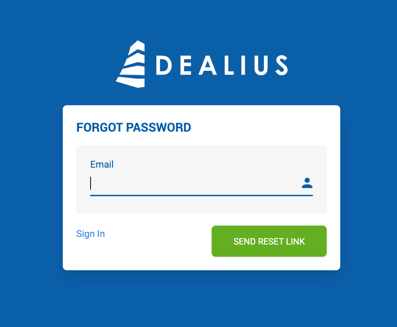
- Click Forgot Password.
- Enter your email address.
- Click Send Reset Link and wait for the confirmation message.
- Check your inbox for a password reset email and follow the link to set a new password.
Note: If you do not receive the reset email or need further assistance, contact the Dealius support team at support@dealius.com.
Password Requirements
Your new password must be at least 8 characters long and include:
- At least one uppercase letter
- At least one lowercase letter
- At least one digit
- At least one special character
Email Verification
On first login, users are required to verify their email address by clicking the verification link sent to their email on file. Until the email is verified, access to the system is not granted. 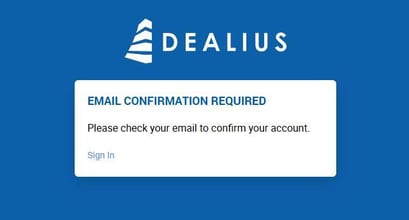
Admins can check email verification status under Admin > Users. A green dot next to a user's email indicates it has been verified; a gray dot indicates it has not.
Once verified, the user can proceed with the standard login process.