Overview
The Property Information section is the first section on all deal types. It allows you to link an existing listing or property to the deal, or create a new one directly from the deal profile.
Linking a Listing
Use the Listing Lookup to search for a listing and space to associate with the deal. This lookup only returns listings that have been added to the Properties tab and have an active availability.
- If the selected listing has multiple availabilities, you will be prompted to choose one.
- Once a listing and space are selected, the form auto-fills with details from the listing, including the linked property.
- If no listing applies, skip this step and proceed to the property fields.
Listing and property selection rules:
- If no property is selected and a listing is chosen, the system automatically populates the property linked to that listing and prompts you to select or add a space.
- If a listing is already linked, the property cannot be changed — remove the listing first. The X button to remove the property will be disabled and display a tooltip: "To change the property, remove the listing first."
- If a property is selected but no listing is linked, the listing dropdown is unavailable. Remove the property first to select a listing.
- Removing a listing also removes the associated property.
- Adding a new property is only available when no listing is selected.
Linking a Property
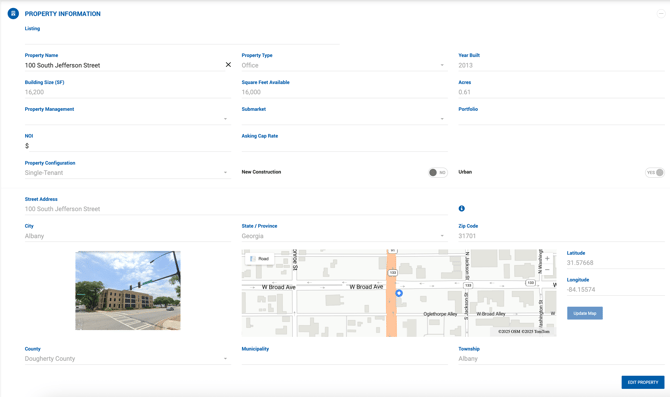
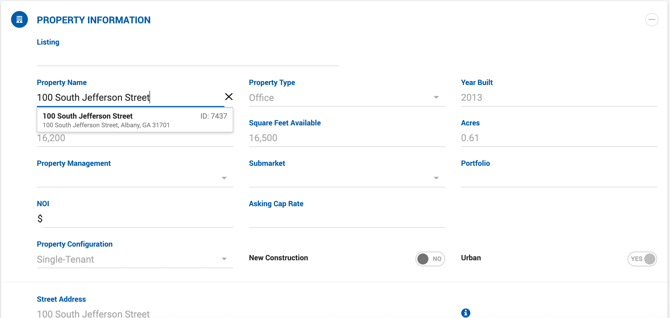
Use the Property Name field to search for existing properties by name, address, or ID. Click the correct result to auto-fill the property details.
If the property has not been used before, enter the information manually. Once saved, the property will be available for future deals.
Note: Property fields are only editable when creating a new property or listing directly on the deal profile. Once the deal is saved, property information can only be edited via the Property Profile, accessible using the Edit Property button next to the map.
Property Snapshots and Change Tracking
Once a property, listing, or space is linked to a deal and saved, the system creates a historical snapshot of that information. This ensures that subsequent changes to the property profile do not automatically affect the deal.
When editing an active, closed, or re-opened deal, any fields that have changed in the Property Profile are highlighted in yellow, and a banner appears at the top of the screen: "Information was updated."
To apply the latest property data to the deal, click the Refresh button. This updates all property fields (Property Information, Property Details, and Space Information) in one action, regardless of which section the button is clicked in.
Note for Lease Deals: Clicking Refresh triggers a pop-up reminder: "Update the Lease Calculator manually to use the new values," since changes to available space may affect rent calculations.
Disconnecting a Property
Click the X button to the right of the property name to remove it from the deal. This is not available for closed deals that have paid accounting entries.
For lease deals where a rent grid has already been generated, a confirmation prompt appears: "Are you sure you want to delete this property? Removing it will not remove the lease calculations."
Unit/Suite # Field
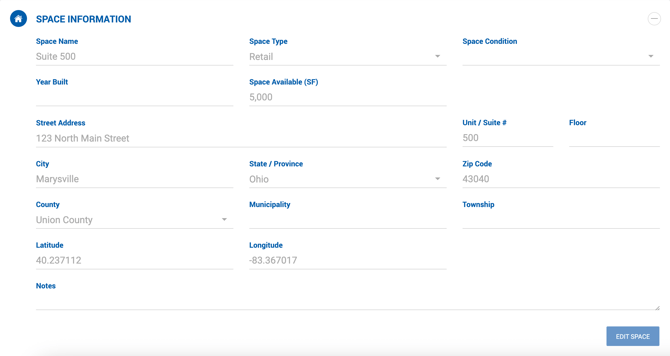
The Unit/Suite # field was moved from the property level to the space level in a previous update. It remains visible under Property Information only for historical deals and properties where the value was previously set. When editing a historical deal, the system will prompt you to move the Unit/Suite # to the space level before saving.
Square Footage Warning
If you attempt to update the SF of a property or space on a Pending Close or Closed deal, the system will respond as follows:
- Other Rep and Sale deals — A warning is displayed.
- Sale deals — The update is blocked until applied payments are deleted and the rent schedule is re-run, as SF directly affects accounting figures.
Field Definitions
Property Type — A multi-select dropdown to identify the property type(s). Other fields in this section vary based on the property type selected. See Property Details Based on Property Type for more information.
Square Feet — The square footage available and tied to the deal. Auto-fills if a listing or property is selected from the lookup.
Building Size — Total square footage for the entire building.
Acres — Total acreage associated with the property. Not required.
Street Address — As you type, Bing address suggestions appear below the field. Selecting a suggestion auto-fills the full address, pins the location on the map, and populates Latitude and Longitude.
Map — The map can be adjusted by entering Latitude and Longitude values and clicking Update Map, or by double-clicking a location directly on the map. Dragging the pin also updates the Latitude and Longitude values. The map supports two display modes — Road and Satellite — switchable from the top-left corner. 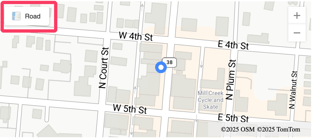
Building Photo — Click Upload Picture to add a photo of the property.
Remember: Always click the green Save button after making changes.