Overview
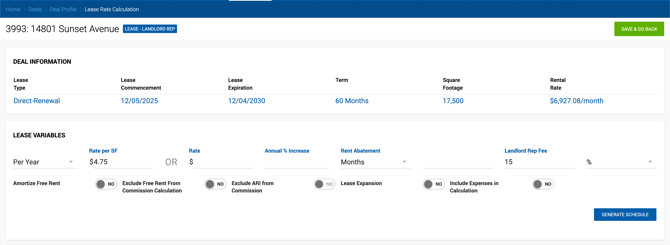
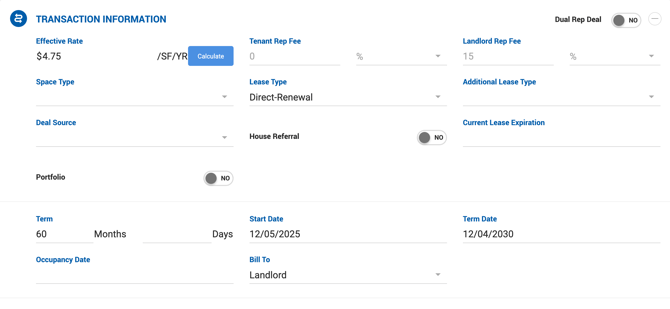
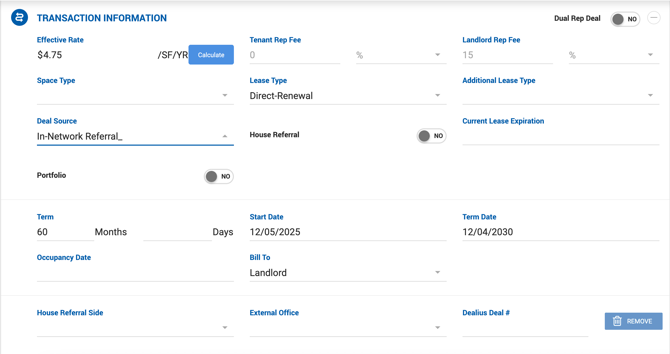
The Lease Calculator allows you to input lease variables and generate a payment schedule for lease deals. To access it, complete the Transaction Information section on the deal profile and click the blue Calculate button. Fill in the fields in the popup that appears, then click Continue to open the Lease Calculator.
Key Fields
Start Date (Lease Commencement) If updated after the rent grid has been generated, the grid automatically updates with the new time intervals.
Term If the Term is changed after the rent grid has been generated, a popup appears asking: "Changes made to the Term may require editing the rent schedule. Would you like to view the lease calculator and verify the dates?" Clicking Yes saves the form and opens the calculation screen. Clicking No closes the popup without making changes. This popup appears each time a required field is changed to a value that differs from the original.
Lease Type
Square Feet If a property is linked to the deal with square footage specified, that value is used. If no property is set or no square footage is specified, the value from the Space Required field in Client Requirements is used instead. This fallback applies to Tenant Rep deals only, as the Space Required field is not present on Landlord Rep forms.
Lease Variables
Enter the following values before clicking Generate Schedule.
Rent Type Per Year or Per Month. If monthly rents are entered, Dealius converts them in calculations. The default is set during deal creation but can be changed here. If Monthly Rate is selected, the Base Rent column is calculated as Base Rent × 12.
Base Rate Enter either Rate per SF or a monthly/annual rate — Dealius automatically calculates the other. Values display to two decimal places but show the full precise figure when the field is active.
Annual % Increase (ARI) Increases Rent per SF by the specified percentage for each row after the first 12-month period (excluding free rent). Example: If Rent per SF is $5.00 and ARI is 1%, the next period rate = $5.00 + ($5.00 × 1%) = $5.05.
Rent Abatement Represents free rent as either a number of months or a dollar amount. When switching between Months and Amount, values are saved separately so the user can toggle between them. The free dollar amount is deducted from Total Lease or Base Rent (if expenses are enabled), distributed across months proportionally.
The Exclude Free Rent from Commission Calculation toggle is disabled by default. When enabled, commission is calculated as if no free rent exists (i.e., number of periods × Rate per SF × SF × Rep Fee).
Landlord Rep Fee / Tenant Rep Fee Pre-populated from the Deal Profile but can be overridden manually. Supports up to 3 decimal places. If rates in the grid are edited and the average no longer matches the Rep Fee %, a warning appears on save. Once the rent grid is generated and saved, the system calculates the average commission rate and updates the Rep Fee on the Deal Profile. Rep Fee inputs on the Deal Profile are then disabled with the note: "In order to edit these values, open the Calculation screen."
Rent Type for Rep Fee (%, $/SF, or Annual $/SF)
- $/SF — The Commission Rate column is hidden from the rent grid. Gross Commission is calculated as: Rep Fee × Square Footage ÷ Term × Months per line. Gross Commissions can be entered manually when $/SF is selected; entered values are not validated.
- Annual $/SF — Only visible when enabled under Admin > System Settings > Deal Default Settings > Enable Annual $/SF Rep Fee for Lease Calculator. Formula: Annual $/SF Rep Fee × SF ÷ 12 × Months in the period.
- If both outside broker fields use $/SF, the Exclude Expense from Commission toggle is disabled.
- If at least one field uses %, commission is calculated based on Total Lease as usual when Exclude Expense from Commission is off.
If an edited Gross Commission differs from the calculated value, a confirmation prompt appears: "Gross Commission does not match the original value calculated based on Rep Fee. Do you wish to proceed?"

-
Here's the rewritten version:
Lease Calculator
A guide to entering lease variables, generating a rent schedule, and configuring commission calculations for lease deals.
Overview
The Lease Calculator allows you to input lease variables and generate a payment schedule for lease deals. To access it, complete the Transaction Information section on the deal profile and click the blue Calculate button. Fill in the fields in the popup that appears, then click Continue to open the Lease Calculator.
Key Fields
Start Date (Lease Commencement) If updated after the rent grid has been generated, the grid automatically updates with the new time intervals.
Term If the Term is changed after the rent grid has been generated, a popup appears asking: "Changes made to the Term may require editing the rent schedule. Would you like to view the lease calculator and verify the dates?" Clicking Yes saves the form and opens the calculation screen. Clicking No closes the popup without making changes. This popup appears each time a required field is changed to a value that differs from the original.
Lease Type
Square Feet If a property is linked to the deal with square footage specified, that value is used. If no property is set or no square footage is specified, the value from the Space Required field in Client Requirements is used instead. This fallback applies to Tenant Rep deals only, as the Space Required field is not present on Landlord Rep forms.
Lease Variables
Enter the following values before clicking Generate Schedule.
Rent Type Per Year or Per Month. If monthly rents are entered, Dealius converts them in calculations. The default is set during deal creation but can be changed here. If Monthly Rate is selected, the Base Rent column is calculated as Base Rent × 12.
Base Rate Enter either Rate per SF or a monthly/annual rate — Dealius automatically calculates the other. Values display to two decimal places but show the full precise figure when the field is active.
Annual % Increase (ARI) Increases Rent per SF by the specified percentage for each row after the first 12-month period (excluding free rent). Example: If Rent per SF is $5.00 and ARI is 1%, the next period rate = $5.00 + ($5.00 × 1%) = $5.05.
Rent Abatement Represents free rent as either a number of months or a dollar amount. When switching between Months and Amount, values are saved separately so the user can toggle between them. The free dollar amount is deducted from Total Lease or Base Rent (if expenses are enabled), distributed across months proportionally.
The Exclude Free Rent from Commission Calculation toggle is disabled by default. When enabled, commission is calculated as if no free rent exists (i.e., number of periods × Rate per SF × SF × Rep Fee).
Landlord Rep Fee / Tenant Rep Fee Pre-populated from the Deal Profile but can be overridden manually. Supports up to 3 decimal places. If rates in the grid are edited and the average no longer matches the Rep Fee %, a warning appears on save. Once the rent grid is generated and saved, the system calculates the average commission rate and updates the Rep Fee on the Deal Profile. Rep Fee inputs on the Deal Profile are then disabled with the note: "In order to edit these values, open the Calculation screen."
Rent Type for Rep Fee (%, $/SF, or Annual $/SF)
- $/SF — The Commission Rate column is hidden from the rent grid. Gross Commission is calculated as: Rep Fee × Square Footage ÷ Term × Months per line. Gross Commissions can be entered manually when $/SF is selected; entered values are not validated.
- Annual $/SF — Only visible when enabled under Admin > System Settings > Deal Default Settings > Enable Annual $/SF Rep Fee for Lease Calculator. Formula: Annual $/SF Rep Fee × SF ÷ 12 × Months in the period.
- If both outside broker fields use $/SF, the Exclude Expense from Commission toggle is disabled.
- If at least one field uses %, commission is calculated based on Total Lease as usual when Exclude Expense from Commission is off.
If an edited Gross Commission differs from the calculated value, a confirmation prompt appears: "Gross Commission does not match the original value calculated based on Rep Fee. Do you wish to proceed?"
Generating and Editing the Schedule
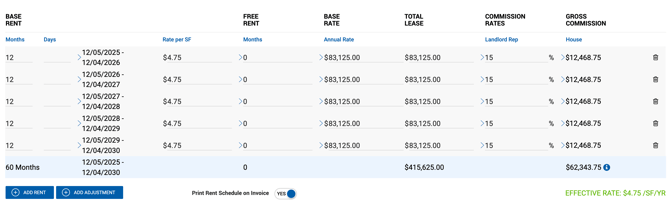
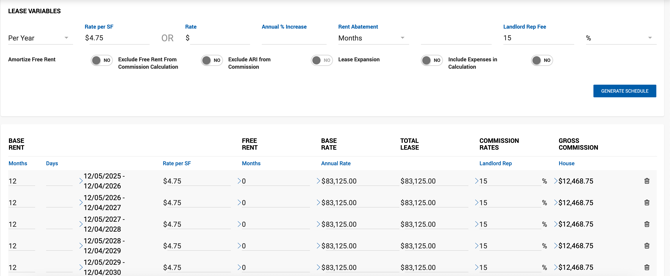
Click Generate Schedule once all variables are entered. If any variable is changed afterward, click Generate Schedule again to refresh the table.
The generated schedule can be manually edited to reflect custom rent changes. Clicking a field allows direct entry; related fields update automatically.
Click Save & Go Back to return to the Deal Profile.
Rent Schedule Table — Column Definitions
Column Description Months Number of months for that portion of the term (typically 12 for annual rows). Total months must equal the Term. Date Range Auto-generated from Start Date and number of months. Rate per SF Rent per SF for the period. Displays to 2 decimal places; full precision shown when focused. Free Rent / Months Number of free months within the specified period. Monthly / Annual Rate Value from the Rate field in Lease Variables. Monthly Rate is editable. Base Rent Total Lease value before expenses are factored in. Expense Calculated as: Expense Stop × SF ÷ 12 × Months in row. Editable to accommodate non-SF-based expenses. Total Lease Base Rent + Expense. Commission Rates Rep fee percentage for the period. Shown for both sides if internal and outside brokers are present. House Gross Commission Calculated from Commission Rate × Total Lease. May be affected by Exclude ARI from Commission and Include Expenses in Commission settings. Outside Gross Commission Calculated from Commission Rate × Total Lease. Not affected by any toggle in Lease Variables. Effective Rate Calculated as: (Total Lease − Total Expenses) ÷ SF ÷ Term × 12. 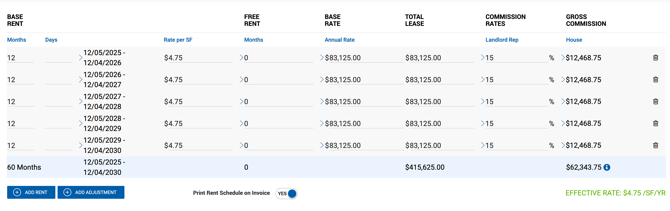 Values in the Rate per SF, Total Lease, and Gross Commission columns are not rounded during calculation but display rounded to cents. Rounding occurs on the total row only.
Lease Toggles
Amortize Free Rent When ON, free rent (months or dollar amount) is distributed equally across all periods. When OFF, the free rent value is added to the last period of the term.
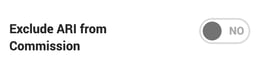
Exclude ARI from Commission When ON, commission is calculated based on the Base Rent in the first row only, excluding any Annual % Increase. Applies to both House and Outside Commissions. This toggle is disabled if Base Rent or ARI is blank.
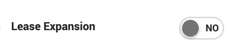
Lease Expansion For deals where square footage increases during the lease term. When ON, a Square Footage column appears in the rent table and an Expansion row can be added beneath each rent line.
- Expansion row includes: Square Footage, Rent per SF, Base Rent, Total Lease, and Commission (same months and period as the parent row).
- Rent per SF and Commission Rate are pre-filled with default values.
- Expansion rows are highlighted in green.
- Only one expansion per rent line is allowed.
- If Square Footage is entered in the first expansion row while all others are blank, the value auto-populates to all other expansion rows. This only applies to the first row.
- Effective Rate calculation includes expansion values.
- Invoice Preview and Invoice PDF include expansion data when this toggle is active.
Include Expenses in Calculation Available for all lease types. Enables an Expense Stop value to be factored into rent and commission calculations. Note: Changing the lease type from Direct-New to any other type removes expenses from calculations.
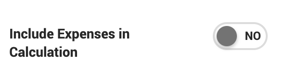
When enabled, the following fields become available:
Field Description Expense Stop Dollar value of expense per year per SF, similar to Base Rent. Include Rent Abatement in Expense If Yes, free months are factored into the expense calculation. If No, only the number of months in the period is used. Exclude Expense from Commission If No, commission is based on Total Lease. If Yes, commission is based on Base Rent only, excluding expenses. Applies to both House and Outside Commissions.
Adjustment
To accommodate unplanned changes to commission calculations, click Add Adjustment next to the Add Rent button on the Rent Schedule page. This adds a row below the entire schedule with a description field and an input for a positive or negative $ or % amount. Adjustments recalculate the total gross commission but do not affect lease amounts or effective rates.
Note: Adjustments, like all rent schedule edits, cannot be made after at least one payment has been received.
Print Rent Schedule on Invoice Defaults to Yes. When set to No, the rent grid is excluded from the invoice PDF. This setting can be changed regardless of deal status.
Commission Calculation Notes
- If Commission is set to 0 on the Lease Calculation screen, House Gross and Broker Commission are calculated based on the Rep Fee % on the Deal Profile.
- If Commission is greater than 0, the House Gross equals the Commission value and is used to generate internal broker commissions.
- Once commission is generated and saved, the Rep Fee inputs on the Deal Profile are disabled.
- The Brokers Who Share the Commission section splits the total commission between all participating brokers based on their Rep Fee %.

Points to Note
- If Amortize Rent is OFF, the Rent Abatement value is added to the end of the lease.
- If the rent schedule is created manually or modified after generation, lease variables must be updated manually as well.