
Overview
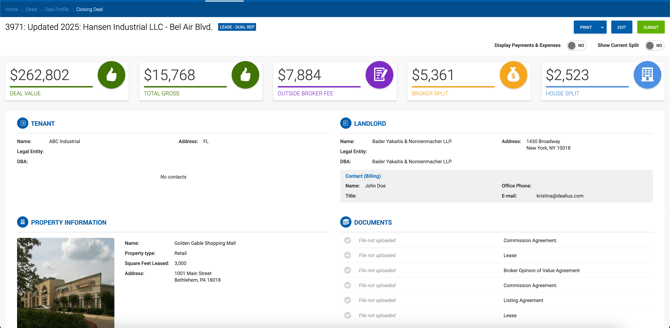
When a deal is ready to close, click the blue Close Deal button in the top-right corner of the Deal Profile. This opens the Deal Abstract, where you can review all deal information, edit the deal, and print the abstract and invoices. 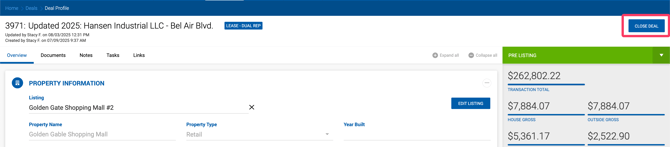
Step 1 — Review the Deal Abstract
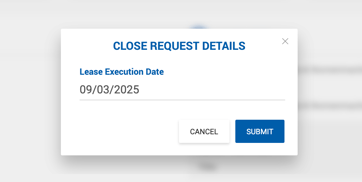
Scroll through the abstract to verify that all information and commission details are correct. Once everything looks good, click the green Submit button in the top-right corner. A popup will prompt you to enter the Execution or Actual Close Date. Enter the date and click Submit.
Step 2 — Required Fields
If any required fields are missing, a red error message appears at the top of the screen identifying what needs to be completed before closing can proceed.
Required by default:
- At least one active broker
- An active lead broker (for Dual Rep deals, one lead broker per side)
- At least one internal broker per rep side on Dual Rep deals
- Deal closing approvals configured for the office
- Client company
- Opposite side company (not required for Other Rep deals)
- Required documents (as configured by your Admin)
- Property Name and Property Address
Additional required fields configurable under System Settings:
Property Details, Landlord Contact Details, Payment, Deal Source, $0 Commission, and Billing Preference.

Step 3 — Broker Approvals
Once submitted without errors, the deal enters Pending Close status and the abstract displays Approve and Reject buttons. Each internal broker participating in the deal must approve before the process advances. Email notifications are sent to all participating brokers.
For Dual Rep deals, the Landlord/Seller side approves first, followed by the Tenant/Buyer side starting with their lead broker.

Step 4 — Admin/Manager Final Approval
Once all broker approvals are complete, an email notification is sent to the Admin or Manager for final approval. After all approvals are recorded, the deal closes. Closed deals cannot be edited without Admin involvement.
Rejecting a Deal
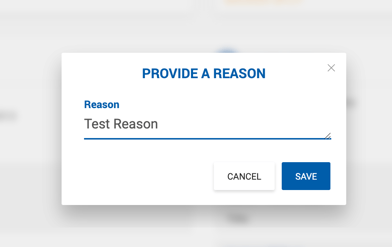 Any approver listed in the approval workflow can reject a deal while it is in Pending Close status. Rejection requires a reason to be entered. The reason is automatically logged as a note on the Deal Profile under Notes with the subject "Deal Rejected", and all participants receive a notification. Rejecting a deal reverts it to the status it held before it was submitted for closure. The approval history remains visible on the deal abstract until the deal is resubmitted. When resubmitted, all approvals are reset, and the process starts over.
Additional Notes
- A deal can be closed without internal brokers if at least one outside broker is added. In this case, receivables are generated but no in-house payables are created.
- If the Allow Closing Deals with $0 Commission toggle is OFF, at least one payment greater than $0 must be added before a manager can approve. When ON, payment is not required.
- Brokers can submit a deal for closure without payments. Managers must add at least one payment before submission.
- Brokers and Managers (and their Admin Assistants) can reject a pending deal and request edits, or edit and approve the deal themselves.
- It is not possible to edit or remove brokers while a deal is in Pending Approval status.
- Admins not listed in the Approvals workflow cannot Approve or Reject deal closing.
- Expenses and payments can be added to the deal before or during the closing process by editing the deal.
- Approval statuses are shown on the Close Deal screen.
- Admins can Approve or Reject any deal closing.