
Overview
The Deal Abstract provides a summary view of all key deal information and serves as the hub for the deal closing process. If the Display Deal Abstract When Viewing Deals toggle is enabled in User Settings > Preferences, clicking a deal opens the Abstract instead of the Deal Profile. To return to the Deal Profile, click Edit on the abstract page.
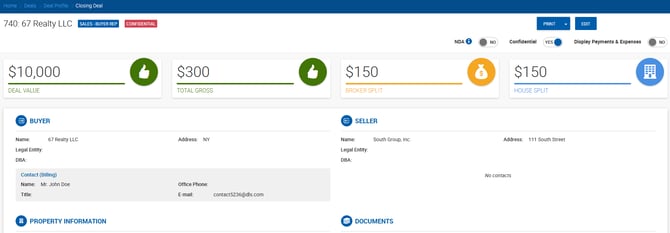
Available Actions
Actions available on the Deal Abstract depend on the user's role and the deal's current status: 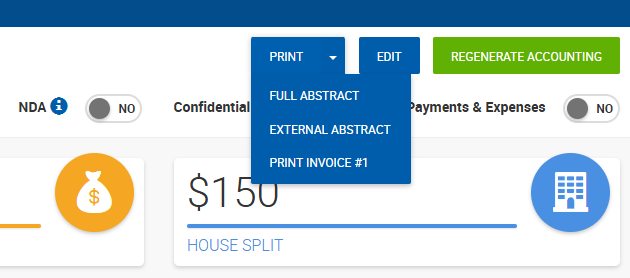
| Action | Description | Available To |
|---|---|---|
| Print Full Abstract | Prints full deal information including payments and expenses (if enabled on the abstract). | All permitted users |
| Print External Abstract | A simplified version designed for outside brokers — House Split information is excluded. | All permitted users |
| Print Invoice # | Prints a proforma invoice based on payments entered on the deal. The deal must have a linked property. By default available to Office Admins and Managers. Admin Assistants can print if enabled under Admin > System Settings > Deal Default Settings. | Office Admins, Managers, Admin Assistants (if enabled) |
| Contract Deadlines | Generates a report based on Important Dates deadlines. | All permitted users |
| Edit | Returns to the Deal Profile for editing. | All permitted users |
| Submit | Sends the deal to managers for approval. | Brokers only |
| Approve | Approves the deal closing. | Managers only |
| Reject | Rejects the deal closing. | Managers only |
Abstract Sections
Rent Schedule / Commission Calculations Displays rent schedule information pulled from the Lease Calculator screen. 
Property Information Property details from the Deal Profile. 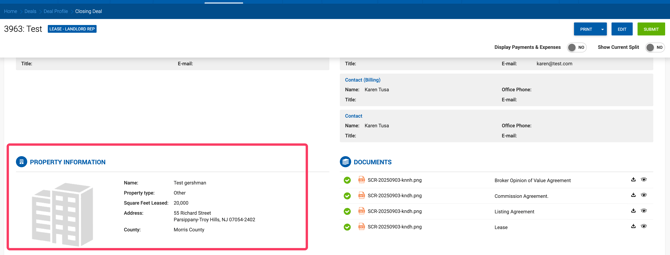
Documents Documents uploaded to the deal. Files can be downloaded or previewed directly from the abstract. 
Deal Information A summary of key financial amounts from the Deal Profile. 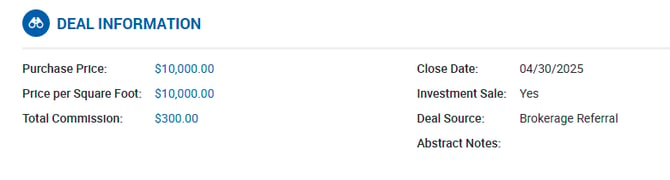
Important Dates A summary of important dates generated on the Deal Profile. 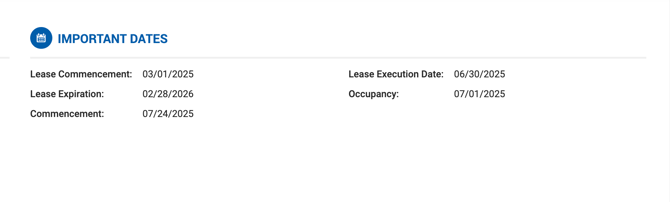
Brokers A summary of broker grosses for all participating brokers. Each block shows the broker's name, company, photo, type (internal or external), Broker Gross, and Broker/House split information.
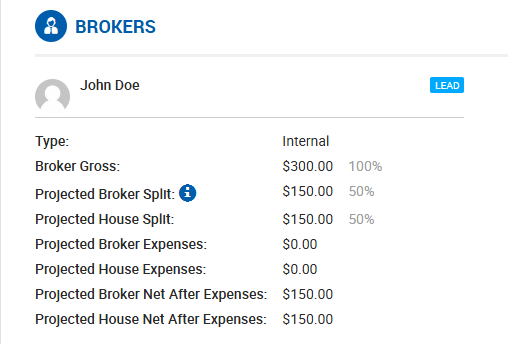
Brokers can see their own Broker Gross and Split, and the Broker Gross of other deal participants. House Split values and House Expenses are hidden from broker users.
Additional fields shown in this section:
| Field | Description |
|---|---|
| Discount | Total discount value for the broker. |
| Broker Gross after Discount | Broker Gross minus Discount. |
| Broker Net after Discount | Broker Net minus Discount. |
| House Net after Discount | House Net minus Discount. |
| Broker Expenses | Total expenses calculated per broker. |
| House Expenses | Total house expenses per broker. (Hidden from brokers) |
| Broker Net After Expenses | Broker Net minus Broker Expenses. |
| House Net After Expenses | House Net minus House Expenses. (Hidden from brokers) |
| House Paid | Indicates whether the House will pay the outside broker. |
Split Calculation Tooltips
Tooltips appear next to split figures to clarify how they are calculated based on deal status and company settings:
- Split based on Close Date, active deal: "Broker Split: this figure is a projection based on active and closed deals and their anticipated/actual Close Date. The figure is dynamic and may adjust as updates are made to deals."
- Split based on Close Date, closed deal: "Broker Split: this figure is a projection based on closed deals and their Close Date. The figure is dynamic and may adjust as updates are made to deals."
- Split based on Payment Date, active deal: "Broker Split: this figure is a projection based on active and closed deals and their anticipated payments. The figure is dynamic and may adjust as updates are made to deals and receivables."
- Split based on Payment Date, closed deal: "Broker Split: this figure is a projection based on closed deals and their anticipated/actual payments. The figure is dynamic and may adjust as updates are made to deals and receivables."
Payments & Expenses
The Display Payments & Expenses toggle at the top of the Deal Abstract controls whether payment information is shown on the abstract view and print forms. Disabled by default — the default value can be configured per user under My Settings > Preferences. 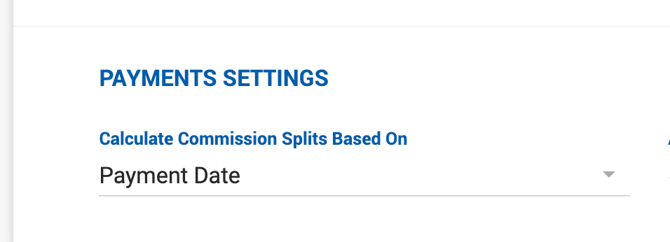
When enabled, payments appear after the Approvals section. Both payments and expenses are included in the Full Abstract print. Only payments are included in the External Abstract print. 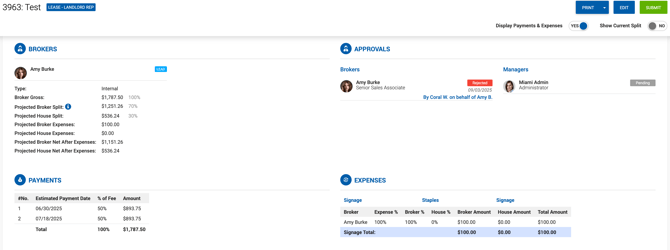
Current Split Display
When Enable Current Split Display on Deal Abstract is turned on under Admin > System Settings > Deal Default Settings (available only when splits are calculated based on Payment Date), a Show Current Split toggle appears on the abstract. When enabled, a "Current Split — XX%" line appears under the house broker's name. 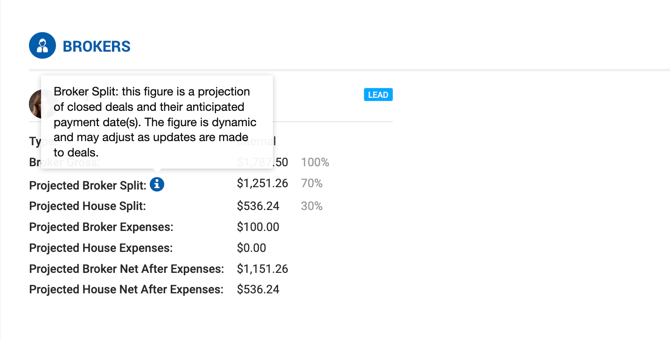
The current split is calculated based on the broker's cumulative paid Broker Gross, matched against their split plan tiers at the current point in time. No other commission figures are affected by this toggle. 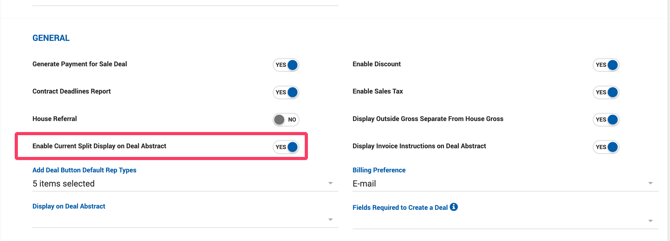
The default state of this toggle can be set per user under My Settings > Preferences > Default "Show Current Split" Toggle to Yes.
Actual Close Date Confirmation
When a deal is submitted for closing, a modal prompts the user to confirm the Actual Close Date (or Lease Execution Date for Lease deals). The date defaults to today and cannot be set to a future date.
- For Sale deals — Close Date is displayed under the Deal Information section of the abstract.
- For Lease deals — Lease Execution Date is displayed under the Important Dates section.
If the date needs to be corrected, a Manager can click Edit to return to the Deal Profile and update it. The Actual Close Date / Lease Execution Date only appears on the Deal Profile when the deal is in Pending Close or Closed status.