
Overview
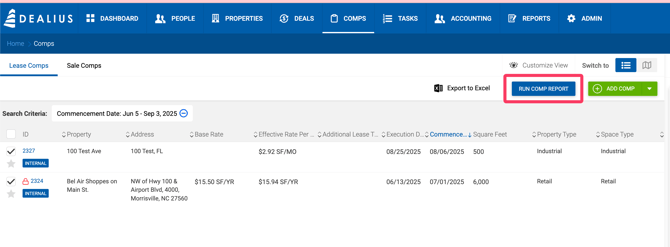
Comp reports can be generated from the Lease or Sale Comps grid by selecting comps using the checkbox and clicking Run Comp Report. If any comp is marked with a star, it will always appear first in the report. A pop-up allows configuring report options, which vary by report type. Once configured, the report opens in preview mode in a new tab and can be downloaded as a PDF or Excel file.
Every comp report consists of three parts: a cover page, a map page, and body pages with comp content.
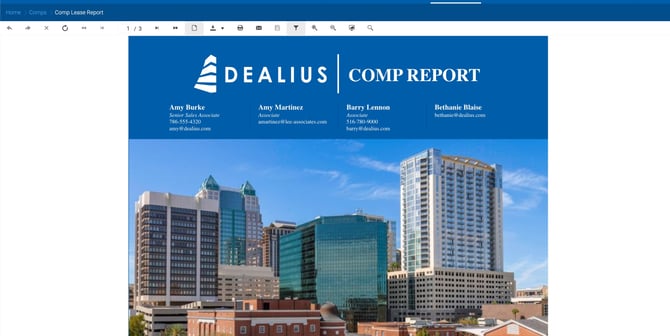
Cover Page
The cover page displays the following elements, several of which can be customized in the Run Comp Report pop-up or under Admin > System Settings > Comp Report Settings:
| Element | Description |
|---|---|
| Logo | Dealius logo by default. Can be replaced under Comp Report Settings. |
| Report Name | Specified during report generation. |
| Prepared For | Company name entered during report generation. |
| Brokers | Name, title, phone, email, and license (if enabled) for each selected broker. The Lead Broker is listed first. |
| Background | Fill color and image configurable under Comp Report Settings. A different image can be set per property type category: Retail, Office, Industrial, Land, Multi-Family, and Uncategorized. |
| Footnote | Customizable under Comp Report Settings. |

Map Page
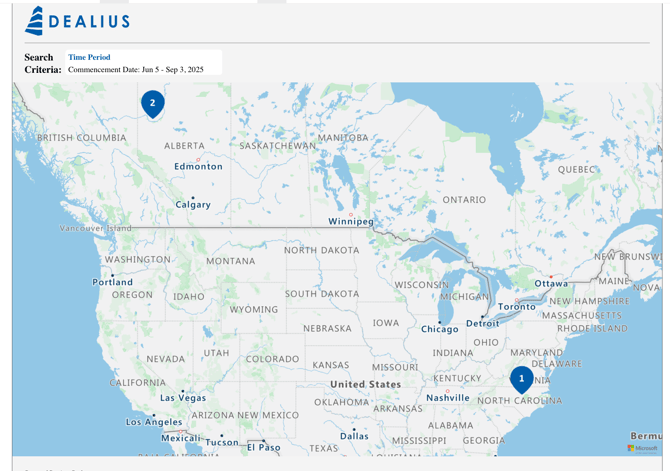
The map page contains a snapshot of the map with numbered pins for each comp in the report. Pin numbers correspond to comp order throughout the report. The page also includes:
- Company logo (from Comp Report Settings)
- Selected search criteria
- Footnote
- Prepared By (lead broker name)
- Date and time the report was generated
The search criteria section can be hidden by disabling the Display Search Criteria toggle in the Run Comp Report pop-up.
Body Pages
Content varies by report type. See the dedicated articles for each:
- Summary Report
- Detailed Comp Report
- Brochure Report