
Overview
Comps can be created manually using the Add Comp dropdown under the Comps menu, or generated automatically when a deal is closed in Dealius.
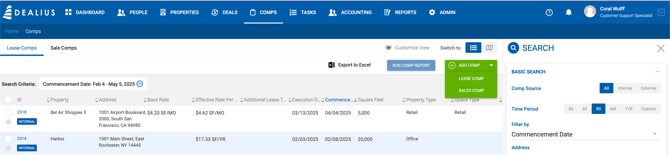
When created manually, a comp cannot be linked to an existing deal. It can be marked as Internal if the transaction was conducted by the agency but never recorded as a deal, or left as External (the default) if it was conducted outside the agency. This is set in the Comp Verification section and can be changed at any time.
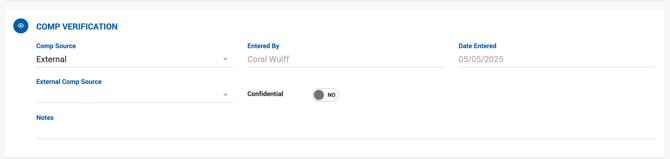
The only required fields when creating a comp manually are Property Name, full property address (Street, City, State, ZIP, Latitude, and Longitude), and Comp Source.
Manually created comps are linked to the Property Profile, but property changes do not automatically update the comp. To pull in property updates, click Refresh on the comp profile — the same behavior as on deal profiles.
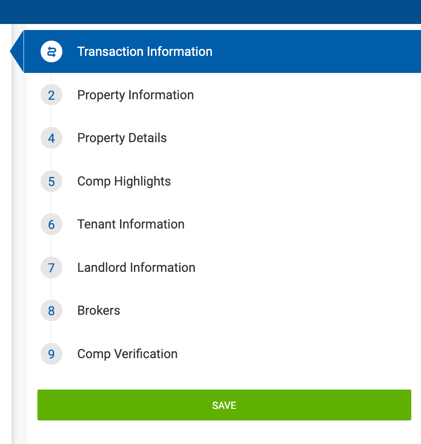
Comp Header
The comp header contains the following:
- Comp ID — Automatically generated unique number, independent of any deal ID.
- Comp Name — Populated from the property or space address. Not editable.
- Updated — Date, time, and user of the last update.
- Type Tag — Identifies the comp as a Lease Comp or Sale Comp.
- Confidential / NDA Labels — Displayed when the corresponding toggles are enabled in Comp Verification.
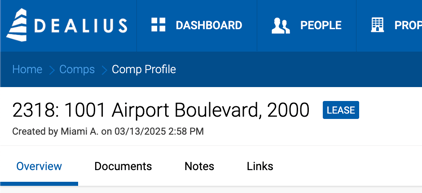
Comp Profile Sections
Every comp profile contains the following sections:
- Transaction Information
- Property Information
- Space Information (empty if no space is selected)
- Property Details (driven by property type)
- Comp Highlights
- Client Information (Buyer/Seller for sale; Tenant/Landlord for lease)
- Brokers
- Comp Verification
- Documents
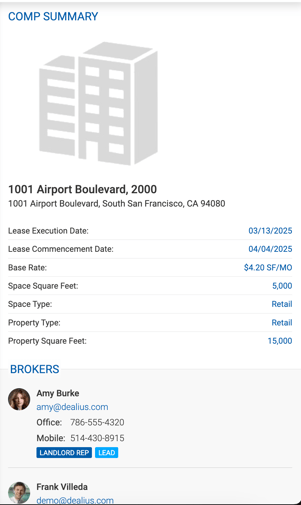
Lease Comp — Transaction Information & Sidebar
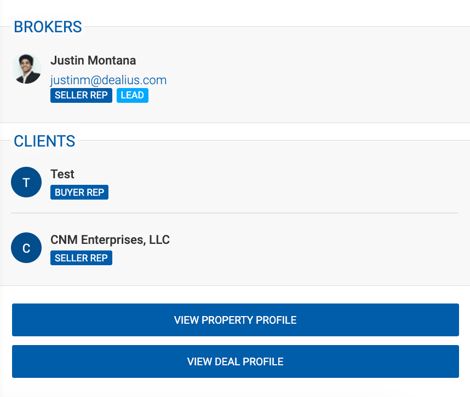
The sidebar displays the property image (or placeholder) and address, plus the following fields if not empty: Lease Execution Date, Lease Commencement Date, Base Rate, Additional Lease Type, Space SF, Space Type, Submarket, Building Class, Property Type, Property SF, and Year Built. It also lists brokers with email and phone, client company names, and links to the deal and property profiles.
The Transaction Information section combines fields from a deal's Transaction Information and Additional Transaction Information:
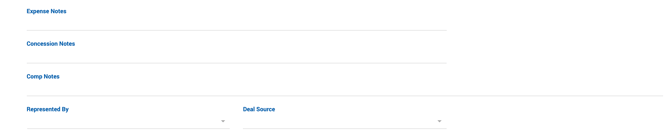
Asking Rate per SF, Base Rate, Effective Rate per SF, Lease Execution, Lease Commencement, Occupancy Date, Term (Months), Term Date, Space Type, Lease Type, Additional Lease Type, Free Rent, TI Allowance per SF, TI Type, TI Notes, Delivery Condition, Escalation Notes, Avg Escalation, CAM Notes, CAM per SF, Taxes, Insurance, Utilities, OPEX, TICAM, Expense Notes, Concession Notes, Comp Notes, Deal Source. 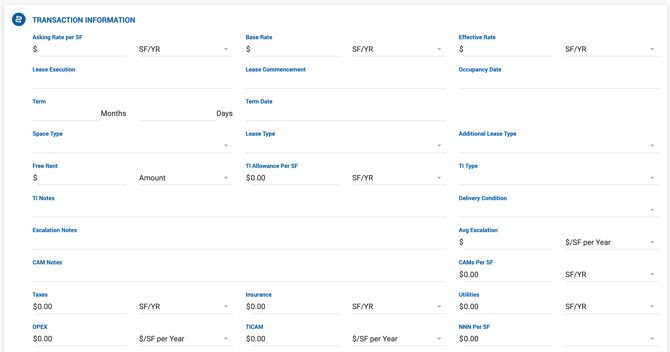
Represented By — Available on manually created comps only. Allows selecting the company that represented the transaction (relevant for external comps).
Rent Schedule Comps generated from closed deals include a read-only rent schedule summary showing periods, dates, rent per SF, free rent, annual rate, and total lease. 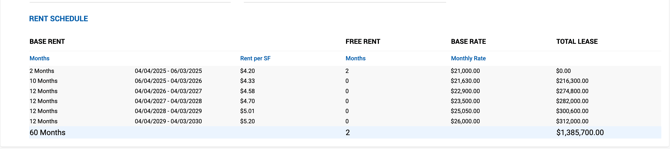
For manually created external comps, a rent schedule can optionally be added by clicking Add Rent Schedule. This opens a simplified lease calculator where you can enter lease variables and generate a schedule. Requires SF, Lease Commencement Date, Term, and Lease Type to be filled in first. The schedule can be edited and updated at any time. 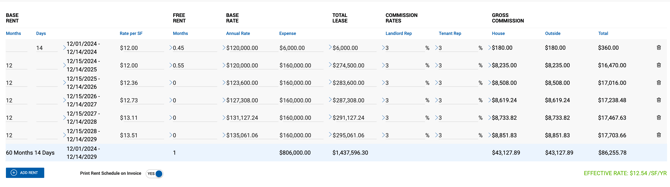
Sale Comp — Transaction Information & Sidebar
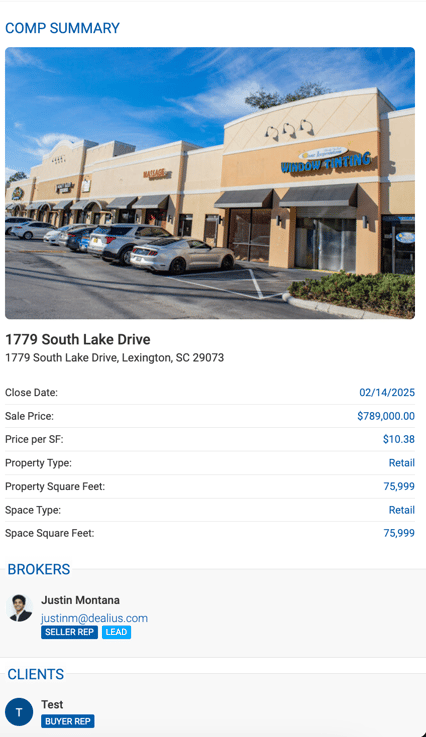
The sidebar displays the property image and address, plus the following fields if not empty: Close Date, Sale Price, Price per SF, Cap Rate, Property Type, Submarket, Building Class, Property SF, Space Type (if applicable), Space SF (if applicable), and Year Built. It also lists brokers, client company names, and links to the deal and property profiles.
The Transaction Information section contains: Asking Price, Sale Price, Price per SF, Actual Close Date, Days on Market, Actual Cap Rate %, Transaction Condition, Actual NOI, Owner-Occupied, Investment Sale, Portfolio, Occupancy Date (visible when Owner-Occupied is enabled), Off-Market Sale, Comp Notes, Deal Source.
Represented By — Available on manually created comps only.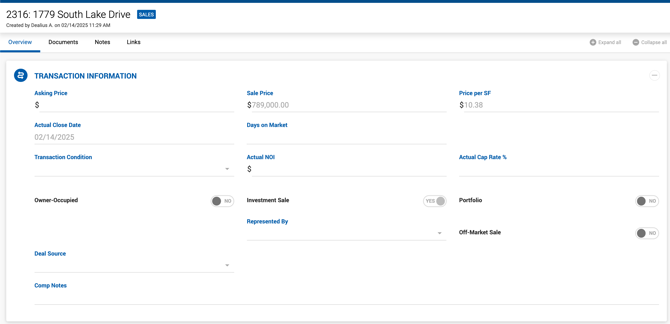
Property Information
Same as on a deal profile — includes main property information, image, and map. 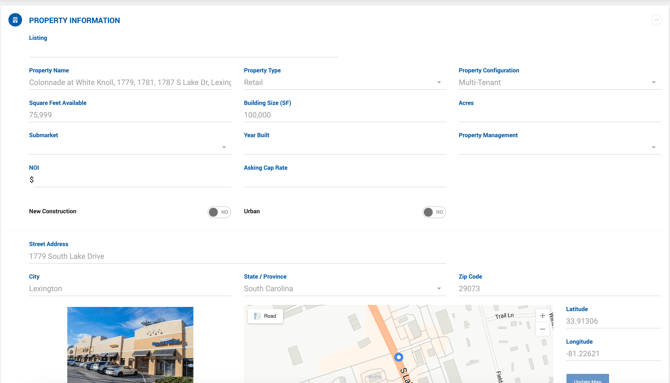
Space Information
Same as on a deal profile. Empty if no space is selected for the comp. 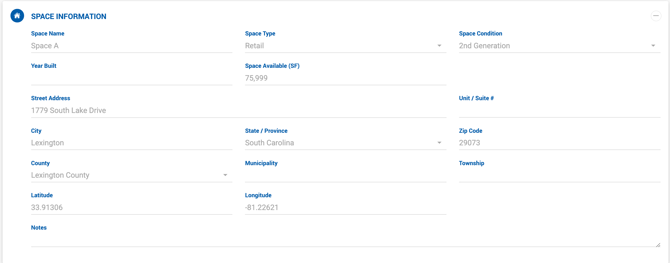
Property Details
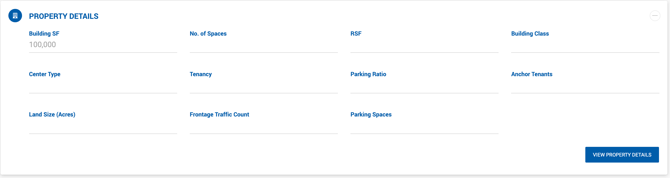
Driven by the property type category (Land, Retail, Multi-Family, Industrial, Office, or Uncategorized). The fields displayed are configured by an Office Admin under Admin > Manage Data > Property Details.
Comp Highlights
Text highlights specific to the comp. Not copied from the Property Profile. Lines can be added, reordered, edited, or deleted as needed.

Client Information
Divided into two sections based on comp type:
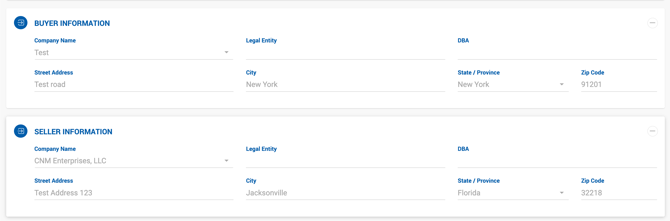
- Lease Comp — Tenant Information and Landlord Information.
- Sale Comp — Buyer Information and Seller Information.
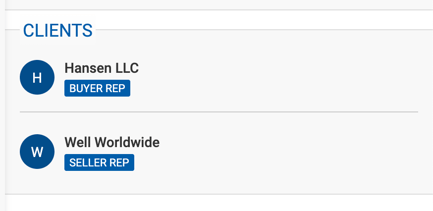
Only company names are shown — no contact names, phone numbers, or emails. For comps generated from closed deals, these sections are read-only. For manually created comps, companies are editable.
Brokers
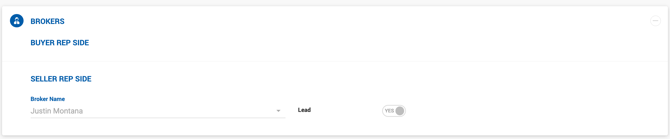
Lists brokers on both sides of the transaction. Commission details are not included. Comps generated from closed deals have this section as read-only. Manually created comps allow adding and editing brokers, including designating a lead broker and adding outside brokers.
Comp Verification
| Field | Description |
|---|---|
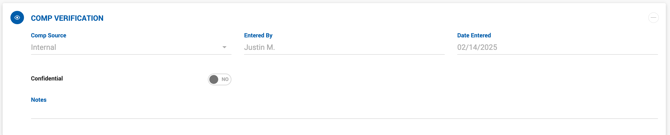
| Comp Source | Required. Internal or External. Auto-set to Internal for deal-generated comps (read-only). Defaults to External for manually created comps. When External is selected, an External Comp Source dropdown appears with options: CoStar, CREXI, LoopNet, MLS, Moody's, Other. |
| Entered By | Read-only. The user who created the comp manually, or the lead broker for deal-generated comps. If two lead brokers exist, the Seller/Landlord side lead is used. |
| Date Entered | Read-only. The date the comp was created. |
| Confidential | Limits access to the comp based on Confidential Comp Visibility settings under Admin > System Settings > Comp Default Settings. Deal-generated comps inherit this value from the deal. Disabled by default for manual comps. When enabled, two additional fields appear: Select Users (grant view access to users not directly associated with the comp) and NDA (marks the comp as subject to a Non-Disclosure Agreement, turning the lock icon red for restricted users). NDA comps are also restricted in Excel exports and comp reports — only property/space address, comp source, and Confidential/NDA flags are included. |
| Notes | Free text for access notes or verification comments. |
Documents
A dedicated Documents section allows uploading files (images, documents, PDFs, Excel, text) to the comp. Documents are not inherited from a closed deal, so a comp may have different documents than its associated deal.
Access to documents is controlled by Standard and Confidential Visibility settings in System Settings:
- If Documents are not included in Standard Visibility, they are accessible only to the comp's creator, office managers, and admins.
- If the comp is confidential and Documents are not included in Confidential Visibility, the same restriction applies.