
Overview
The Summary Report consists of a cover page, a map page, and content pages displaying up to 5 comps at a time in a grid format. Data points differ between Lease and Sale reports. If more than 5 comps are selected, additional pages are created to accommodate them.
Generating the Report
Click Run Comp Report and select Summary, then fill in the following fields:
Note: If only one report type is available, the Report Type selector may be hidden and default to Summary automatically.
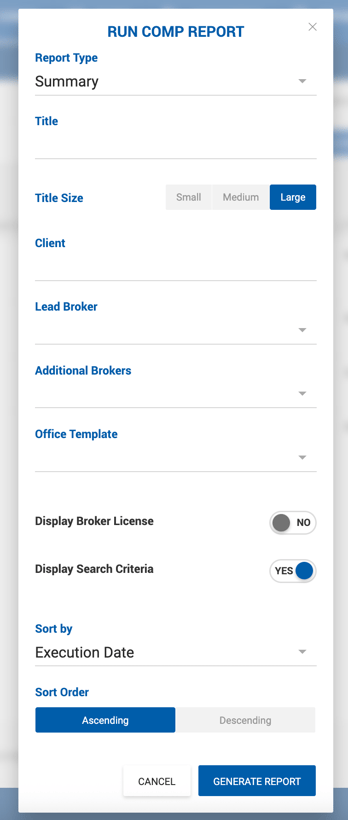
Report Type — Select Summary.
Report Name — Free text. Defaults to "Comp Report".
Client — Free text. Displayed on the cover page under Prepared For.
Lead Broker — Single-select dropdown of active brokers. Auto-populates with the current user's name if they are a broker. Can be changed to any other broker. If the current user is not a broker and no selection is made, the Lead Broker line is omitted from the report. The lead broker is always listed first (far left) on the cover page.
Additional Brokers — Multi-select dropdown of active brokers. Empty by default; up to 3 can be selected. Listed on the cover page after the lead broker.
Display Broker License — Toggle, disabled by default. When enabled, pulls the first non-expired license from each broker's profile and displays it under their email on the cover page.
Sort By — Options vary by report type:
- Sale Report: Sold Date/Close Date (default), Price per SF, Sale Price, Square Footage, Distance from Subject Property, Year Built, CAP Rate, Space Size, City
- Lease Report: Execution Date (default), Commencement Date, Square Footage, Distance from Subject Property, Year Built, City
Square Footage uses Space Available from the property info if no space is linked, or Space Available SF from the space if one is linked to the comp.
Sort Order — Select Ascending or Descending.
Click Generate Report to run, or Cancel to exit.
Report Layout
The top row of each content page displays property images with ordinal numbers matching the map page. If a subject property was selected, it always appears first with a star marker; remaining comps are sorted per the selected sort option. Once generated, users can select up to 16 fields to display. Field selections are saved per user for future reports.
Available Data Points
| # | Lease Report | Sale Report |
|---|---|---|
| 1 | Address | Address |
| 2 | Property Type | Property Type |
| 3 | Space Type | Investment Sale |
| 4 | Building Class | Building Class |
| 5 | Building Size | Building Size |
| 6 | Space Size | Space Size |
| 7 | Transaction Value | Sold Price |
| 8 | Base Rate | Price per SF |
| 9 | Effective Rate | CAP Rate |
| 10 | Avg. Escalation | Utilities |
| 11 | Free Rent | Tax |
| 12 | TI Allowance | Insurance |
| 13 | TI Notes | NOI |
| 14 | NNN per SF | Close Date |
| 15 | CAMs per SF (excluded if Additional Lease Type is Gross) | Year Built |
| 16 | TICAM | Submarket |
| 17 | OPEX | Units |
| 18 | Utilities | Tenancy |
| 19 | Tax | Parking Spaces |
| 20 | Insurance | Parking Ratio |
| 21 | Execution Date | Parking Charges |
| 22 | Commencement Date | DH Doors |
| 23 | Expiration Date | GL Doors |
| 24 | Term | No. Stories |
| 25 | Year Built | Lot Size |
| 26 | Submarket | Tax ID/APN |
| 27 | Lease Type | |
| 28 | Additional Lease Type | |
| 29 | Tenancy | |
| 30 | Parking Spaces | |
| 31 | Parking Ratio | |
| 32 | Parking Charges | |
| 33 | DH Doors | |
| 34 | GL Doors | |
| 35 | No. Stories | |
| 36 | Lot Size | |
| 37 | Tax ID/APN |
Top Row: Property images with ordinal numbers matching the map page of the report. The first image may have a start if a subject property was selected. A subject property always goes first, while the rest of the comps are sorted based on the selected option during the report generation. Once the report is generated, the user can select up to 16 fields in total. The user selection is saved for every next report the same user runs
Lease and Sale comps will have different data points included in the report:
|
Lease Report |
Sale Report |
|
|---|---|---|
| 1 |
Address |
Address |
| 2 |
Property Type |
Property Type |
| 3 |
Space Type |
Investment Sale |
| 4 |
Building Class |
Building Class |
| 5 |
Building Size |
Building Size |
| 6 |
Space Size |
Space Size |
| 7 |
Transaction Value |
Sold Price |
| 8 |
Base Rate |
Price per SF |
| 9 |
Effective Rate |
CAP Rate |
| 10 |
Avg. Escalation |
Utilities |
| 11 |
Free Rent |
Tax |
| 12 |
TI Allowance |
Insurance |
| 13 |
TI Notes |
NOI |
| 14 |
NNN per SF |
Close Date |
| 15 |
CAMs per SF (excluded if Additional Lease Type is Gross) |
Year Built |
| 16 |
TICAM |
Submarket |
| 17 |
OPEX |
Units |
| 18 |
Utilities |
Tenancy |
| 19 |
Tax |
Parking Spaces |
| 20 |
Insurance |
Parking Ratio |
| 21 |
Execution Date |
Parking Charges |
| 22 |
Commencement Date |
DH Doors |
| 23 |
Expiration Date |
GL Doors |
| 24 |
Term |
No. Stories |
| 25 |
Year Built |
Lot Size |
| 26 |
Submarket |
Tax ID/APN |
| 27 |
Lease Type |
|
| 28 |
Additional Lease Type |
|
| 29 |
Tenancy |
|
| 30 |
Parking Spaces |
|
| 31 |
Parking Ratio |
|
| 32 |
Parking Charges |
|
| 33 |
DH Doors |
|
| 34 |
GL Doors |
|
| 35 |
No. Stories |
|
| 36 |
Lot Size |
|
| 37 |
Tax ID/APN |