Overview
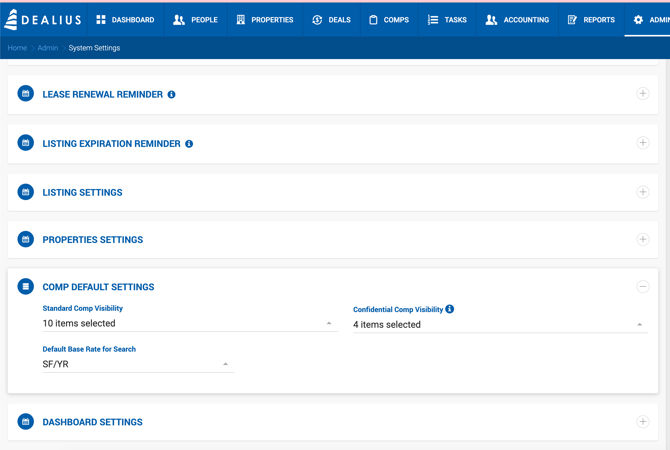
Office Admins can configure comp-specific settings under Admin > System Settings > Comp Default Settings. This section controls the default Base Rate type for search and the visibility of comp sections for different user groups.
Default Base Rate for Search
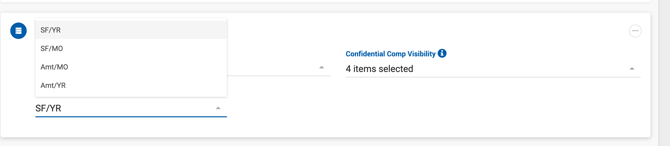
Sets the default Base Rate type selected in the Lease Comp Search panel. Options are SF/YR, SF/MO, Amt/MO, and Amt/YR. Defaults to SF/YR. Users can change the type in the search panel at any time, regardless of this setting.
Standard & Confidential Visibility
Both the Standard Visibility and Confidential Visibility dropdowns contain the same list of comp sections that can be shown or hidden for users based on their relationship to the comp:
- Property & Space Information
- Transaction Information
- Comp Highlights
- Buyer/Tenant Information
- Seller/Landlord Information
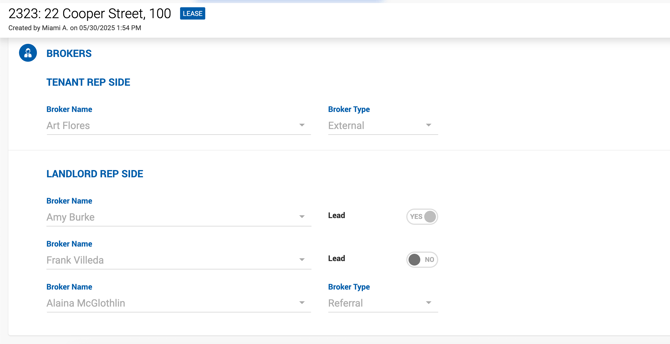
- Brokers
- Comp Verification
- Documents
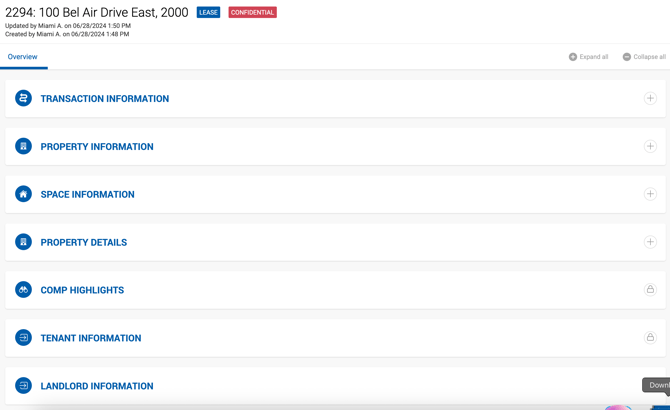
By default, only Property & Space Information is selected for both visibility modes. Sections not selected will appear collapsed with a lock icon for users with limited access.
Permission Levels by User Relationship
There are three levels of user relationship to a comp, each with different access behavior.
Direct Access — Full Rights
The following users always have full view, edit, and deactivation rights, regardless of visibility settings:
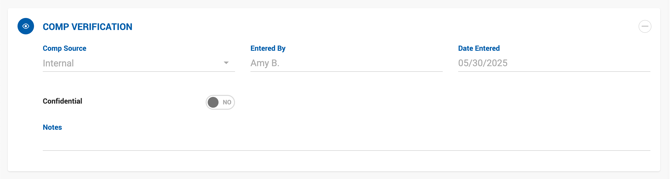
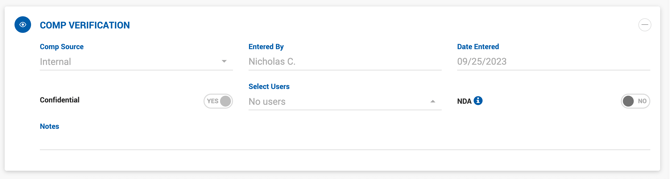
- The comp creator (Entered By in Comp Verification)
- Their managers and Office Admins
For manually created comps, Entered By is the user who initiated the creation. For deal-generated comps, it is the lead broker. For dual rep deals with two lead brokers, the Seller/Landlord side lead is used.
Indirect Access — Standard Visibility
The following users always see the comp with Standard Visibility applied, whether or not the comp is confidential:
- Brokers listed in the comp's Brokers section
- Their admin assistants, managers, and Office Admins from the same office
- Users manually added in the Comp Verification section
No Direct Relationship — Visibility-Dependent
All other users see comps based on the comp's confidentiality status:
- Non-confidential comps — Standard Visibility is applied.
- Confidential comps — Confidential Visibility is applied.
- NDA comps — These users cannot see the comp at all. Users with indirect access (comp viewers) retain Standard Visibility for NDA comps.
NDA Export & Report Restrictions
For NDA comps, all exports and comp reports are restricted to the following fields only — for all users, regardless of permissions:
- Property/space address
- Comp source
- Confidential flag
- NDA flag
This is a fixed restriction and cannot be overridden.