
The Assign Tasks bulk action lets you create one identical task for each of several contacts in a single step — useful for outreach campaigns, follow-up rounds, and any workflow where the same action applies to a group of people.
This feature is available to CRM Pro users only.
Creating Tasks in Bulk
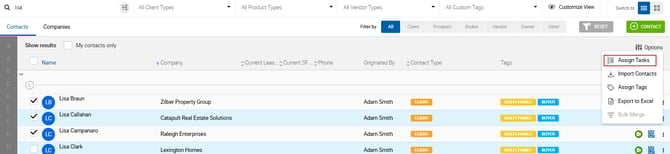
- Go to the People page.
- Select two or more contacts using the checkboxes on the left.
- Click Options in the top right and select Assign Tasks.
- Review the list of selected contacts shown at the top of the popup.
- Fill in the task details once — task type, title, due date, assigned to, priority, and notes.
- Click Save.
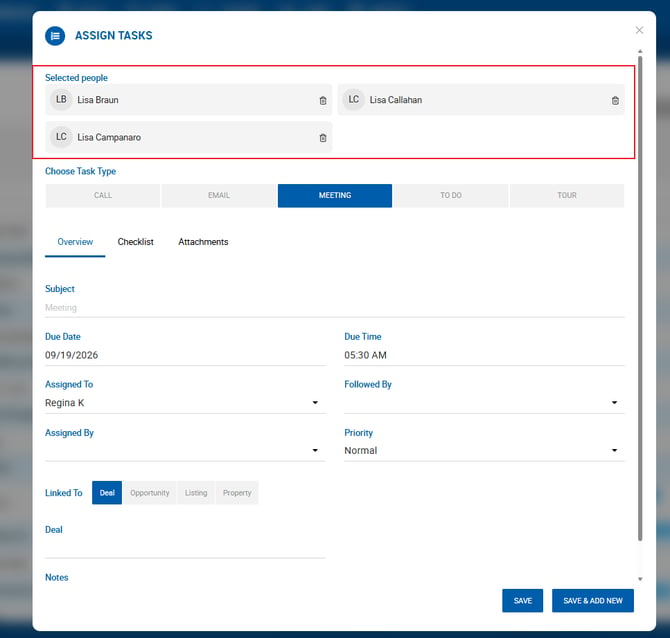
One task is created per selected contact. All tasks are identical except for the Contact field, which is set individually to each contact you selected.
Note: The Assign Tasks option is greyed out until at least two contacts are selected. To create a task for a single contact, use the standard Schedule a Task option on that contact's profile instead.
Who Gets Assigned
All tasks created through this action are assigned to the same user — whoever is entered in the Assigned To field. You cannot assign different tasks to different users within one bulk action.
The assignee receives one notification covering all tasks created, not a separate notification per task.
After Creation
Each task behaves as a normal task from that point forward. They can be edited, completed, reassigned, or deleted individually — changing one does not affect the others.