
Overview
The Aging Report lists unpaid customer invoices with outstanding balances. It can be generated in two formats: Broker and Company. Admin Assistants can access this report if the Reports toggle is enabled for their account under Admin > Users & Roles > Edit User. Once enabled, individual reports can be selected from a dropdown. Deals the current user does not have access to are excluded.
Filters
| Filter | Description |
|---|---|
| Format | Broker or Company. |
| Start Invoice Due Date | Filters by invoice due date. |
| Broker Type / Broker | Searches internal brokers only. Options: All Brokers, All Active, All Inactive, or individual selection. |
| Offices | Filter by office. |
Field Definitions
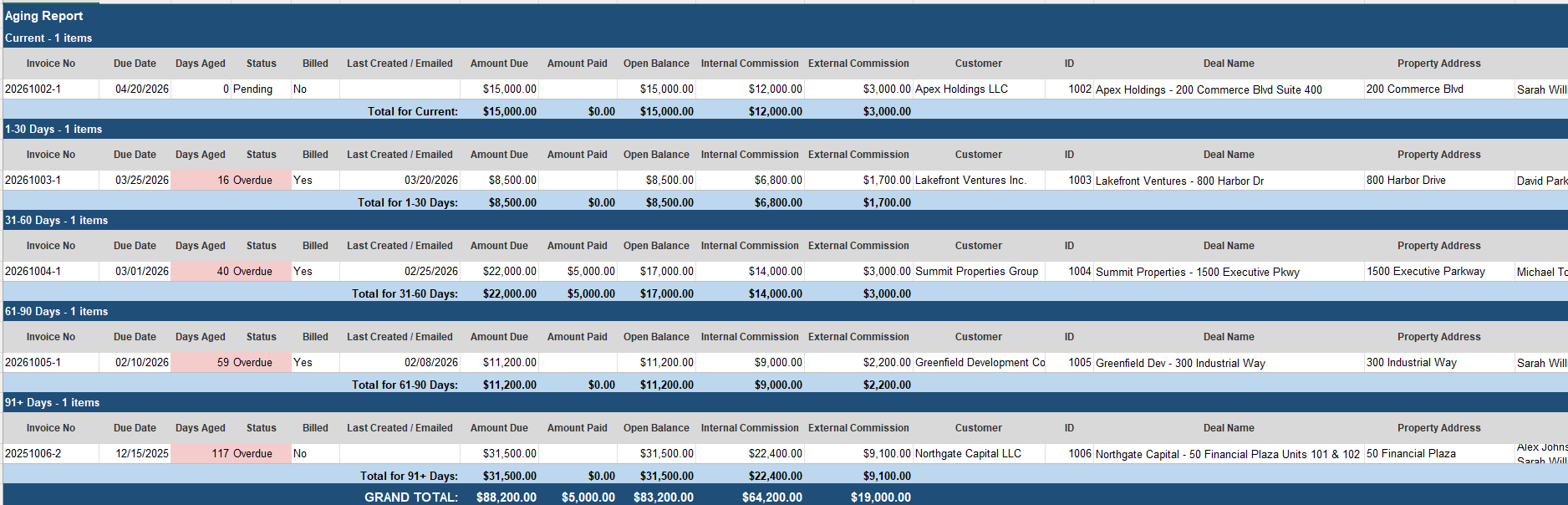
| Field | Description |
|---|---|
| Invoice No | Format: YYYYDDDD-P (e.g., 20161234-1), where YYYY = year, DDDD = Deal ID, P = payment number. Clicking the invoice number opens Accounting > Invoices filtered to that invoice in a new tab. |
| Due Date | Estimated payment date. |
| Days Aged | Number of days elapsed from the Invoice Due Date to the date selected in the report filter. |
| Status | Pending — Invoice generated but not sent. Emailed — Invoice has been sent to the client. Overdue — Invoice due date has passed; status is updated once daily. |
| Billed | Indicates whether the invoice has been sent to the client. Displays Yes or No. |
| Last Created / Emailed | Date the invoice was emailed. If not emailed, shows the Invoice Print Date. Blank if neither date exists. |
| Amount Due | Invoice amount due for a single payment. |
| Amount Paid | Amount paid, from the Receivables tab. |
| Open Balance | Outstanding balance expected to be received. |
| Internal Commission | Company format only. Broker gross for all internal brokers related to the specific receivable. Also available in the Aging Report with Date Range. |
| External Commission | Company format only. Outside broker gross for all outside brokers related to the specific receivable. Also available in the Aging Report with Date Range. |
| Broker Gross | Broker format only. Broker gross related to the receivable for the specific broker. |
| Broker Net | Broker format only. Projected broker net based on commission split, before expenses. |
| House Net | Broker format only. Projected house net based on commission split, before expenses. |
| Customer | Company name selected as Bill To on the deal profile. |
| ID | Deal ID. Clicking opens the deal profile in a new tab. |
| Deal Name | Full deal name. |
| Property Address | Property street address. |
| Brokers | Full names of brokers on the deal. |
| Notes | Pulled from the Notes field in Accounting > Receivables for the corresponding invoice. |
| Instructions | Optional column, enabled by the user. Pulled from the Invoice Instructions field on the deal profile under Transaction Information. Available in both the Aging Report and Aging Report with Date Range. |
Aging Report with Date Range
The Aging Report with Date Range provides the same data as the standard Aging Report, with invoices grouped into aging buckets for a quick view of overdue balances:
- Current
- 1–30 days past due
- 31–60 days past due
- 61–90+ days past due
The key difference from the standard Aging Report is that the date filters applied when generating the report affect only the Current section. The remaining aging buckets are calculated the same way as in the standard report.
Filters: Start/End Invoice Due Date, Broker, Offices.
Columns: Invoice No (clickable), Due Date, Status, Amount Due, Amount Paid, Open Balance, Customer, ID (clickable), Deal Name, Property Address, Brokers.