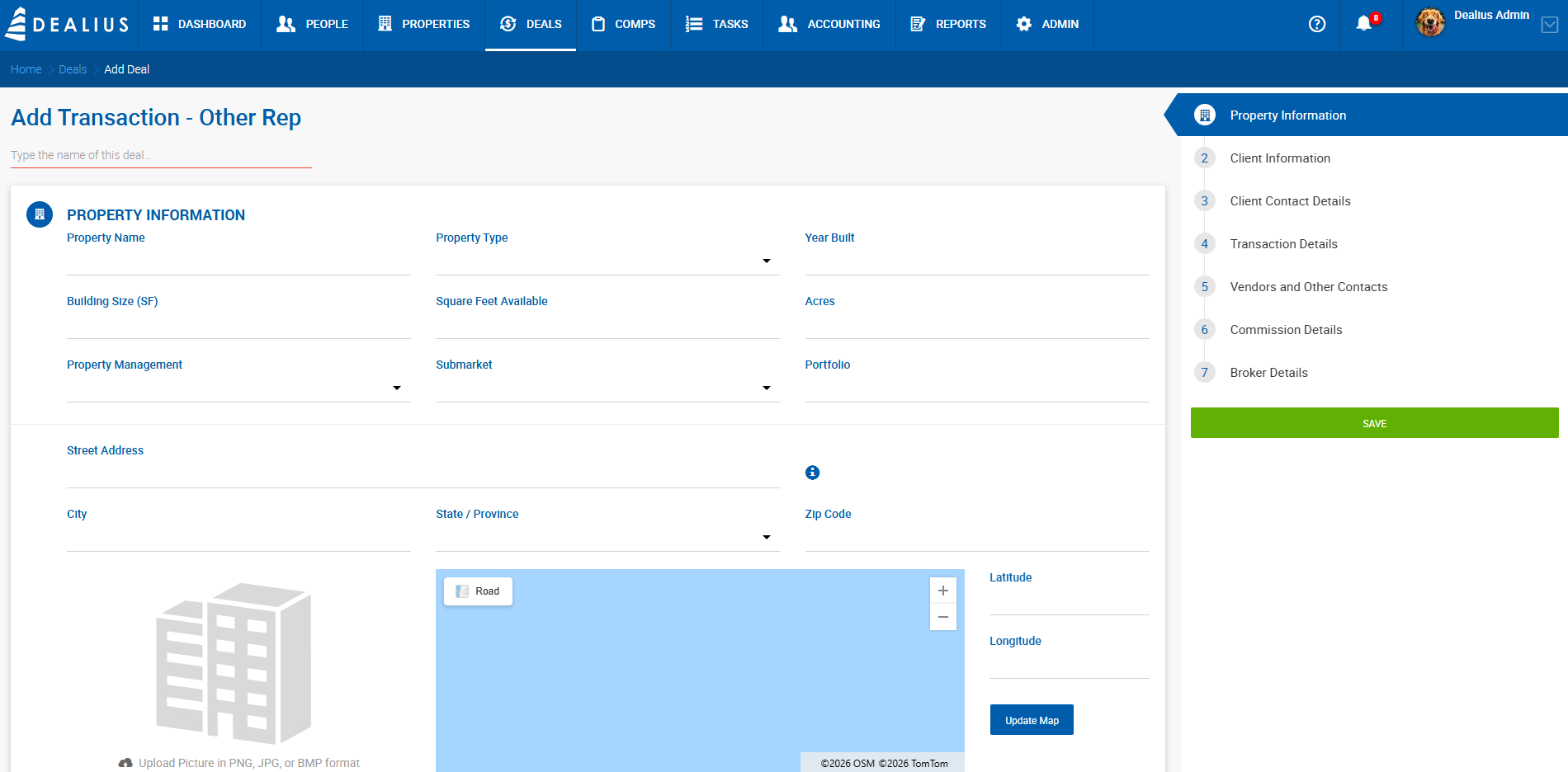
Getting Started
- Click the Deals tab in the main navigation.
- Click the green Add Deal button and select Other Rep.
- Work through each section of the form using the navigation panel on the right, then click Save.
Once saved, you are automatically redirected to the full Deal Profile to continue adding details.
Note: Fields highlighted in red are required before the deal can be saved.
Section 1 — Property Information
| Field | Description |
|---|---|
| Deal Name | Required. Type the name of the deal at the top of the form. |
| Property Name | Search for an existing property or create a new one. |
| Property Type | Dropdown. Manageable under Admin > Manage Data. |
| Year Built | Year the property was constructed. |
| Building Size (SF) | Total square footage of the building. |
| Square Feet Available | Available square footage. |
| Acres | Acreage of the property. |
| Property Management | Dropdown for property management company. |
| Submarket | Dropdown. Manageable under Admin > Manage Data. |
| Portfolio | Links the deal to a property portfolio if applicable. |
| Street Address | Free text. |
| City | Free text. |
| State / Province | Dropdown. |
| Zip Code | Numeric. |
| Latitude / Longitude | Geographic coordinates. Click Update Map to reflect address changes on the map. |
Section 2 — Client Information
| Field | Description |
|---|---|
| Client Name | Required. Search for an existing client or create a new one. |
| Legal Entity | Legal entity name for billing purposes. |
| DBA | Doing Business As name, if applicable. |
| Street Address | Client address. |
| City | Client city. |
| State / Province | Dropdown. |
| Zip Code | Numeric. |
Section 3 — Client Contact Details
Click Add Contact to add one or more contacts associated with the client.
Section 4 — Transaction Details
| Field | Description |
|---|---|
| Transaction Type | Dropdown for the type of transaction (e.g., BOV, Consulting Fee, Receiver Fee). |
| Deal Source | Dropdown tracking where the deal originated. |
| Estimated Completion Date | Required. The anticipated completion date for the transaction. |
Section 5 — Vendors and Other Contacts
Click Add Vendor to add a vendor associated with the deal, or Add Other to add any other relevant contact.
Section 6 — Commission Details
| Field | Description |
|---|---|
| Fee Amount | Dollar amount of the total fee. In Other Rep deals, there is no lease value or total price; it is only about the fee. Thus, in most cases, the Internal Fee % may be set to 100%. |
| Internal Fee % | Percentage of the fee allocated to internal brokers. |
| External Fee % | Percentage of the fee allocated to external brokers. |
| Total Commission | Read-only. Calculated from the Fee Amount. |
| Internal Commission | Read-only. Calculated as Fee Amount × Internal Fee %. |
| External Commission | Read-only. Calculated as Fee Amount × External Fee %. |
Section 7 — Broker Details
Click Add House Broker to add an internal broker, or Add Outside Broker to add an external broker participating in the deal.