
Overview
Once a deal is fully closed and approved, accounting — including Receivables — is automatically generated. The Receivables grid displays all incoming payments as one row per payment, generated based on the deal's invoices.
Filters
| Filter | Description |
|---|---|
| Keyword Search | Search by keyword across receivable fields. |
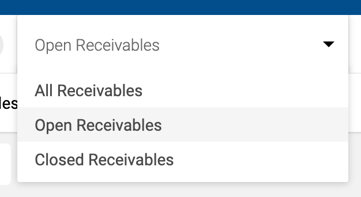
| Receivable Status | Filter by Open, Closed, or All Receivables. |
| Broker / Brokers | Filter by one or more brokers. |
| Date Range (Due Date) | Filter by receivable due date. |
| Office | Filter by associated office. |

Receivables Grid: The Receivables grid contains all incoming payments as a separate row per each payment. The Receivables are generated based on the Invoices.
|
Column |
Description |
|
Deal Closed |
The date the deal was closed, also referred to as Actual Close Date and Lease Execution Date |
|
ID |
Deal unique number |
|
Client |
Name of the Client of the Deal |
|
Deal Name |
Name of the Client and Property address. Property address displays the space address, if the space is used in the deal, or the main property address if no space is used in the deal. |
|
Brokers |
Names of brokers participating in the deal |
|
Total Due |
Total Payments Amount |
|
Amount Due |
Amount of a single incoming payment |
|
Amount Received |
Amount of payment that has been paid for the Deal via Add Receipt action |
|
Date Received |
Date when a Receipt was added |
|
Open Balance |
Remaining balance of the payment yet to be received. |
|
Due Date |
Estimated Payment Date. Due Date displays a colored dot on the right, similar to the Expected Date on the Deals grid: Red = Due Date ≤ 30 Days, Orange = Due Date > 31 Days AND Due Date ≤ 60 Days, Green= Due Date > 60 Days. |
|
Notes |
Free text field. If a note exists, its full text is displayed in a tooltip appearing when the Notes area is hovered over. A note can be added/edited by clicking the edit icon. It can be also deleted by clicking the Delete button inside the edit pop-up, available only to Admins, Office Admin and Managers. |
|
Actions |
Add Receipt, Delete Receipt, Clear Open Balance, Print Receipt |
Grid Columns
| Column | Description |
|---|---|
| Deal Closed | Actual Close Date or Lease Execution Date. |
| ID | Unique deal identifier. |
| Client | Client name on the deal. |
| Deal Name | Client name and property address. Shows space address if a space is used; otherwise the main property address. |
| Brokers | Names of brokers participating in the deal. |
| Total Due | Total payments amount across all receivables for the deal. |
| Amount Due | Amount of this single incoming payment. |
| Amount Received | Amount paid via Add Receipt action. |
| Date Received | Date the receipt was added. |
| Open Balance | Remaining balance yet to be received. |
| Due Date | Estimated payment date. Color-coded dot: Red = ≤ 30 days, Orange = 31–60 days, Green = > 60 days. |
| Notes | Free text field. Full text appears in a tooltip on hover. Can be added or edited via the edit icon. Deletion is available to Admins, Office Admins, and Managers only. |
| Actions | Add Receipt, Delete Receipt, Clear Open Balance, Print Receipt. |
Receivable Statuses
| Status | Description |
|---|---|
| Open | Partial or no payment received. |
| Closed | Full payment received. |
| All Receivables | All receivables regardless of payment status. |
Sidebar — Financial Summary
Values update based on the Receivable Status filter and the receivables currently displayed in the grid.
| Metric | Description |
|---|---|
| All / Open / Closed Invoices | Count of filtered invoices by status. |
| Open Receivable | Sum of open balance across open receivables. |
| Closed Receivable | Sum of amount paid across closed receivables. |
| All/Open/Closed Total Gross Receivable | All: Amount Received + Open Balance per receivable. Open: Open Balance only. Closed: Amount Received only. |
| All/Open/Closed Outside Broker Gross Receivable | Based on outside broker payables. All: Paid + Open Balance. Open: Open Balance. Closed: Amount Received. |
| All/Open/Closed House Gross Receivable | Sum of Broker Net Receivable + House Net Receivable for each status. |
| All/Open/Closed Broker Net Receivable | Based on in-house broker payables. All: Paid + Open Balance. Open: Open Balance. Closed: Amount Received. |
| All/Open/Closed House Net Receivable | Sum of House Net Amount for each status. |
| All/Open/Closed Overdue Receivable | Open balance of invoices in Overdue status for each filter selection. |
Adding a Receipt
- Click the notepad and pen icon in the Actions column for the receivable.
- Date Paid — Date the payment was received.
- Payment Method — Check, ACH, or Wire Transfer.
- Reference # — Check or reference number.
- Amount — Amount received. Partial payments are allowed. Enter $0 to write off the payment.
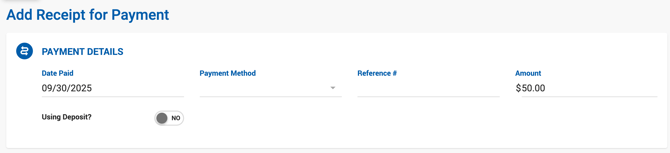
3. Click Save & Pay to proceed to the associated Payable, or Save to return to the Receivables tab.

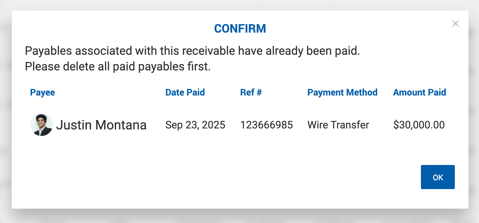
To remove a receipt, use the Delete Receipt action. If associated payables have already been paid, a confirmation message appears: "Payables associated with this receivable have already been paid and will not be updated once this receipt is removed."
Saving with a Different Amount
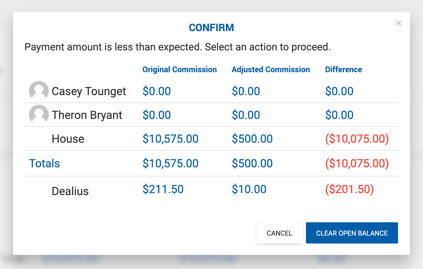
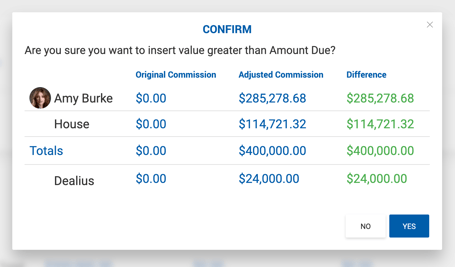
If the amount saved differs from the Amount Due, a confirmation popup appears with four options and a list of all affected payables:
| Option | Action |
|---|---|
| Clear Open Balance | Opens the Clear Open Balance modal to review and confirm adjusted payable values. |
| Create Additional Receivable | Opens a date picker to set a Due Date. A new receivable is created for the open balance amount, along with associated payables. |
| Save Payment | Saves using the current logic without additional action. |
| Cancel | Closes without saving. |
Clear Open Balance
Used to zero out a small remaining balance on a receivable when the difference is not worth pursuing. Available when a receipt has been received and no related payables have been paid yet.
The Clear Open Balance modal shows how the adjustment affects house-paid broker payables and the Franchise Fee. Adjustments are applied after clicking Confirm. 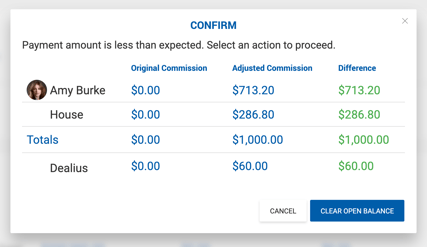
- Open balance is deducted from broker payables based on commission % on the Deal Profile.
- Franchise Fee is recalculated based on paid internal broker gross.
- When payment received exceeds the invoice amount, the system adjusts commissions in reverse.
Changes made via Clear Open Balance are reflected on the Cash Flow screen.
Deleting a Receivable
| Scenario | Behavior |
|---|---|
| Unpaid custom receivable, no paid payables | Confirmation prompt: "Are you sure you want to delete current receivable?" |
| Unpaid custom receivable with paid payables | Notification lists all related paid payables and warns they will be removed. Options: Cancel, Delete Payment, Delete Payment & Receivable. |
| Receivable used to create another custom receivable | All linked receivables are listed. Warning: "The changes made require updates to receivables, payables, and invoices. This will involve deleting existing paid receipts and payments." Options: Cancel, Delete Payment, Delete Payment & Receivable. |
| Paid custom receivable with paid payables | Notification lists all related paid payables. Options: Cancel, Delete Payment, Delete Payment & Receivable. |
| Receivable with an already paid associated payable | System blocks deletion: "Payables associated with this receivable have already been paid. Please delete all paid payables first." |
Export to Excel
The Receivables grid can be exported to Excel with all applied filters respected.