
Overview
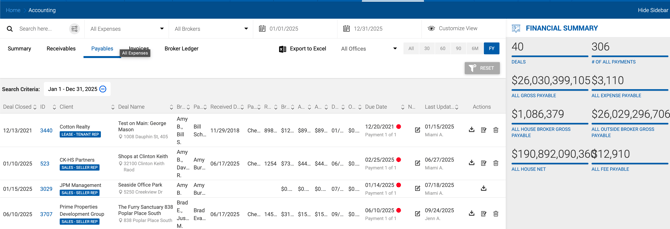
The Payables tab displays all money the firm owes to internal brokers, outside brokers, vendors, and franchise fees, along with their status and payment details. The page shares the same structure as the Summary tab, including the Financial Summary sidebar with a hide/show toggle.
Filters
| Filter | Description |
|---|---|
| Keyword Search | Search by keyword across all payable fields. |
| Payable Status | Filter by Open, Paid, Pending, or All Expenses. |
| Broker / Brokers | Filter by one or more brokers. |
| Date Range (Due Date) | Filter by payable due date. |
| Office | Filter by associated office. |

Payable Statuses
| Status | Description |
|---|---|
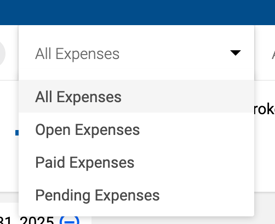
| Open Expenses | All unpaid payables. |
| Pending Expenses | Payables expected to be paid where the related receivable has been paid. |
| Paid Expenses | All paid payables. |
| All Expenses | All payables regardless of status. |
Here's the rewritten version:
Payables
A guide to viewing, filtering, and managing payables in Dealius, including payment processing, expenses, and payment vouchers.
Overview
The Payables tab displays all money the firm owes to internal brokers, outside brokers, vendors, and franchise fees, along with their status and payment details. The page shares the same structure as the Summary tab, including the Financial Summary sidebar with a hide/show toggle.
Filters
| Filter | Description |
|---|---|
| Keyword Search | Search by keyword across all payable fields. |
| Payable Status | Filter by Open, Paid, Pending, or All Expenses. |
| Broker / Brokers | Filter by one or more brokers. |
| Date Range (Due Date) | Filter by payable due date. |
| Office | Filter by associated office. |
Payable Statuses
| Status | Description |
|---|---|
| Open Expenses | All unpaid payables. |
| Pending Expenses | Payables expected to be paid where the related receivable has been paid. |
| Paid Expenses | All paid payables. |
| All Expenses | All payables regardless of status. |
Row Highlight Colors
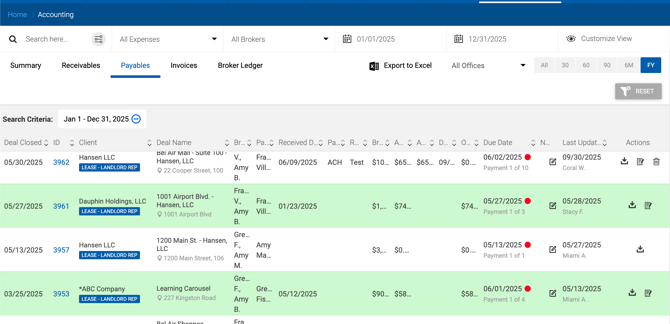
| Color | Meaning |
|---|---|
| Green | Payable is ready to be paid — the related receivable has been 100% received. |
| Orange | Payable has been partially paid. |
| Pink | Related receivable has an open balance — requires a Clear Open Balance action. |
Note: Franchise Fee payables only turn green (Pending status) once at least one internal broker has been paid.
Sidebar — Financial Summary
Values update based on the Payable Status filter and the payables currently displayed in the grid.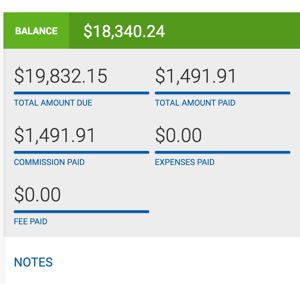
Open / Pending / All Payables:
| Metric | Description |
|---|---|
| Deals | Number of deals matching the current filters. |
| # of All/Open/Pending Payments | Count of payments by status. |
| All/Open/Pending Gross Payable | Total gross payable amount. |
| All/Open/Pending Expense Payable | Sum of deal expenses entered in the Expenses section on the Deal Profile. |
| All/Open/Pending House Broker Gross Payable | House broker gross payable amount. |
| All/Open/Pending Outside Broker Gross Payable | Outside broker gross payable amount. |
| All/Open/Pending House Net | Sum of House Net associated with Total Gross (inclusive of open balance). |
| All/Open/Pending Fee Payable | Franchise fee payable amount. |
Paid Payables:
| Metric | Description |
|---|---|
| # of Deals | Number of deals. |
| # of Paid Payments | Number of paid payables. |
| Total Gross Received | Sum of Broker Net paid to outside and house brokers plus House Net. Equals the receivable amount. |
| Paid Outside Broker Gross | Sum of all paid Broker Net to outside brokers. |
| Paid House Broker Net | Sum of all paid Broker Net (before expenses) to house brokers. |
| Paid House Broker Expenses | Sum of all deal and non-deal expenses paid by house brokers. |
| Paid House Broker Net After Expenses | Sum of all paid Broker Net after expenses for internal brokers only. Excludes outside brokers and fee payments. |
| Paid House Net | Sum of House Net relative to the amount covered by paid payables (before expenses). |
| Paid House Expenses | Sum of all expenses covered by the House. |
| Paid Franchise Fee | Total franchise fee amount paid. |
House Net After Expenses = House Net − FFE Amount per Broker − House Expenses
Payable Actions
- Make Payment — Available for unpaid payables.
- View Payment — Available once a payment has been added.
- Delete Payment — Removes an existing payment.

Note: It is not possible to delete a broker payable payment if the FFE payable has already been paid. The FFE payment must be deleted first. A warning appears if this is attempted.
Make Payment Screen
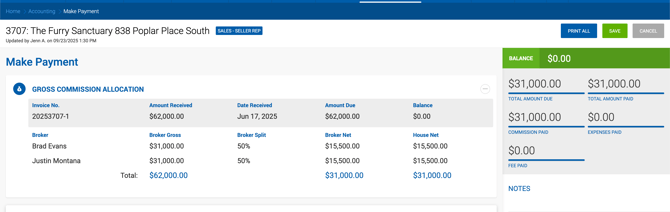
Gross Commission Allocation Displays all payables for the associated invoice. The highlighted invoice is shown in green in the Invoices Summary section. Users can edit Broker Gross values for all deal participants.
The system validates Broker Gross in two ways simultaneously:
- Total Broker Gross per broker per deal must match the Deal Profile.
- Sum of Broker Grosses per receivable must match the Gross Commission receivable amount.
When Broker Gross is changed, the system checks whether the broker has reached the next split tier in real time and recalculates Amount Due accordingly. 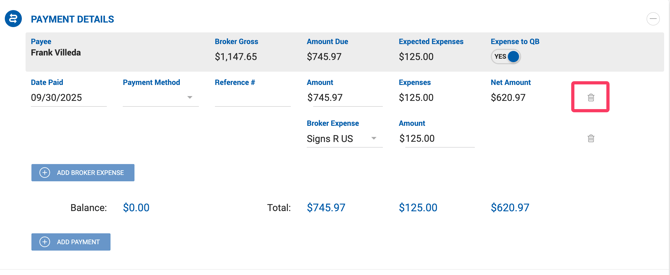
Payment Details The active (selected) payee is shown first. Payment lines can be removed using the bin icon. The Total reflects the sum of applied payments; Balance shows the remaining open amount to be managed before saving. 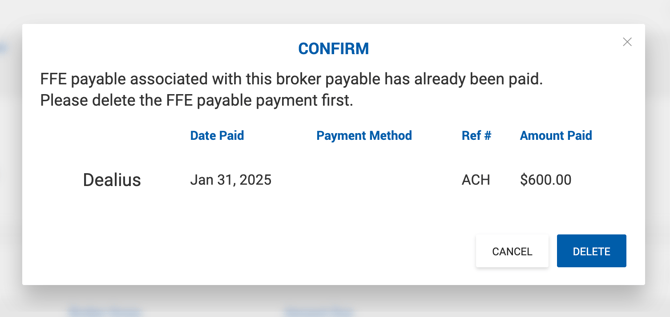
Payment Methods: ACH, Check, Wire Transfer.
Print All Saves changes and downloads Payment Vouchers for all brokers. If unsaved changes exist, a prompt appears: "Do you want to save your changes before printing?" Clicking No prints the last saved version.
Paying Expenses
When expenses are entered on the Deal Profile, the Make Payment screen includes additional sections:
Payment Details — Additional Columns
- Expenses — Sum of expenses from the Expenses and Deductions section. Read-only.
- Net Amount — Final net amount (Amount minus Expenses). Must be ≥ $0. Read-only.
Expenses and Deductions Section
| Field | Description |
|---|---|
| Expense Type | Type of expense. |
| Vendor Name | Vendor associated with the expense. |
| Expense Description | Description of the expense. |
| Expense Amount | Total expense amount. |
| Balance | Open balance remaining unpaid. |
| Broker | Payer name. |
| Broker Amount | Amount Due per broker. |
| House Amount | House expense amount due per broker. |
| Amount Applied | Editable. Amount to be paid by the broker. Must be ≤ Broker Amount. Full amount must be entered on the last payment. |
| Balance | Amount still unpaid. |
The system calculates House Expense proportionally when a payable with broker expense is saved: House Expense = (Paid Broker Expense ÷ Broker Expense%) × House Expense%
Additional rules:
- Outside broker expenses must be paid in full with no associated House Expenses.
- Expenses reflect $0.00 until the payable is paid.
- The system does not calculate "expected expenses" in advance.
Read-Only Mode
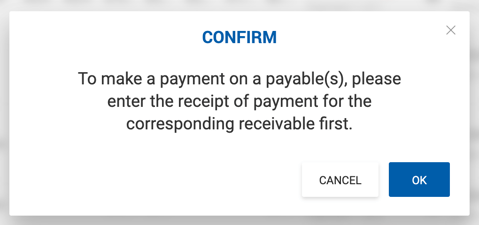
If the related receivable has not been paid, the Make Payment screen opens in read-only mode. A confirmation prompt appears with Cancel and OK options. Clicking OK opens the read-only view showing only the Invoice Summary and Payables Summary sections. A yellow warning includes a link to "apply a receipt", which navigates to the Make a Receipt page for the associated receivable. 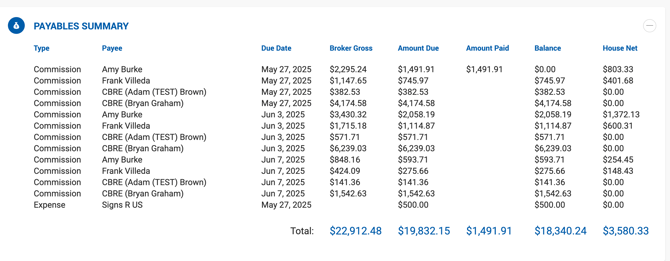
Print Payment Voucher
Available from both the Payables grid and the Make Payment screen for internal and outside brokers. The voucher includes: 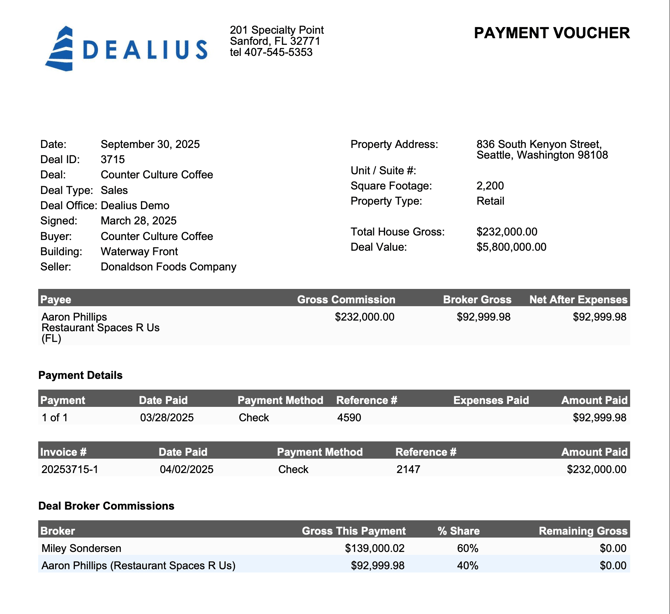
- Expected payment details grid
- Payment Details section: Payment, Date Paid, Payment Method, Reference #, Expense Paid, Amount Paid
If the associated receivable is unpaid, partially paid, or overpaid, an appropriate notification is printed on the voucher.
Outside Broker Voucher contains:
- Payee: Company Name (Broker Name)
- Gross Commission: Receivable value
- Broker Gross: Broker gross commission
- Net After Expenses: Broker Gross minus Expenses
The outside broker's company billing address (street, city, state, ZIP) is shown on the voucher. If no billing address is on file, the broker's primary address is used. 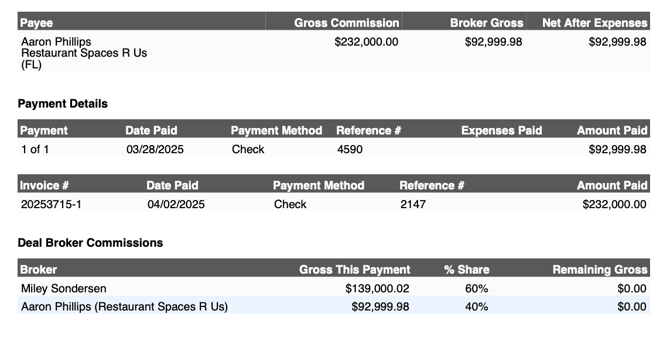
Export to Excel
The Invoices grid can be exported to Excel with all applied filters. Export options correspond to payable status filters: All Expenses, Open Expenses, Paid Expenses, or Pending Expenses.