
Overview
Once a deal is closed and all approvals are complete, accounting is automatically generated. The Invoices grid under Accounting > Invoices displays one row per payment, based on the payments entered on the deal profile.

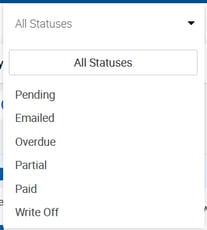
Invoice Statuses
| Status | Description | Color |
|---|---|---|
| Pending | Invoice generated but not yet sent to the client. | Gray |
| Emailed | Invoice has been emailed to the client. | Orange |
| Overdue | Invoice is past the due date and payment has not been received. Overrides all other statuses. | Red |
| Partial | Invoice has been partially paid. | Purple |
| Paid | Full payment has been received. | Green |
| Write-Off | The associated receivable has been written off. No payment expected. | Dark Gray |
Invoice Actions
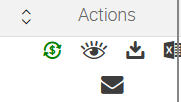
View Invoice An in-app preview identical to the PDF invoice. When opened, the system displays the current date if the invoice has never been printed. Once printed from any location (Deal Abstract, Invoice Preview, Leaderboard, Broker Profile, or Accounting > Invoices), that date is remembered for future prints and previews. 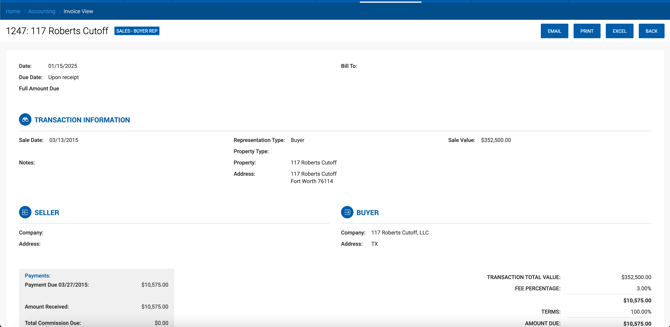
Print / Download Invoice Downloads a PDF version of the invoice for printing or saving. 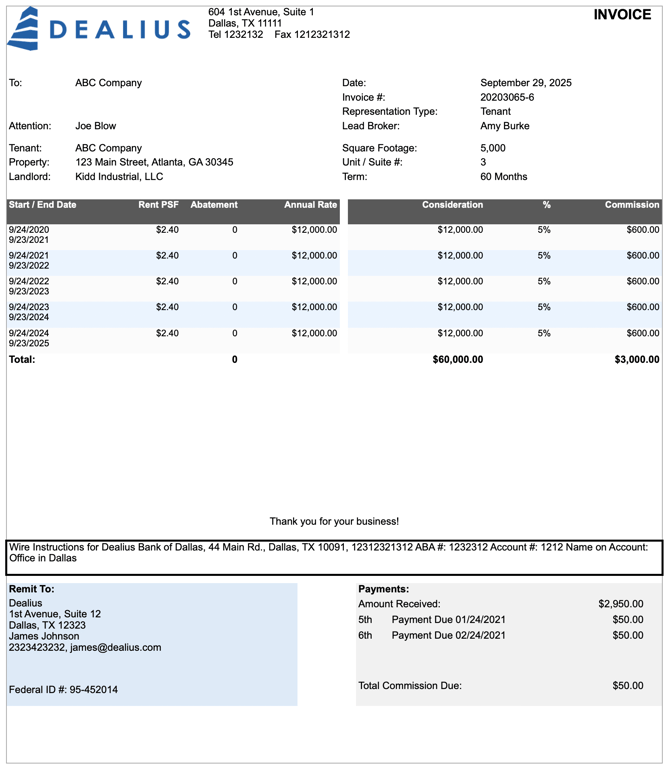
Email Invoice Sends the invoice directly from Dealius. The email comes from the logged-in user's address (via messaging-service@dealius.com with the user's email as reply-to). Default subject and message are pre-filled but can be edited. 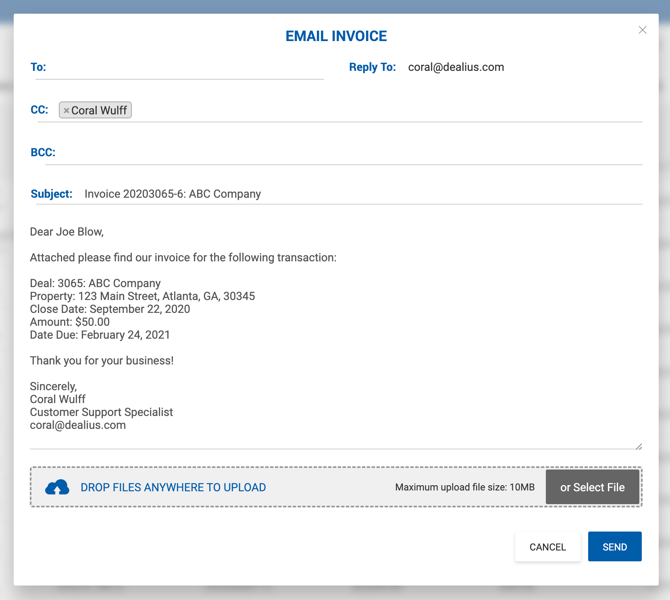
- To — Billing contacts from Landlord Contact Details (lease) or Seller Contact Details (sale), plus broker email addresses. Additional emails can be added manually.
- From — Logged-in user's email address.
- CC — Same list as To, excluding already selected addresses, plus the From address.
- BCC — Same list as To, excluding already selected addresses, plus the From address.
- Signature — Sender name, title, and email address.
Export to Excel Exports the Invoices grid with applied filters. Formatting is fully preserved in the exported file.
Mark as Billed Clicking this button prompts a confirmation. Once confirmed, the invoice is flagged as billed and the icon tooltip changes to "Unmark as Billed" (shown in green). Invoices can be filtered by Billed / Not Billed / All under Advanced Search.
The system automatically sets an invoice to Billed when it is emailed, written off, or paid. The user can manually revert this. The system resets to Not Billed when accounting is regenerated or the deal is reopened.
The Billed column (Yes/No) is also present in:
- Aging Report — Company Format
- Aging Report — Broker Format
- Aging Report with Date Range
Invoices Sidebar — Financial Summary
The sidebar updates based on applied filters and displays the following:
| Metric | Description |
|---|---|
| Total Invoices | Count of all filtered invoices. |
| Total Invoices Gross | Sum of Invoice Amount Due for all filtered invoices. |
| Pending Invoices | Count of pending filtered invoices. |
| Pending Invoices Gross | Sum of Invoice Amount Due for pending invoices. |
| Partial Paid Invoices | Count of partially paid invoices. |
| Partial Paid Invoices Gross | Sum of Invoice Amount Due for partially paid invoices. |
| Overdue Invoices | Count of overdue filtered invoices. |
| Overdue Invoices Gross | Sum of Invoice Amount Due for overdue invoices. |
| Written Off Invoices | Count of written-off filtered invoices. |
| Written Off Invoices Gross | Sum of Invoice Amount Due for written-off invoices. |
Invoice PDF Structure
Header
- Company logo
- Franchise Name (if configured under Admin > System Settings)
- Office address, phone, and fax (from Admin > Manage Data > Office Settings)
Middle Section
| Field | Description |
|---|---|
| To | Legal Entity of the billing side, per the Bill To logic. |
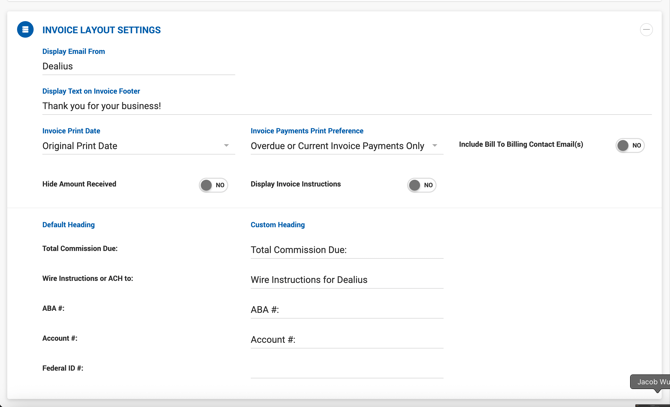
| Date | Current date if never printed. Behavior depends on Invoice Layout Settings: Original Print Date remembers the first print date; Current Date always uses today's date. |
| Invoice # | Format: YYYYDDDD-P (e.g., 20161234-1). YYYY = year, DDDD = Deal ID, P = payment number. |
| Representation Type | Tenant, Landlord, Seller, Buyer, Other, Landlord/Tenant, or Seller/Buyer. |
| Tenant / Buyer / Landlord / Seller | Legal Entity if set; otherwise, the contact's personal name. |
| Property | Property name. |
| Square Footage | Property square feet. |
| Unit / Suite # | From property details. If a space is used, the space suite is displayed. |
| Term | Lease deals only. |
| Sale Value | Sale invoices only. Represents Transaction Total. |
| Commission % | Sale invoices only. Deal rep type commission % (e.g., Buyer Commission % for Buyer Rep). |
| Notes | Deal notes from the deal profile, if Print Note On Invoice toggle is enabled. |
| Attention | Contact Name (First + Last) from the Bill To side's Contact Details, only when Contact Type is Billing. |
| Rent Grid | Taken from the Lease Calculation page. Column titles are manageable in Admin Settings. |
| Rate Column | Shows total % for both sides on Dual Rep deals. |
| Total Fee Amount | Shows total commission for both sides on Dual Rep lease deals. |
| Outside Fee / Rep Fee Columns | Printed if House Paid = Yes for outside brokers. If Print Outside Broker Fee on Invoice is ON, columns are combined. If OFF, printed separately. Not printed if House Paid = No. |
| Wire Instructions | From Admin > Manage Data > Office Settings. |
| Text Notification | Footer text configured under Admin > System Settings > Invoice Layout Settings. |
| Sales Tax Line | Format: [Invoice Line Description] @ [Sales Tax %] [Sales Tax Value] |
Remit To Section
- Company Name (Admin > Manage Data > Office Settings)
- Franchise Name (if configured)
- Office Address (Admin > Manage Data > Office Settings)
- Federal ID # (Admin > Manage Data > Office Settings)
Payments Section
- Payment values entered on the deal profile.
- Visibility controlled by the Invoice Payments Print Preference setting in Admin > System Settings > Invoice Layout Settings.
- Total Commission Due — Total amount to be paid. If partially paid, shows the open balance. For Dual Rep deals, shows the total commission for both sides.