Overview
The Broker Ledger feature allows agencies to track broker expenses that are not tied to specific deals. These expenses may already be recorded under Broker Profile > Payment Information for informational purposes. Once the feature is enabled, it extends the Accounting section and allows non-deal expenses to be applied directly to payable payments.
The feature introduces four key workflows:
- Creating non-deal expenses for a broker
- Tracking non-deal expenses under Accounting
- Applying non-deal expenses to payable payments
- Reporting non-deal expenses in the Pending Payable Report
Enabling the Broker Ledger
To enable the Broker Ledger, go to Admin > System Settings > Environment Configuration and turn on the Broker Ledger toggle. Once enabled, a Broker Ledger tab appears under the Accounting section, and a Non-Deal Expenses section becomes available on the payable Make Payment screen.
Note: When the toggle is enabled, the system does not generate expenses for past months — only for the current month and forward.
Creating Non-Deal Expenses for a Broker
Non-deal expenses are managed under each broker's Broker Profile > Payment Information section. Here you can add one or more expenses, specifying:
- Expense type and name
- Amount
- Broker and House share
- Frequency (Weekly, Bi-Weekly, or Monthly)
- Start and End date
Expenses are calculated starting from the Start Date and repeat based on the selected frequency:
- Monthly — Repeats on the same calendar date each month. Example: Start Jan 5, End Jun 30 → due Jan 5, Feb 5, Mar 5, Apr 5, May 5, Jun 5
- Bi-Weekly — Repeats every 14 days from the Start Date. Example: Start Jan 5, End Jun 30 → due Jan 5, Jan 19, Feb 2, Feb 16, Mar 2, Mar 16, Mar 30, Apr 13, Apr 27, May 11, May 25, Jun 8, Jun 22
- Weekly — Repeats every 7 days from the Start Date. Example: Start Jan 5 → due Jan 5, Jan 12, Jan 19, Jan 26, Feb 2, Feb 9, Feb 16, and so on
Editing and deleting expenses is subject to the following rules:
- Start Date and End Date in the past are read-only and cannot be changed.
- Expenses with a past or current Start/End date cannot be deleted. To stop a recurring expense, update the End Date to today or a future date. Any remaining balance will be written off in Accounting.
- New expenses cannot be backdated — only today's date or future dates are allowed as a Start Date.
- Expenses with a future Start Date can be deleted since no billing has occurred yet.
Click Save after making any changes to this section.

-
Tracking Non-Deal Expenses in Accounting
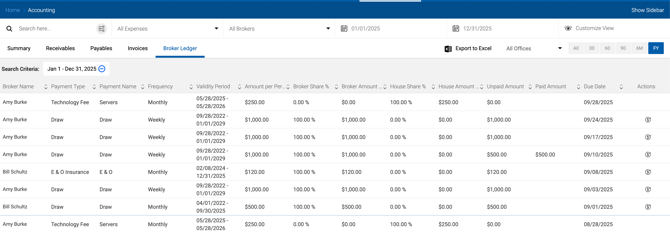
When a non-deal expense is due (Start Date is today, or Start Date + frequency falls on today), it appears as a line item in Accounting > Broker Ledger. The grid displays one row per broker/expense/period combination and can be filtered at the top of the page.
Note: Fixed broker expenses are not generated for future periods — they are limited to the current and past periods.
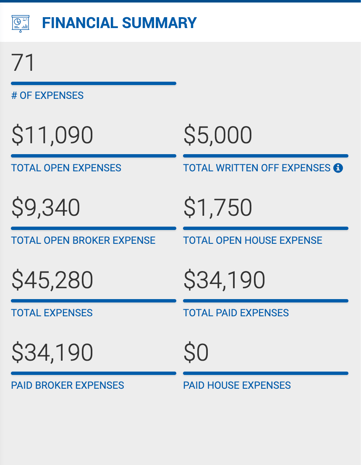
The right sidebar displays summary metrics for the currently filtered view:
Metric Description # of Expenses Number of broker/expense/period combinations Total Open Expenses Unpaid and partially paid amounts (broker and house share) Total Written Off Expenses Written-off amounts for broker portions only Total Open House Expenses House share of outstanding balance, relative to what the broker has paid Total Open Broker Expense Outstanding balance for brokers Total Expenses Sum of Total Amount for all lines (broker and house combined) Total Paid Expenses Sum of Paid Broker Expense and Paid House Expense Paid Broker Expenses Sum of expenses paid by the selected broker(s)
Applying Non-Deal Expenses to Payable Payments
When paying a broker payable, the Make Payment screen includes a Non-Deal Broker Expenses section if any broker has an outstanding non-deal expense. This section is separate from Deal Expenses.
Expenses are grouped by broker and display the following per expense:
- Name
- Broker's Open Amount, Amount Applied, and remaining Balance
- House Open Amount, House Amount Applied, and remaining Balance
The only editable field is Amount Applied for the broker. The House amount applied is calculated automatically based on the expense percentage split.
In the Payment Details section, you will see:
- Amount Due (Broker Net before expenses)
- Expenses
- Net Amount (after expenses)
The Gross Commission Allocation section also shows both Broker Net and Broker Net After Expenses.
Once saved, the Open Amount displayed on the payment screen reflects a historical snapshot of balances at the time of payment. If the payment is deleted, the Open Amount recalculates to show the current outstanding balance.
The payment voucher will show covered expenses under the Expenses Paid column and in the Expenses section at the bottom of the voucher.
Note: If QuickBooks integration is enabled, non-deal expenses are not currently synced to QuickBooks.
Reporting Non-Deal Expenses
Enabling the Broker Ledger automatically adds a new report to Accounting: Pending Payable Report with All Expenses. This report includes both deal and non-deal expenses. See the related report section for full details.